This kinda confirms my suspicion, that Plex server is running under a different user account from your regular Windows account.
Did you set up plex to be running as a system service?
Or maybe to get started by the task scheduler upon Windows reboot?
I did the Taskkil:

Unfortunately I still cannot delete the db file: same message as before.
Trying to open Plex Media Server.exe still shows nothing in Task Manager
My libraries have now disappeared from http://localhost:32400/web
I do not recall setting up Plex as a system service, unless that was the default, or to start on reboot, but I could have forgotten both. How can I check that?
If you don’t recall it, then you didn’t do it.
Is it possible that Plex is running instead under a different windows user account?
Log out of your current account and into the Admin account. Look if there is a plex icon in the task tray. If there is one, right-click on it and set to not start up automatically.
Then log out of this account as well and back into your regular account.
Try to delete the file again.
I am the only user of the computer, and don’t normally see the Administrator account on startup. So I enabled that by “net user administrator /active:yes” in a command prompt, rebooted, chose Administrator, and set a password. There was nothing Plex in the Taskbar, but on searching for Plex in Start did see a shortcut to C:\Program Files (x86)\Plex\Plex Media Server\Plex Media Server.exe :

Nothing Plex was visible in Task Manager. I tried running the shortcut, and actually did get a browser opening and a “wait while updates” progress bar, then a screen with just the Plex logo. I closed it. On reopening via the shortcut I got nothing, and nothing Plex was visible in Task Manager.
Can you erase the file after a reboot?
(Disable the Admin account again)
No, still can’t.
And you are trying this while there is no Plex icon to be found in the task tray?

I was actually trying to open it from a desktop shortcut. There is no icon on the taskbar. When I open from the Task tray icon, the web server opens, and now with my libraries, but with an exclamation point:
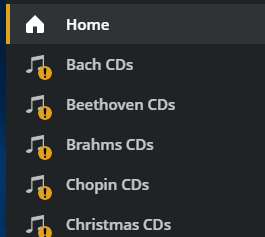
There is still nothing Plex in Task Manager.
How can you open from the icon when there is no icon?
Did you expand the Task Manager to “More Details”? Because in the simplified view you won’t see any background processes listed.
Sorry, perhaps some misunderstanding of terms: by taskbar I meant an icon on the taskbar, which there is not, but there is one in the tray:

Ahh, gotcha. When this icon is visible, it means the server is still running. Do a right-click on it and shut down the server.
Then you should be able to delete the file completely.
Afterwards, all libraries need re-creation.
Then you also need to perform a reset of the web app (and other apps, whichever you are using), to get rid of those old shortcuts to the deleted libraries from the side-bar.
Then you might have to perform the ‘Reset customization’ procedure on all plex clients:
https://support.plex.tv/articles/customizing-the-mobile-apps-2#reset
https://support.plex.tv/articles/customizing-the-apps#reset
https://support.plex.tv/articles/customizing-plex-web#resethome
I was able to delete the db file.
On re-creating my Music library on XPS-desktop, I got the spinning wheel for a while, and then this error:
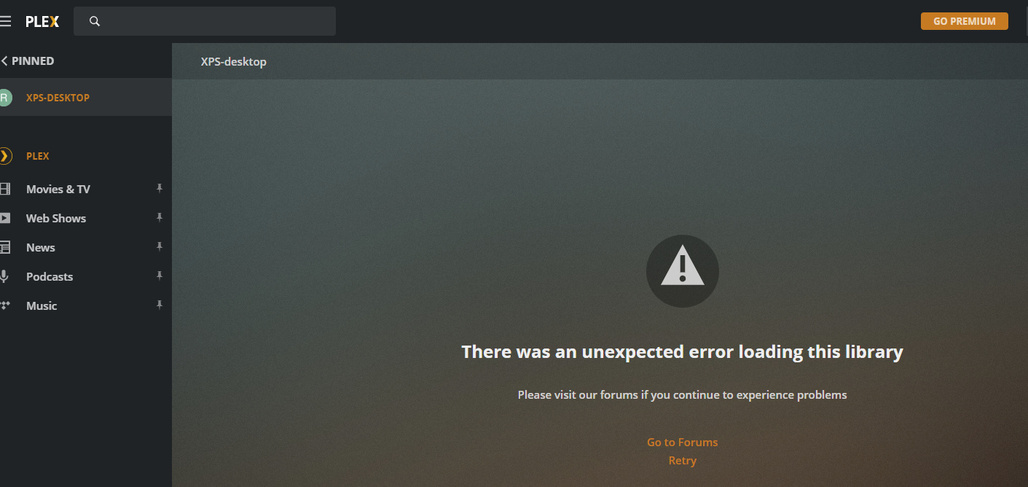
Does the same happen if you refresh the app (F5) in the web browser?
Does this also happen with this version of the app? https://app.plex.tv
OK F5 worked to display my music.
Since the Fire TV stick still was unable to connect and still showed the old laibraries I tried to reset customization of the web app following the instructions in:
https://support.plex.tv/articles/customizing-plex-web/?_ga=2.211126419.744397764.1594431149-1718092778.1592185804
But: I don’t see an option for Reset Customization on the page or in the drop-downs:
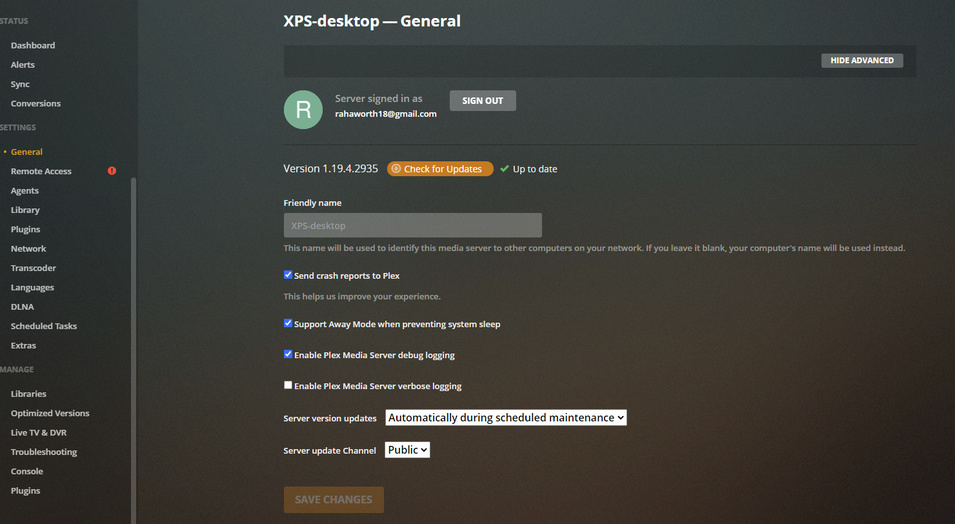
OK, I Reset Customization from the Fire TV stick, and it is now showing (and playing) music from one of the libraries I just made. Not all of the libraries I just made are visible yet. Hopefully they will show in time.
Spoke too soon! I added some more libraries. Then did a Reset Customization button from the web app (it somehow appeared). But then the web app tried to connect securely to XPS desktop, but could not. I closed it. Now I can’t open the web app, either from the desktop shortcut to http://localhost:32400/web/index.html# or from the icon in the system tray. I just get :

Don’t use localhost.
Use 127.0.0.1 instead
OK, done. This morning everything seems to be working!
Thanks so much Otto & charlas for your patience.
