Hi I bought a chromecast with google tv. I set up plex on my LG tv. Plex worked fine on the PMS on my Ubuntu PC. However I really bought the chromecast to use with an older tv in another country.
I tried next to set up the client on LG’s webos. It didn’t work. I then tried this, that and everything. It is all messed up and I couldn’t even tell you everything I tried. What I want to do is start from the beginning. I’ve uninstalled the server several times, but it keeps remembering me. I want to get rid of every trace including my account. How do I do That?
Here you go
Don’t delete your account at Plex.tv.
There is a 30 day lockout to re-use the same e-mail address for Plex accounts.
All you have to do is follow the instructions in the support note @tom80H linked.
Deleting your account will not make any difference in the correct operation of your Plex server.
2 Likes
Nice catch – thank you, I had missed that.
No need to / benefit in deleting your account!
Thanks so far. I reinstalled PMS. For the client, I remember that on the chromescast, I was given a 4 digit code to enter at plex.tv/link.
I seen to be lacking something to provoke that action in the webos client.
You shouldn’t need that unless you reinstalled the Plex client on your Chromecast. Otherwise it should still be signed into your account – once your new server is linked too, they should both see each other already.
Could be the new server’s libraries are under the More option in the sidebar and have to be re-pinned first.
I forgot to add that on the client, I have a message “PepperJobs” (my PMS) is currently unavailable. “Retry connection” does nothing.
Is that the old or the new server and where exactly are you experiencing this? – on the ChromeCast or in the browser version of Plex?
The server version is 1.25.1.5286-34f965be8 (from the ubuntu store) I’m using the webos client. The client is giving the error. When you speak of the “more option” is that in the PMS or the client? I’m a little confused with all these terms. I’m really not sure what is happening with the account on the website, but thanks for the tip about not deleting anything there.
The Plex apps (e.g. on your WebOS TV) have a sidebar where you find your libraries. You can configure each app individually, which libraries you want to see there by pinning/unpinning them. You can also configure their order in each app.
Usually there’s a More button at the bottom of that sidebar. Clicking on that will show all available servers and libraries – even those you had previously unpinned (e.g. if you don’t want to see your music library on your living room TV set).
In your situation you have created a new installation of a Plex Media Server. The LG WebOS Plex app was not yet aware of that and had none of its libraries pinned to the sidebar. Therefore they should be listed if you click More.
Your LG WebOS Plex app might however still remember your old server and has probably kept the old libraries pinned to its sidebar. That’s why it’ll still attempt to connect to the old installation – which obviously fails as that server no longer exists.
You should be able to remove that server by deleting its entry from
https://app.plex.tv/desktop/#!/settings/devices/pms
Just make sure you don’t “delete” your current server from that list (even if you do, your server will still be there but it’s been signed out and is no longer linked to your account… but that’s an entirely different story – TL;DR: don’t do it; while it’s fixable, it’s unnecessary work  )
)
Does this screen shot tell you anything (indirect)?
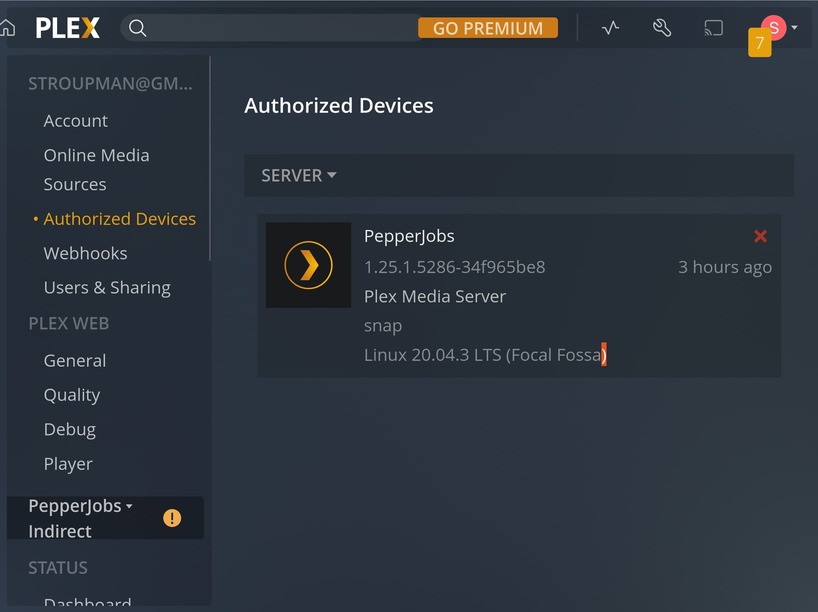
Not sure what it’s supposed to tell me.
Is Pepperjobs your old or your new server installation? The Indirect mentioned next to the server name shouldn’t linked to any of the above.
What browser are you using to get that horribly squeezed version of the Plex user interface?
pepperJobs is the new server. What info can I send to help make some progress?
Note the snap designation in the Authorized Devices screenshot.
If I remember correctly, snap installations of PMS do not have full access to the hardware and cannot use hardware accelerated transcoding.
If you want/need hardware accelerated transcoding, you’ll need to install Plex using a different method.
The Plex webOS app has very limited subtitle support.
If you use subtitles with the app, you’re pretty much guaranteed to have a video transcode at some point.
Also, notice it says “Go Premium” at the top. Pretty sure it is not picking up your Plex Pass.
The only time I see “Go Premium” in Plex Web is when I login using a non-Plex Pass account.
I can add the following, but in light of it being a SNAP you might want to decide on that first,
Plex.tv sees the server because the server contacted plex.tv
LOCAL ADDRESSES 192.168.1.4, 192.168.0.103
It doesn’t know which is the default address but 192.168.1.4 is probably the default
The server does not have Remote Access active . – Firewall & Port Forwarding ?
I didn’t ask for premium. At this point, I am only trying to get my own content from my server. Subtitles and audio selection are important to me, but first I am only trying to get basic functionality. How do I fix the 192.168.1.4, 192.168. 0.103 conflict?
The manage.console tab is no longer giving error messages and it seems to indicate that it is using 192.168.1.4.
Can you get to a terminal window,
Under /var/snap you should see plexmediaserver.
Under that should be CURRENT or current. cd down into that too.
What you’re looking for is Plex Media Server/Logs so do successive cd commands to navigate deeper as needed.
When you see “Logs”,
sudo tar cfz /tmp/PlexLogs.tar.gz ./Logs
It will make a tar.gz of the current server logs
Now return to your browser and upload the file /tmp/PlexLogs.tar.gz here for me to review.
/var/snap/plexmediaserver/current is empty
