Server Version#:1.19.4.2935
Player Version#:1.19.4.2935
Well, I’m at wits end trying to get my server to be visible outside my network. (Or even inside my network for that matter)
First, I’d like to work on getting this working inside my network. I have a feeling that the problem is the same, so once it is working inside my network, I guess It’ll probably work outside the network as well.
Here’s my network configuration:
ISP: Spectrum
Router: Synology RT2600ac (Brand New as of yesterday…but my issue was also happening with my Netgear N600)
Server PC: Hardwired to the router. No issues connecting to the internet.
Media Devices:
Main PC (same PC that server is running on) - Direct Stream achieved. No issues.
Roku - Hardwired via a 4 port network switch - Indirect stream only. Quality severely lacking.
Laptop - Wireless connection - Indirect stream only. Quality severely lacking.
Android - Wireless connection - Says PC is currently unavailable. Not connecting at all.
I’ve attempted following all the troubleshooting guides, and have browsed other forums with people having this issue. It seems like the forums are people with pretty specific network setups though, so thought I’d start my own thread for my network.
Currently I have the port forwarded manually in both my router setup page, and on the plex server. (although canyouseeme.org can not see that the port is open, so maybe I have a firewall somewhere that I’m not aware of?)
My server PC has a reserved IP address from my router’s DHCP settings.
I guess I don’t know where to go next! Any help is most appreciated!
These devices are connecting via Plex Relay. This means your local network is not working correctly. Forget about remote access until you get this working OK.
Is your Spectrum equipment a modem or a router (does it have its own wifi, etc)?
If the Spectrum equipment is functioning as a router, you might be in a double-NAT situation. You’ll need to ask Spectrum to set their gear to function as a modem only or you’ll need to set the Synology to function as an access point.
See the Double NAT section of Troubleshooting Remote Access.
My modem is (apparently) a modem only. It is the ‘Arris TM 1602’ which according to https://10-0-0-0-1.org/reviews/arris/tm1602/ it is a modem only. In addition, I’ve never tried logging into the Arris Modem via any type of user control panel (e.g. 192.168.1.1 or anything like that)
Unfortunately, I don’t think I’m in the Double-NAT situation.
And yes, happy to work on my Network until we get it fixed. Won’t worry about the roku or laptop yet.
It is good that it is a modem only. Makes things easier.
-
No VPNs, at least initially. If you have any on your Plex Server, router, etc then disable them.
-
Your Plex Server needs a fixed IP address. You can manually configure a static address or have the router assign one using DHCP Reservation. Either works.
From the DHCP section of the router user manual:
To reserve the assigned IP addresses for the clients, go to Network Center > Local Network > DHCP Reservation.
- DNS
Set your router to use a public DNS server, not the one supplied by your ISP. Most people use Google, 8.8.8.8 or 8.8.4.4, or CloudFlare, 1.1.1.1.
I could not find a reference for this in the Synology manual. On my Asus router it is in the WAN settings section.
Start with the above. Once configured:
- shutdown your Plex Server.
- shutdown your router.
- Power Cycle your cable modem.
- Once it is back, turn on your router.
- Once it is back, boot your Plex Server.
- Make sure Plex is up and running OK.
- If any of the Rokus, laptops, etc are local devices, then reboot them as well, so they can pick up the DNS changes from the router.
Now what happens?
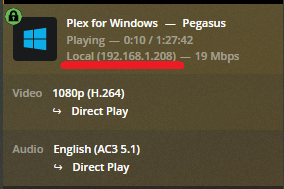
When you play any media on a local device, it should show as a local connection in Plex Dashboard -> Now Playing.
One more thing to check: AP Isolation:
You want it disabled. On some routers it also prevents wireless devices, such as Plex clients, from talking to LAN devices, such as Plex Servers.
From Synology manual:
Why can’t my wireless devices communicate with each other though they are in the same Wi-Fi network?
AP isolation may have been enabled (at Wi-Fi Connect > Wireless > Wi-Fi > Advanced options). AP isolation prevents wireless client devices that join the same Wi-Fi network (2.4GHz or 5GHz) from communicating with each other.
Thank you so much for your help. Unfortunately, it’s still a no go.
In response to your numbered items:
-
I do not have a VPN. So no worries there.
-
I have assigned a reserved IP for my host computer. My router is 192.168.1.1, and I reserved 192.168.1.2 for my host computer. By all accounts, this seems to be working fine.
-
The biggest complaint with the synology router is that it doesn’t come preconfigured with a DNS server. That was the one of the first things I configured when I got the router. And I chose googles DNS servers. 8.8.8.8 for primary, and 8.8.4.4 for secondary.
That was pretty much all configured already before this post, so I didn’t change anything. However, I hadn’t tried fully power cycling all my devices. So I followed your power cycle instructions to the T, and sadly, no luck. Here’s a screen shot of my activity monitor, with the three devices in question.
You’ll notice that the roku (hardwired) and the laptop (wireless, but on same network) are both playing indirect, while the main PC is getting the direct stream. (At least with Video…I won’t worry about the DTS audio being transcoded as of now. That’s probably being transcoded, as I don’t have DTS sound on my Main PC)
Finally, I did double check the AP isolation check box, and that checkbox is NOT checked. So I don’t think that’s the issue either.
Any other ideas?
Here’s some things to check/test. If none of this helps, then I’m stumped.
How is the Roku hardwired? You mentioned it is connected to a switch. It the switch connected to the router? Just looking for anything that might interfere with it communicating directly with the Plex server.
Can you ping either the Roku or the laptop from your Plex Server (or visa-versa)? I’m assuming the Roku will respond (I don’t have one with which to test). The laptop should definitely respond.
Check your network settings to make sure you’re on a private network and discovery is enabled.
Start -> Settings -> Network & Internet.
Under Status, it should show that you’re on a private network.
If something else, click Properties and choose Private.
Check discovery is enabled.
Start -> Settings -> Network & Internet -> Ethernet -> Change Advanced Sharing Options
or
Control Panels -> View by small/large icons -> Network & Sharing Center -> Advanced sharing settings
Enable “Turn on network discovery”
Click box for “Turn on automatic setup of network connected devices”
That should let through the discovery packets from the Plex clients.
If you want to check the rules in Windows Defender Firewall:
Control Panels -> View by small/large icons -> Windows Defender Firewall -> Advanced Settings
That brings up the Windows Defender Firewall with Advanced Security window.
Select Inbound Rules.
Look for Network Discovery (SSDP-In) with Profile = Private.
It should have a green check beside it. If not, right click & enable.
In Outbound Rules, look for Network Discovery (SSDP-Out) with Profile = Private.
It should have a green check beside it. If not, right click & enable.
One more test…
Enable Plex Server DLNA.
On the laptop, open VLC.
View -> Playlist
Universal Plug ‘n’ Play
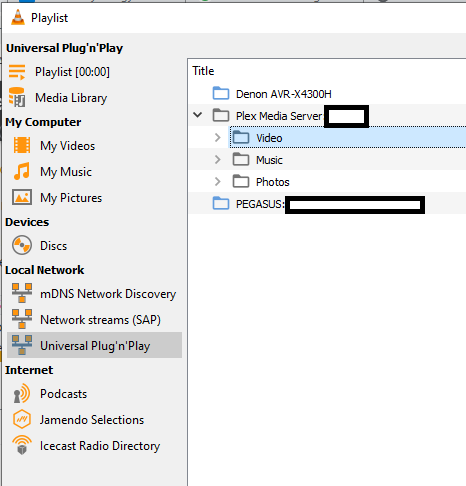
You should see your Plex server listed. It might take a couple of minutes before it appears. The server has to advertise itself and the laptop has to receive the packets.
I think the Roku Media Player works as a DLNA client. If so, it should also see the Plex server.
VLC on a Win10 PC:
This really feels like a DNS rebind issue. That would prevent the clients from resolving the local *.plex.direct address to a local IP and force the remote connection; which would itself be forced to indirect (Plex Relay) if remote access isn’t working properly.
To check this, run the following at a command prompt on the laptop experiencing the issue:
ipconfig /flushdns
Then, open the Plex client. Next, run the following:
ipconfig /displaydns
The first command clears the DNS cache; the second displays its contents. After clearing the DNS cache and loading the client, the DNS cache should have two *.plex.direct entries listed (among others): One for your local IP address and one for your WAN IP address. You may have to sift through the list, but it should be too long since it was cleared beforehand.
If you don’t see a *.plex.direct entry for your local IP address, check the DNS servers which the laptop is using:
ipconfig /all
If it shows your router’s IP address as the primary, try manually configuring it to point to a public DNS provider (8.8.8.8, 1.1.1.1, 9.9.9.9, etc…). After doing so, repeat the test above to see what results.
DNS rebinding protection is feature of some routers which can prevent DNS queries from being resolved to local IP address. Plex relies on the ability to do so for its implementation of secure connections. If it fails to do so, it falls back to the remote connection.
Yes, the Roku is hardwired through a switch. I’m happy to try removing the switch if you think that could be the problem. I’m just skeptical since this isn’t working on the laptop either. (I could also try hardwiring my laptop up directly to the router itself if that would be a good troubleshooting step.)
I am able to ping both the laptop and the roku. See the following image:
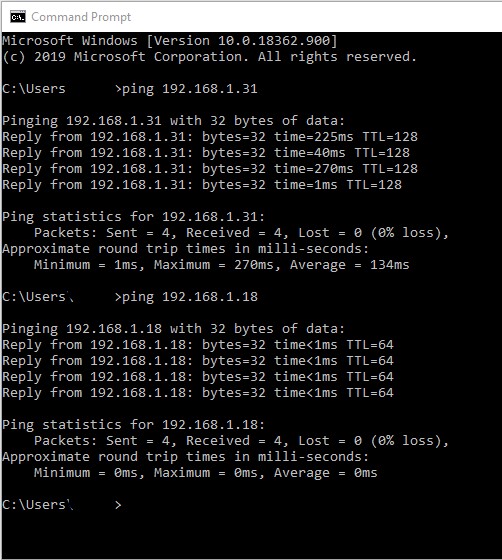
Laptop is 192.168.31, Roku is 192.168.18.
We may be getting somewhere with your suggestion about public/private networks. Both my laptop and my server PC had ‘public’ network selected. I changed that to private on both computers. It hasn’t fixed the issue, but it may be a step in the right direction. Discovery was enabled on both the server PC and on the laptop. I made no changes to anything in the Roku.
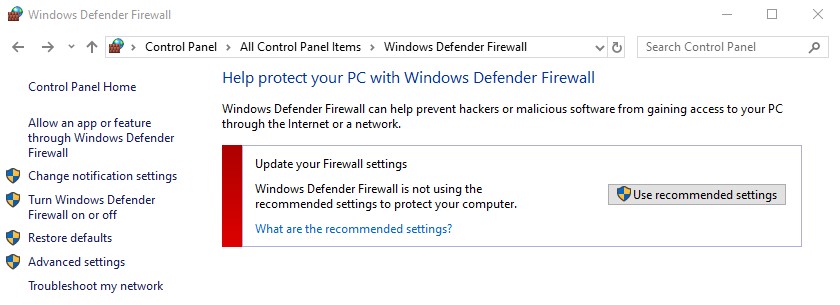
There may be some issues with Windows Firewall. This might be a road we need to go down. On my server PC, when I click ‘Windows Defender Firewall’ in control panel, I get the following:
If I click the ‘Use Recommended settings’ button, nothing seems to happen. And if I click the advanced settings button, I get the following:
Thoughts?
No need to remove the switch. Just wondering how things are connected.
Try suggestions from @pshanew regarding DNS rebind.
Also, as a test, you should be able to disable the firewall. If that lets Plex work, then can figure out what is wrong w/ the firewall.
@FordGuy61
-Enabled DLNA on server PC. Loaded up VLC on client laptop, and followed your steps. There is nothing in the VLC window under ‘Universal Plug’n’Play’
@pshanew
Followed your steps. I found 4 *.plex.direct entries. See following screen caps.
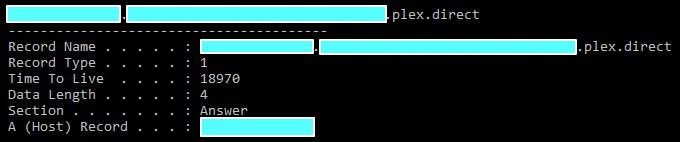
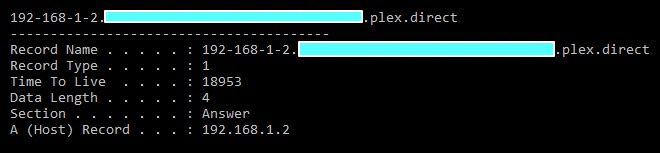

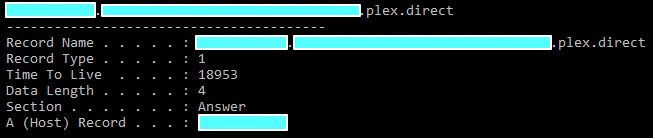
Notice the SECOND *.plex.direct entry is pointing to my local server pc.
I also ran ipconfig, and yes, the DNS is pointing to my router, but I didn’t change anything since I got a plex.direct entry for my local server. Here’s the ipconfig anyway.
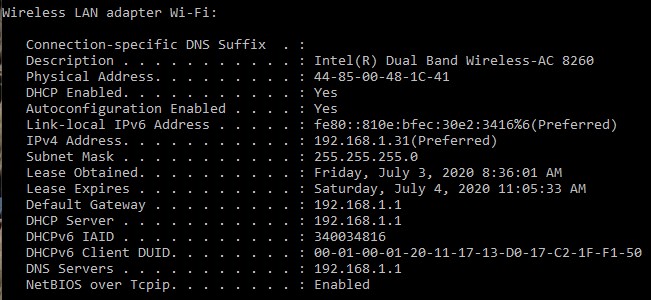
Don’t really know what all this means. What would the next step from here be?
Finally, back @FordGuy61
Don’t know if my firewall is currently disabled or not. It probably is, but when I click the ‘turn on/off firewall’ button, I get an error that says ‘Window Defender Firewall can’t change some of your settings. Error Code 0x800706d9’
Hmm… That more or less nixes the idea that it’s a DNS rebinding protection issue.
You may want to remove those images showing your public IPs, by the way.
It’s interesting that you’re seeing four total entries. Do you access any shared servers? That might account for them. It shouldn’t cause any issues, it’s just interesting.
As for what’s next, I’m not sure. It knows the local IP address of the server so, in theory, it should be able to make a local connection to the server. Just out of curiosity, do you have anything configured for LAN Networks in Settings → Network on the server?
And just to be really sure it’s not a DNS issue, maybe try manually setting the DNS on your laptop to 8.8.8.8 and flushing DNS again? And then reload the client.
Any other anti-virus / firewall software installed?
Avast, McAfee, etc
@pshanew
Thanks for the suggestion about getting rid of those images with the ip addresses. I masked the IP’s. I guess I thought they were pointing to public plex servers or something like that. (Also, is that long string of letters/numbers a password hash? Should I be masking that as well?)
As far as having four entries, no idea why that’s happening. No I don’t access anyone else’s server, although I do share my server with a few friends. I also have four libraries. I can’t imagine this would be why though. That just seems like coincidence to me.
I just changed the DNS settings on my client laptop to 8.8.8.8, flushed the DNS entries, closed both the plex webapp on the client PC and closed the server on the host PC. I then reopened the server, and opened the webapp on the client laptop, and I’m still having the same issue. Only getting indirect streaming on my laptop.
In Settings -> Network, I believe everything is simply on its default settings.I don’t recall ever messing around in there. However, I am not seeing a “Lan Networks” setting in there anywhere. Maybe I’m looking in the wrong place?
@FordGuy61
I do have AVG running. Maybe that’s the issue. I kinda set that and forgot about it a while ago. I will attempt to disable AVG and will report back with the findings. But thought I’d get this post up in case there are other ideas in the meantime.
That’s the certificate UUID for your server. I’m not sure if there’s anything nefarious which could be done with it, but I’d probably mask that, too.
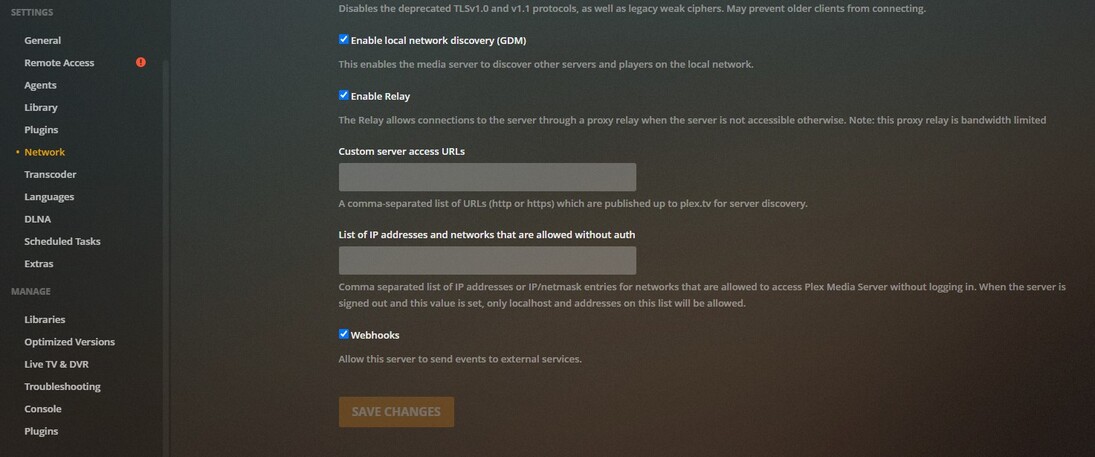
Under Setting → Network, click Show Advanced. You should then see “LAN Networks.” This is a list of networks to treat as local, even if Plex thinks they’re remote. You shouldn’t need anything in there since everything is on the same network.
Alright. masked the UUID as well. Thanks for the heads up.
I’ve also now disabled AVG antivirus, and again, reset my server, reset my client, flushed DNS values etc. Reopened everything, and still no gas. 
Also, still not seeing “LAN Networks” under settings → Network. Here’s a couple screen shots. Tell me if I’m missing something.
Again, thank you all so much for all your help! Certainly wouldn’t have thought of any of this stuff on my own! Any other ideas?
You’re not missing anything, but your network settings are. A few things, actually:
Are you using the Plex for Windows app, or the web client? That might explain the difference.
And here’s a thought. When I hover over my network connection in windows, it says I’m connected to “Network 2”
Do you think that has anything to do with it? I only have one network. Not running a guest network or anything like that. However I am running both a 2.4Ghz network and a 5Ghz network. As far as I can tell, both have the same SSID though. Why would my wired in computer say “Network 2” while my laptop is connected to my SSID.
Should they both have my SSID as the name of the network even though one is wired?
Hmm. Very odd.
I was running the web client. However, I just downloaded and installed the windows app. Seems like my settings there are the same too.
I am not yet a Plex subscriber. I’m only using their free service (been wanting to buy the lifetime membership for a while…just haven’t pulled the trigger yet). Does that have anything to do with it? I thought I was able to stream directly before. Like a month ago or so. Did they change any permissions for us free users? And do you think that is why I’m missing some options?