Server Version#: 1.41.1.9057
Player Version#: Plex Web 4.141.0
Server model: Synology DS423+
Server OS: DSM 7.2.2-72806
Plex Pass lifetime membership
Hi there,
I am running Plex on my Synology DS423+ with DSM 7.2.2-72806.
When attempting to change the Agent on my main movie library, I get a message stating “Library Upgrade Required.” Every time I try it, it seems to fail because the agent change does not take effect and I still have a message saying “Library Upgrade Required.”
I have enabled debug logging but when I look at the console or the downloaded logs, I don’t seem to see anything relevant.
I am attaching the debug-level Plex Media Server.log
Make sure Refresh metadata… is selected, then click on the Upgrade button and Plex will make the necessary changes for you and refresh all of the metadata for your library.
Otherwise, follow pshanew’s advice and do it manually by editing your Movie library, then on the Advanced tab, top of the page change the Scanner and Agent to Plex Movie. Then Refresh Metadata for that library.
This is required because your library is using the old Scanner and Agents and they will be removed in the not too distant future.
If you don’t do this then sooner or later, your library will stop adding files and fetching metadata.
Your logs show about 500 13: Permission denied error messages and about 3900 errors 28: No space left on device Without the entire server log zip Im not seeing everything. But I suspect the out of space error may be causing secondary issues.
Permission denied errors mean just that, Plex does not have permission to access your files.
You should have your media stored like so:
Media/
    Movies/
    Music/
    Photos/
    TV Shows/
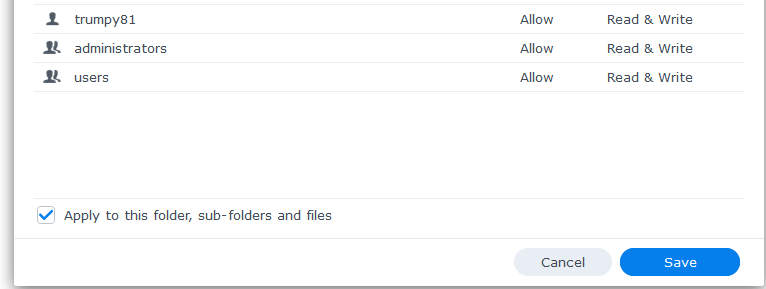
In which case, you would go to File Station, right click on the Media folder and select Properties. On the Permission tab, highlight PlexMediaServer and click on Edit.
That will apply the permissions to every file and folder within your Media folder.
No space left errors are usually caused by the iNotify table being full.
See this article for steps to correct that issue:
Also, you should NEVER point Plex at a torrent download folder. That can force Plex to scan your library every few minutes when new files are being downloaded, which can in some cases, lead to database corruption.
Always move your downloaded file/s into a Plex library folder after the download has completed.
Finally got back around to this. Thank you @trumpy81 for the permissions advice with Synology’s permissions editor. This solved a lot of the errors. I think it seems to be working as expected now. Much appreciated.