Correct.
The trick is to save it as txt at first. Once that is done, change the filename directly, outside of notepad.
Correct.
The trick is to save it as txt at first. Once that is done, change the filename directly, outside of notepad.
Also, I have logged in twice today and one email tells me I logged in from Princeton, NJ (I’m in Clinton, NJ, but close enough) and the other says Iselin, NJ, which is miles from here. I don’t know if that matters, but maybe it’s useful. I’m pretty sure they were both me, but it’s hard to tell.
Do I have to name it something besides *.txt? It still isn’t taking. Nothing happens.
Not really. The location is determined per IP address lookup, which is not very reliable.
Simply save it with default settings in notepad.
Just remember the folder location where you save it into.
Then close notepad and open the file explorer. Click either slowly 2 times on the file name of this text file
or
right-click and pick Rename.
Then make sure to change the file name extension to .reg
The display of file name extensions is disabled by default in file explorer (which is a very problematic decision by Microsoft, but I digress).
Enable it, to make things like changing the file name extension easier in the future. https://www.howtogeek.com/205086/beginner-how-to-make-windows-show-file-extensions/
This is what I’m looking at. I understand you have probably having 17 similar conversations at once at present. I have to go umpire a game soon, but I was going to see how far I could take this while I have a chance. If I disappear it’s definitely not for lack of interest in getting this solved. Thank you Otto.

OK, I learned that I could save it if I removed the *. I changed the file to .reg and tried to execute it and got this message. Probably operator error…

You have tried to save it with just the file name extension as its file name. Which won’t work. You need to type in a filename, additionally to the .reg extension.
Try it with e.g. unclaim.reg
Same message. Do I have too much of the code copied as pictured above in my notepad? Maybe I only need the
part after the space?
Delete the file. (if you are able to)
Then paste the text again into notepad. Perform “Save as…” but this time give it an actual file name.
I deleted it, tried it again and got denied again. I’m submitting the entire text listed in the notepad figure above. I tried it with only the lower part and that didn’t work either. I removed the space above the first {-HKey_ above and that had no effect either. I’d be willing to do this manually if given step by step instructions. I right clicked on PublishServerOnPlexOlineKey in the registry and while it read 0x0000001 on the line item or something similar all I saw was a 1 in the box if that matters. I have to leave in 15 minutes or so I’ll leave it here, but if you can think of anything else please let me know. I have no choice, but to keep bugging you until I get the service back. My apologies.
When you are at this stage
.txt part at the end.Make sure that the very first line is
Windows Registry Editor Version 5.00
And that there’s a blank line after it:
Windows Registry Editor Version 5.00

[-HKEY_CURRENT_USER\SOFTWARE\Plex, Inc.\Plex Media Server\PlexOnlineHome]
...
Thank you! That worked. Now I need to see if I can do that other thing you suggested. Much appreciated. Still not out of the woods, but this feels like progress.
Well, I’m still getting the dreaded circle of inertia when I tried to execute PMS. I tried an open port check for port 32400 and got this message. Maybe this is my problem? I can’t see it anymore, but I think I was using dedicated port 5000 at one point, but since I can no longer see the server settings I’m not sure if I’m even on the right track. Gonna assume no one is working weekends so if I don’t hear from you guys today I’ll check back Monday. Thanks.
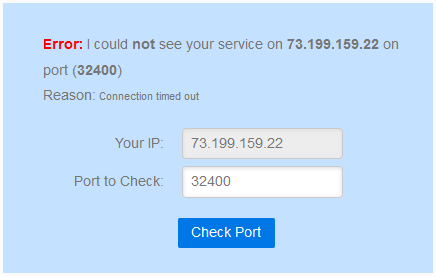
This looks relevant too (from my router)…

All of the above has only to do with remote access, which is not your issue if I understood you right.
No it wasn’t, you are correct. All I know is I have successfully gotten everything in place to reclaim the server via Method 2.2, but I can’t see any of my server settings in Plex to actually see if the method worked. Now my mobile can’t see anything either in Plex either with regard to my personal media. I can get into my router, but I don’t know what I’m looking for, if anything. I can send logs of mostly anything in either Plex or from my router, but I’m still at a standstill. My router is top of the line, maybe three weeks old as I swapped it out with Comcast recently. My WiFi password/network has changed, but I don’t know how relevant that is to this issue. The only thing I know is that it was working fine maybe 10 days ago now and then something changed. At first Plex would not see the new additions to my database, then it couldn’t see the database altogether. I had it show up in Chrome a couple of times using the local host links, but when I clicked on a band name it brought me to the same screen I see now telling me my home screen is empty. Trying to initialize the server setup in Explorer results in nothing and a something went wrong message.
The router doesn’t matter yet.
Claim your server according to this procedure: New Claiming Requirement for Windows
Make sure you are using either Chrome or Firefox as web browser.
Disable any browser add-ins (i.e. use the “incognito” / “private” mode)
I’m still stuck, but I found that I have Plex & Plex Media Server installed in both Program Files and Program x86 files. I think I understand that 64 Bit goes into Program Files and 32 Bit goes into Program x86. I have 64 Bit capability, but is it possible these two sets of files are causing each other distress? Am I OK to delete the files in the Program x86 folder? I just assumed the 64 bit files would cancel out and delete the old Program x86 files, but maybe this is my problem?

