wow you are fast  Thanks, both NAS and TV are on the same ethernet network, same e mail account, “more” only shows imac on the tv screen account …
![Screen Shot 2021-06-16 at 7.44.09 PM|568x1514] on imac (upload://eUDe32TlB7TJD6MWVISAc7IHpm2.jpeg)
![Screen Shot 2021-06-16 at 7.44.24 PM|402x714] on imac (upload://sLFmALONsxRPNL0ciq1igM0qQZQ.jpeg)
 on tv
on tv


This is the version installed on my NAS: the address on my TV manual / additional setup is the same as per screen shot just wit the added “/web” (192.168.8.110:32400/web)
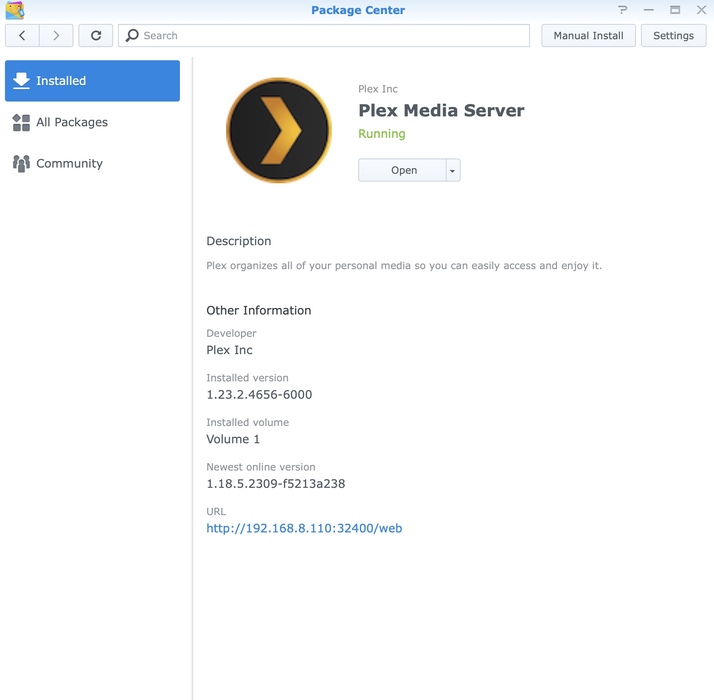
So… thy Synology libraries are not showing in any clients, while those from your iMac do? This is not just about the tv?
That s correct the libraries only show when plex on the tv is connected to the imac. Can t connect to the NAS as above the system can t find the server at 192.168.8.1:32400 (no “web” entry possible on the manual server settings on the tv app).
Cheers Mike
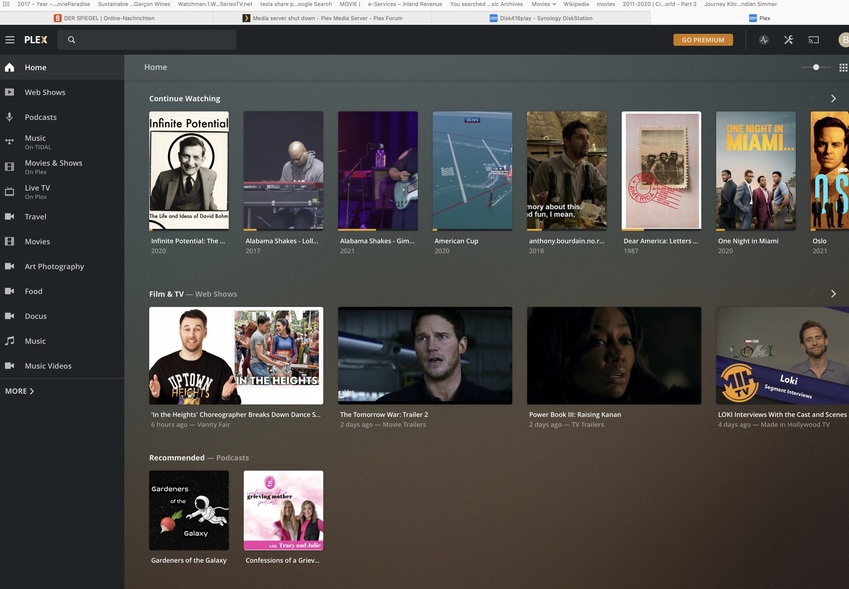
I’m a bit confused about the
On my NAS app (on the iMac)
part.
Do you mean by opening http://192.168.8.1:32400/web in the browser?
If so… does that also show the libraries from the Plex Media Server on your iMac? If there’s libraries from more than 1 server showing in the main navigation, the server name should be showing below the library names – so I suppose this is only showing the libraries from the Synology based server. Except of course the libraries of your iMac show under More > .
In anyway… can you please go to Settings > [Server Name] > General (using the above IP for the Syno based PMS).
Does that screen tell you Server signed in as <your user name> and offers an option for you to Sign out? If that’s not the case, you did not yet link that new server with your Plex account – use that same screen to claim the server. I have a strong suspicion this should be the issue here…

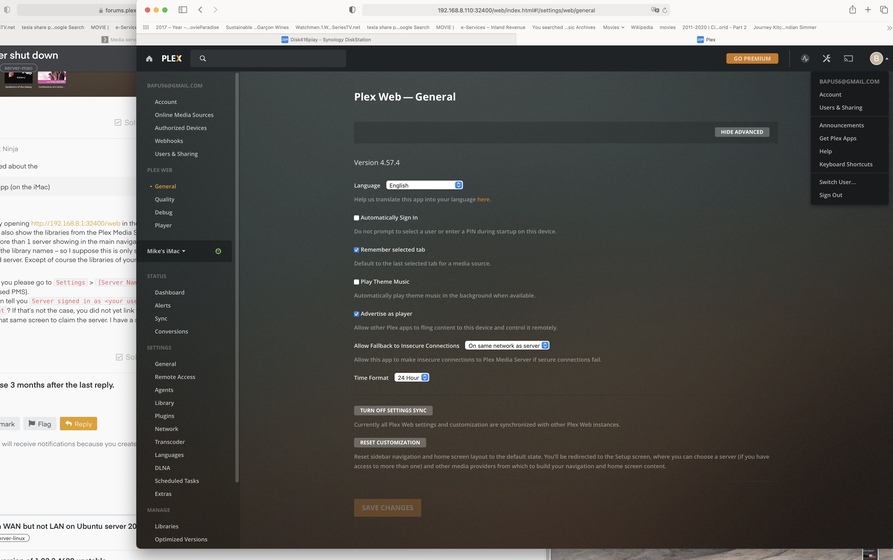
The [Server Name] part was a placeholder for your actual server name.
In your screenshots, it’s showing Mike's iMac. You can click on that label (notice the tiny dropdown indicator near the name) – there should be an option to switch to the settings of the Syno based server. After selecting that… go further down to Settings > General
First part of your reply regarding the question “Do you mean by opening http://192.168.8.1:32400/web in the browser?” see attached screenshot


How exactly did you originally create the server on your Synology NAS?
Did you copy configuration files from your iMac over to that machine?
No I just downloaded the plex installation file and let it do it s
'thing" … did I miss something ?
Downloaded it from the NAS package center app
Did you at any point use a different Plex account?
With this last screenshot you’re definitely running the bundled version of Plex Web installed on the Plex Media Server on the Synology. If that results in only showing a different server, it implies that your server has already been claimed but by a different Plex account.
If you know that account, you can sign into that account – the cleanest way will be to do this using a different browser, access the Syno server settings and sign it out from that account. Then you should be able to re-claim it with your regular Plex account.
Otherwise we need to manually make that Syno install forget it’s already linked to a different account
Oooops … I think I might have signed up on my old imac a couple of years ago but not wit the same e mail name / account name … can t remember … how to do it manually as you ve mentioned ?
- Open the Synolog DSM web app
- Stop the Plex Media Server on your Synology
- Go to the Control Panel and open the
Shared Folderssection- Find the
Plexshare andEditit - Go to
Permissionsto make it visible for your Synology account (should be hidden by default and you might want to re-hide it afterwards)
- Find the
- Use File Station to navigate to the
Plexshare - Navigate to
Library/Application Support/Plex Media Server/and renamePreferences.xmltoPreferences.xml.old - Restart PMS and wait a brief moment for it to come up
- Open the IP http://192.168.8.110:32400/web
- It will think this is a first-run situation. This is normal and expected! Start through the wizard. When you get to the part about creating new library sections, SKIP that part. Your existing sections will be waiting for you at the dashboard. Continue through until you hit
Finish.
After finishing this you should be able to see the Syno Server under the Settings (dropdown offering both your iMac and well as the Syno options). Select the Syno server, go to the server’s General page and verify it says it’s signed in as you.
You re a champion, works like a charm, thanks a lot your advise is highly appreciated. Great service !!! 

