Excellent! Thank you.
Available.
Here now
Cool. First step? All booted up.
ChuckPA, thank you for all of the help last night. I can not say enough how thankful I am for your help getting things back up and running. It is nice to have access to PMS and my content again.
I have two last questions and then I will stop harassing you for your expertise 
I can now access the PMS on my synology by manually pasting in the correct IP address, but how do I change the IP address that the PMS is looking for when I try opening it through the icon on the synology main menu? It still keeps pointing at an outside IP address when trying to open. Granted it is easy enough to paste in the correct IP after it tries to open and then fails, but it would be nice to correct that so I can just use the icon.
And the last question is this: I can see all of my content folders on the PMS, and on Plex when I log in online. However, when looking for content through devices only the movie content folder we installed last night is showing up. The other folders (TV Shows, Music, and Pictures), which I set up immediately afterwards do not show up on the Samsung 4k Smart TV, my cell phone, or other devices. Any idea why? Could it be because I closed PuTTy before setting up the other three folders?
For those devices which are local, reset their connection to the server.
The apps now have an automatic customizing mode.
On the TV, go to the “Home”
Cursor left and expose the ellipsis.
Click it
You can now Edit or Reset
Now it will let you pick the server.
You should see only 1 entry for your - select it
If you see more than one,
- Open the Plex/Web browser
- Settings - Authorized Devices
- Servers drop down
- Look for and remove the older reference to your server name
- “Remove” it.
Now go back to the TV app and Reset & select again. It should be clean now
On the nVidia Shield (Android app), it looks like this

The “Open” button on the Synology should only be providing the LAN IP address.
If that’s not what’s happening, you need to check the Network adapters.
One of them is your “Default Gateway” and should be so marked
If not, Click that checkbox and restart the Syno.
Package center uses the default gateway information to create the address for the Open button
Yep, checked the network adapter, and the default gateway is correct, and shows the LAN. There is no box next to it to either check or uncheck. There is an edit button, but since the default gateway is already correct I did not mess with it. No idea why the PMS is going to an IP address outside of my LAN when the “Open” button or icon is used (see second pic). After it times out, I am currently manually pasting the correct LAN IP and then entering the PMS that way, as we did last night.
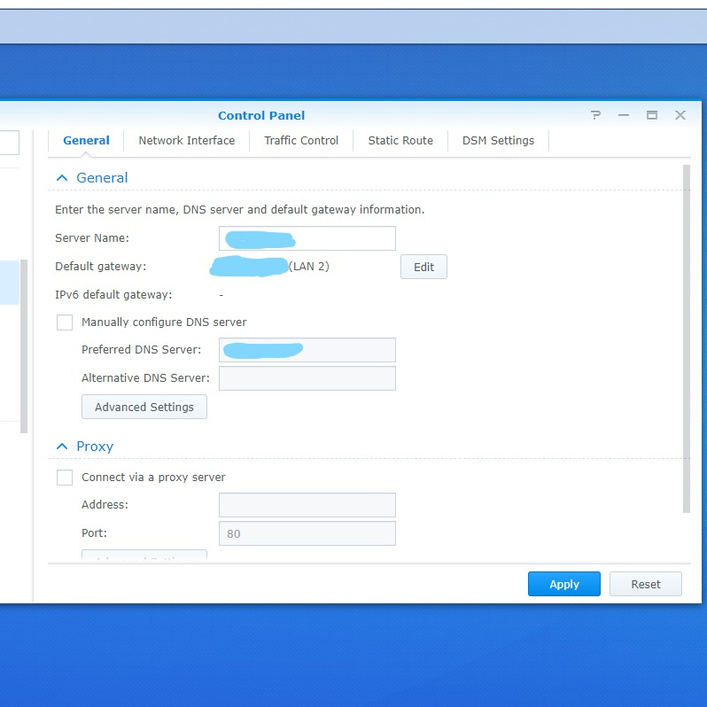

**Update .. Figured out the 71.2XX.XX.XXXX IP goes to Synology QuickConnect for external logging in outside of my LAN, but no idea why PMS is trying to use it instead of the LAN Default Gateway.
I will walk through the steps you outlined for the smart tv this evening when I get home. However, I do know that it showed two servers with the same name. One worked fine and showed the movie folder and all of its contents (though not the TV Shows, Music, or Picture folders), and the other had a yellow triangle with an exclamation inside of it next to the server name. When I go online to my Plex account and list all authorized devices, the server is only listed once, even though it shows up twice on the Plex app on my TV and other devices. Guessing the one with the yellow triangle and exclamation point next to the name is a leftover artifact from when I screwed things up. Should I remove the single entry for the server under the authorized devices, and see if that resets things?
The other way to take care of the TV is to:
- Uninstall the app
- Settings - Authorized Devices : Remove the TV app from that list
- Reinstall the app
- Relink it at plex.tv/link
Now the TV will see the one server and the server will see that one TV instance.
Bet this will work for the TV. Probably going to try this one first this evening. Thanks.
Any guidance for the nutty IP address issue above?
One miracle at a time? 
Let me see if I can figure out why you’re seeing it. You shouldn’t be.
Roger that!
Guessing I am already using all of Christmas miracles up
Thanks amigo.
For the TV, It was just suggested to restart the TV without uninstall / reinstall… go figure. I don’t like that idea but an investigating. It may illuminate the root problem.
No harm in trying that avenue first. I will attempt it first thing this evening.
I also have the devs monitoring this and a few other threads.
If we can get them info on the Android app not connecting properly, they’re ready to dive in. They just need to see how the problem manifests.
Sounds good. Will take a pic to share this evening so you can see first hand what it looks like. Thank you.
Alrighty. Turning the television on and off did not work. So I reset everything as you suggested (without uninstalling). Here is a story in photos …
Pic #1 showing both servers with same name before reset …

Pic #2 showing options for customizing after the reset …
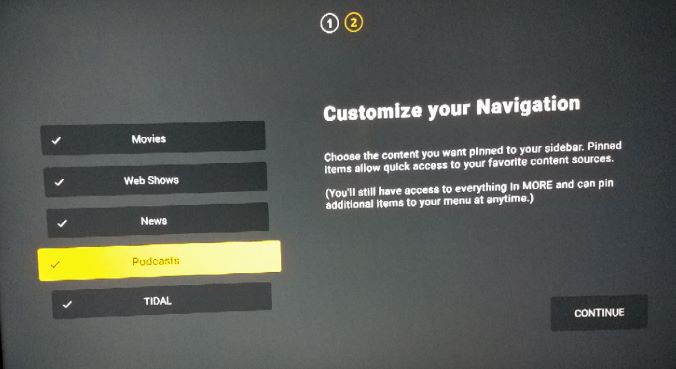
Pic #3 showing the side bar after the reset (still not showing TV Shows, Music, or Picture folders) …

And lastly, Pic #4 showing that all libraries have been created and synched with PMS, but do not show up on television.

You selected television to be on the home screen when you did the reset?
I’m trying to do it now but because I’m using the development version of the app, I see something entirely different which isn’t applicable – and I know it has bugs (development & all )
AFAIK, that’s how it should be.
If you go down to any of the sections in the left pane, they should populate like this:
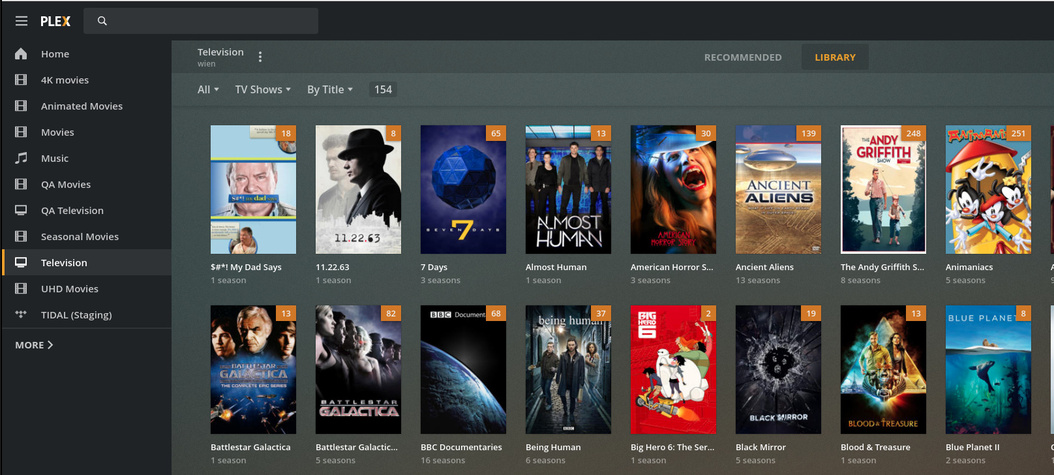
and correspondingly

When I have too much on the home screen, I need to pan right then scroll down
Also, which appears to be impacting you too, are ghost hosts on the left panel.
I’m trying to get this resolved too. First is to figure out where they come from.

