PlexData share for QNAP systems

Hi, Just updated to PlexMediaServer-1.20.0.3181-0800642ec-x86_64.qpkg on QNAP NAS and have got this error. (below)

Assistance would be appreciated. Thanks.

Severity Level Date Time Users Source IP Application Category Content
Error 2020/08/04 20:51:58 System 127.0.0.1 — — WARNING: Could not create PlexData share. Further assistance is available in our Support Forums. Continuing without.

John,
The released 1.20.1-3181 does not have the above changes in it I made to prevent that.

You have a choice:

  1. Manually create a PlexData share on your default system volume and assign access permissions.
    -or-
  2. Download and install the above packages and assign access permissions.

As soon as I have more confidence in the above changes correcting the issues for everyone, I will make them the production default.

1 Like

To all reading here.

Due to the number of issues being encountered, which to me are totally unacceptable given my zero-tolerance for such things, I will be discussing withdrawing the PlexData share for the time being in tonight’s team meeting.

I am working with QNAP to see if they can provide me a better mechanism to achieve managing shares:

What I need are:

  1. List shares on the system (see if PlexData already exists)
  2. Delete a particular share (an old PlexData) during uninstall.
  3. Add the PlexData share.
  4. Better return codes from their utilities. “Pass/Fail” is unacceptable.

What QNAP currently has implemented is a secondary layer of security AFTER signing in as the admin. There is no justification of a developer, such as myself, to need your password if you’ve already signed in and launched the installation. I “piggyback” on your authorization and either succeed or fail as appropriate.

Followup

I am going to make one final change to the QTS package.

  1. I will no longer create the shared folder “PlexData”. If you want the functionality, create the “PlexData” shared folder anywhere you want and assign the appropriate permissions.

  2. IF when Plex starts, if Plex does see a shared folder named “PlexData” it will create the link so you can access your Plex data / database / logs from FileStation.

Since I installed version 1.19.5, besides the error of the shared folder when I do a scan of the library it does not add the new elements.

I have PMS installed on a TS-231p, I downgraded to version 1.18.3.2111 but it still won’t let me add items to the library.

@Corvatu

Please create a fresh thread for your media issue.

I am working with some users now to make final tests of what will be the PlexData share in 1.20.1

  1. It will no longer create the share automatically. Its usage will be 100% optional.
  2. If you create a PlexData share anywhere, it will use it. If not, no errors.

Hi, anyone else having trouble uploading photos / videos automatically from iPhone? My uploads started failing just after the share was created on my QNAP 1282T. Have tried deleting the app and so on without any luck, and it struck me that the date the uploads started failing was around the same time as the PlexData share was set up by the QNAP app.
The app scans my phone for new media for a brief second, then just stops. Nothing new uploads and the logs look like this when I check just after scanning for new photos:

Aug 06, 2020 20:09:52.554 [0x7f1b1eb7d700] DEBUG - Added new metadata item (2020-05-06 19.28.12) with ID 78899
Aug 06, 2020 20:09:52.561 [0x7f1b1eb7d700] DEBUG - Looking for path match for [/share/CE_CACHEDEV2_DATA/Data/Bilder/Bilder/2020/2020-05-06 19.36.36.JPG]
Aug 06, 2020 20:09:52.561 [0x7f1b1eb7d700] DEBUG - Skipping hash check, no size match for 3666383 bytes.
Aug 06, 2020 20:09:52.561 [0x7f1b1eb7d700] DEBUG - No match for hash.
Aug 06, 2020 20:09:52.565 [0x7f1b1eb7d700] DEBUG - Added new metadata item (2020-05-06 19.36.36) with ID 78900
Aug 06, 2020 20:09:52.566 [0x7f1b1eb7d700] DEBUG - Looking for path match for [/share/CE_CACHEDEV2_DATA/Data/Bilder/Bilder/2020/2020-05-06 19.36.40.JPG]
Aug 06, 2020 20:09:52.567 [0x7f1b1eb7d700] DEBUG - Skipping hash check, no size match for 3610097 bytes.
Aug 06, 2020 20:09:52.567 [0x7f1b1eb7d700] DEBUG - No match for hash.

Any ideas?

@sluquet

Please create a new thread.

The PlexData share is just a placeholder and not related to what you’re experiencing.

I suggest creating the thread in the ios tag under streaming devices.

Thanks for your work on this @ChuckPa ! It looks like it’s working for me, I see the PlexData folder and I gave it read/write access.

I’m about to move from a TS-451 to a TS-453Be and I want to make sure I understand how this helps. Would the new steps without command lines look like this?

  1. Install PMS on new NAS
  2. Uncheck “Empty Trash” on both PMS
  3. Stop PMS on both NAS
  4. Use Hybrid Backup Sync to copy videos to new NAS
  5. Use Hybrid Backup Sync to copy old PlexData to new PlexData
  6. Start PMS on new NAS
  7. Make sure all library folders are correct
  8. Enable “Empty Trash”

If so, that’s much easier for me than SSH and tar files!

Tom,

How this helps.

  1. First, understand that the entry “Plex Media Server” inside the “PlexData” share is a link to the real data. Backing up the link doesn’t benefit you.
  2. To use this for your backups and then to restore later takes an extra step on each part (source / old machine and the destination/new machine)

Here’s how it works.

  1. Step “into” the “Plex Media Server” link to see your actual stopped Plex Media Server data.

  2. Select everything

  3. Right-click and “Compress to zip”

  4. It will want to name it “Cache” (name of the first directory). Change this to “PlexMediaServer”

  5. You will see FileStation start the compression task (which will take time)

  6. When it’s done compressing, Move or Copy the ZIP file to the new system.

To restore

  1. Install PMS
  2. Create the PlexData share if you need to (you will as of 1.20.1)
  3. Assign permissions to gain access
  4. Start PMS
  5. Stop it
  6. Go into PlexData / Plex Media Server
  7. Delete everything there
  8. NOW COPY your PlexMediaServer.zip file into the directory
  9. Right-click the ZIP → Extract → Extract Here
  10. It will now take everything out of the ZIP and create your old installation from the other machine here.
  11. The ZIP will remain
  12. When FileStation is done, and all your media shares are ready,
  13. Verify everything came out and looks as it should. (Don’t accidentally put it down one layer deeper).
  14. Start PMS.
1 Like

Thanks for the help! I have the PMS files in place on the new NAS, now I just have to wait a couple days for the media to transfer over before I can start up PMS and make sure everything works. :wink:

Tom,
Please remember, and this is very important, you have cloned the old system to the new system.

Once you switch over, the old system should have it’s ID numbers removed/changed if you wish to use it in tandem.

Plex.tv will think both units are the same unit if the ID numbers match.

The easiest way to accomplish this is to

  1. Use the QNAP text editor from FileStation (install the app in App Center)
  2. Navigate to “Preferences.xml”
  3. Open it in “Text Editor”
  4. Delete the MachineID, ProcessedMachineID, and AnonymousMachineID values from Preferences.xml
  5. Save the file.

When PMS starts, it will assign new.

Prior to starting it, you should also change the Friendly Name of the new system to avoid conflict in Plex/Web.

1 Like

I don’t plan to restart the old PMS, I’m repurposing the old NAS once everything’s in place. Should I still edit the xml on the new NAS or am I fine? Or do it just to be safe?

If you have no plans of restarting the old QNAP, you’re fine.

Just to be safe, perhaps you might consider uninstalling Plex once you’re happy with the new system.

Doing so will free up the disk space as well as remove the old Plex metadata and ID numbers.

1 Like

I haven’t editted the system path.

Matt,
Thanks for letting me know.

I’ve implemented logic to handle the case where, for reasons unknown, gpuhal_app isn’t included with QTS. It should be included but perhaps QNAP has exceptions their support team aren’t aware of.

I would like to congratulate the Plex team for this feature.

Thank you!

1 Like

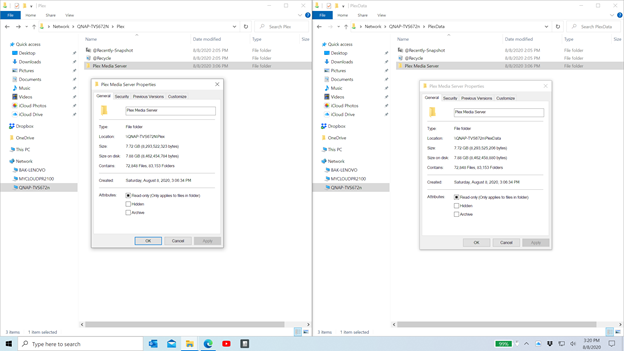
@ChuckPa I have to ask a question relating to the PlexData share on QNAP NAS. I too loaded my QNAP QTS on M.2 NVMe Solid State Drives (QNAP TVS-672N) and also installed a SSD in HDD6 location. I “migrated” Plex App to the SSD drive. I created a share called “Plex” on this SSD. Somehow, the Plex Media Folder was created under the Plex shared folder and created another folder adjacent to Plex (called PlexData) on the same SSD. I now have to complete copies of Plex Media Server (one in the PlexData folder under Plex shared folder and one under PlexData). See below…(hopefully the .png shows up).
image

They are completely identical.

Another snapshot through FileStation…
image

It took me a while to gain access to these folders (worked through the Shared Services and tried all sorts of things but must have created a mirror copy). So my question, can I erase one of these folders? If I do, will I lose my metadata info as I have spent a few hours putting movies into collections for condensed icons.

Thank you for your time and let me know if you need more info. I can confirm the Plex app is on the SSD drive. Also - I am a Qnap newbie (upgrade from a WDPR2100 NAS a month ago). I am not a networking/command line type person but did fully appreciate this entire forum page dedicated to this topic.

Maybe it will help if I explain a bit of what’s happening.

  1. QNAP, always installs applications in hidden folders on the Volumes.
  2. Because of this, they were never accessible in File Station.
  3. We always had to SSH / Putty into the unit to do anything.

What I’ve done is provide FileStation access to that hidden “Plex Media Server” folder.
When I create it, I assign no permissions. If it’s easier & better for you to create your own PlexData shared folder and assign them when creating it then do it that way.

I only use PlexData for one thing. I place the “Plex Media Server” link in it.
I don’t do anything else.
If it doesn’t exist when Plex starts, the startup scripts ignore it and continue. (there is a version out now which

I don’t know how you got anything in that shared folder named “Plex”. I don’t do that. Did you copy /paste from Windows? If so, you can remove it. it serves no functional purpose.

Migration from DataVol1 -> the Slot 6 SSD (DataVol6 ?) operates ONLY on the paths:

  1. /share/CACHEDEV1_DATA/.qpkg/PlexMediaServer
    is moved by QPKG to
  2. /share/CACHEDEV6_DATA/.qpkg/PlexMediaServer

QPKG then updates the system configuration to point to this new CACHEDEV6_DATA location.

The easiest way to use what I’ve done can be summed up

  1. Remove any “Plex” & “PlexData” shares on the machine (deleting the contents)
  2. Create a fresh “PlexData” share anywhere you want. It will always only have one file in it (the magic is in the link).
  3. Share that PlexData share via SMB / CIFS to windows if you wish so you can make backups/restores via Windows or get the Log files if ever needed.

Now, with your Plex installation on DataVol6 (slot 6 SSD), the full path name is:

/share/CACHEDEV6_DATA/.qpkg/PlexMediaServer/Library/Plex Media Server

This is the Plex Media Server you see in “PlexData”. It’s a shortcut

That’s it.

I am sorry if this seems complicated.

I have a change coming through QA, which I still want to get rolled into PMS 1.20.1, which settles down the error messages it causes for some folks.

This /plexdata behavior is destructive for my situation.

I have a hand-created /plexconfigs and /plexdata share to store docker and per media app configs and pooled data for all plex related apps. I do this to allow tight cross-app permissions among docker containers writing and reading media content (aka, plexdata). (The creation of a pooled configs and pooled data share to manage permissions across docker containers and media is a best practice.)

In my case, /plexdata cannot be a mapping to the plex server folder as suggested in this thread, that would conflict with plex media library at /plexdata.

Further, deleting /plexdata removes all containers’ access to the media data used by plex and plex related apps.

I see assumptions in this thread of various configurations which are not the way it is set up on my system.

My devices and volumes are not that unusual: I originally had all content on system volume, then added expansion chassis, which created a “cachedev2” device and new volume, and then unfortunately I had to go through a good deal of effort and collaboration with QNAP support as well as do the “plex library dance” to get everything mapped correctly.

Long story short, my content shares such as /Multimedia and /plexdata point to /CACHEDEV2_DATA which is not a user configurable option, and my media library is at /plexdata (lowercase, and in use).

What is the right course of action for me now?

NOTE:

# How I get into the convenience directory for Plex Media Server:

getcfg -f /etc/config/qpkg.conf PlexMediaServer Install_path
cd /share/CACHEDEV2_DATA/.qpkg/PlexMediaServer/
cd Library/Plex\ Media\ Server/

# Location of QPKG conf file.

CONF=/etc/config/qpkg.conf

# Name of Plex Media Server install directory.

QPKG_NAME="PlexMediaServer"

# Grab Plex Media Server install directory, regardless of disk layout.

QPKG_DIR=$(getcfg -f $CONF $QPKG_NAME Install_path)

PID_FILE="${QPKG_DIR}/Library/Plex Media Server/plexmediaserver.pid"

Suggestion:

I also don’t think your path should be called /PlexData, maybe something like /PMSInstallDir (short for what Plex’s own scripts call it) that’s appropriately scary and would remind people not to put their plex related data there.