PMS not running on SYNOLOGY NAS

Server Version#: 1.40.5.8921-7000
Player Version#: DS218j with DMS 7.1.1-42962 Update 5

Hello,
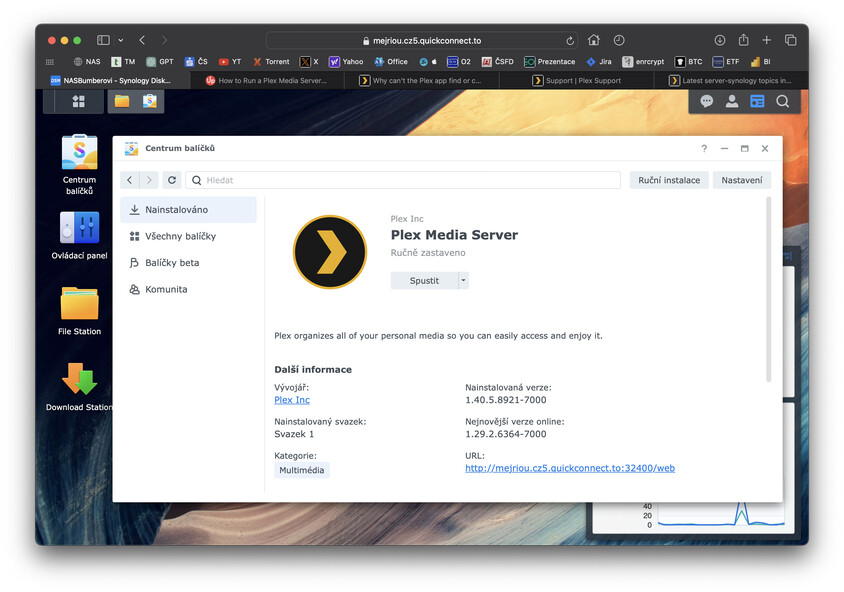
I wanted to watch a movie on my TV, but PMS on my Synology NAS is not running. When I try to initiate it seems that it runs for couple of seconds and then the NAS says “Manually Stopped” (this is the literal translation from Czech).

Any ideas what might be wrong? I have not used it for maybe half a year.

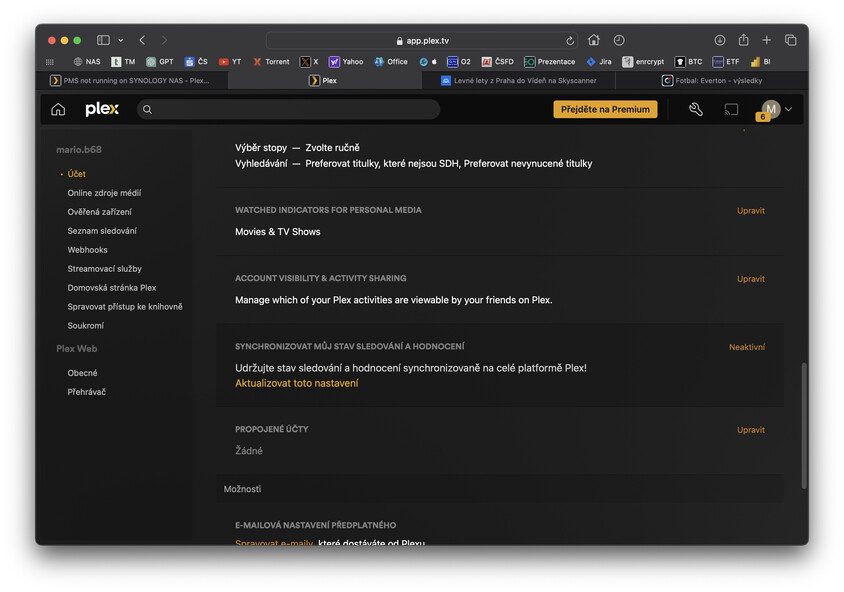
Do you have Sync Watch State & Ratings enabled in your account settings?

If so, you are hitting a bug in PMS on Synology NAS with an ARMv7 CPU.

Workarounds:

  1. Fall back to an earlier Plex release. Preferably 1.40.x and not earlier than 1.32.1.

or

  1. Turn off Sync Watch State in your account settings. Anyone you share libraries with must also turn it off.

If that is not the problem, then attach a set of server log files that captures the problem.

1 Like

Hi, thank you for your reply. Sync Watch State & Ratings is turned off and I have never turned it on.
Hi do I find older versions of the PMS?

If Sync Watch State is not enabled, then something else is going on. Downgrading may not fix the problem.

Let’s see if the log files show anything.

Login to the DS218j.
With File Station, navigate to /PlexMediaServer/AppData/Plex Media Server.
Right click on the Logs directory and choose Compress to Logs.zip.
Download the zip file and attach it to the thread.

Logs.zip (2.0 MB)

From Plex Media Server.1.log:

Jul 15, 2024 09:19:27.360 [0x6e164d44] DEBUG - [ViewStateSync] Starting
Jul 15, 2024 09:19:27.360 [0x6e164d44] DEBUG - [ViewStateSync] Fetching user tokens
Jul 15, 2024 09:19:27.360 [0x6e164d44] DEBUG - [ViewStateSync/HCl#125f] HTTP requesting GET https://plex.tv/api/v2/server/users/services?auth_token=xxxxxxxxxxxxxxxxxxxx
Jul 15, 2024 09:19:27.562 [0x6e367d44] DEBUG - [ViewStateSync] No user tokens found; stopping
Jul 15, 2024 09:49:27.360 [0x6e164d44] DEBUG - [ViewStateSync] Starting
Jul 15, 2024 09:49:27.360 [0x6e164d44] DEBUG - [ViewStateSync] No user tokens found; stopping

Thanks for the log files.

Plex Media Server crashes when ViewStateSync runs.

Double check your account settings and ensure it is disabled.

PMS 1.40.4.8679 armv7neon: https://downloads.plex.tv/plex-media-server-new/1.40.4.8679-424562606/synology-dsm7/PlexMediaServer-1.40.4.8679-424562606-armv7neon_DSM7.spk

Synology does not support direct downgrades. You must first uninstall 1.40.5.

In Package Center, uninstall Plex Media Server. After the “are you sure” question, choose the “Uninstall Only” (first) option. This will uninstall PMS and leave your database intact.

Then install 1.40.4.

Yes, I did the testing based on your first message. I tried to turn it on and run the PMS, then I turned it off as it was previously. Sorry for biasing the logs due to that testing

No worries.

Go ahead and try 1.40.4 and see if it helps.

Still same reaction from the application. After starting the PMS, it stops itself.


Logs 2.zip (2.0 MB)

That’s not what I was expecting…

Could you pull the log files again? Logs 2.zip does not have info for 1.40.4.

FYI, the log files of interest are Plex Media Server.log and the rollovers, .1.log to.5.log.

The top line in each shows the PMS version.

In Logs 2.zip, Plex Media Server.log (most recent file) shows 1.40.5.

How do I find these files? As you can see on the screenshot, there has not been any update in these files since July.


The only file updated in this folder is Startup crash.log.
Maybe because the PMS does not even start.

I’m not sure what is happening. Plex is behaving like the database is corrupt, but I do not see any log messages that indicate such a problem.

Two things to try: (a) database repair; or (b) load a backup version of the database.

If you’re comfortable with the Linux CLI, then try the repair. If not, then try loading a backup version of the database.

It is late for me and I need to get some sleep. I also need to touch base with another person, but he has already turned in for the night.

I’ll check back later in the morning (US Central).

Database Repair

Are you comfortable with the Linux command line?

If so, download the Plex DBRepair Utility from github, upload it to the Synology, and run it as root via sudo. Use the Auto option.

It will check the database for structural errors and if they exist, try to repair it.

Load a backup of the database

Look in /PlexMediaServer/AppData/Plex Media Server/Plug-in Support/Databases.

The two main database files are com.plexapp.plugins.library.db and com.plexapp.plugins.library.blobs.db.

Do you have any backup versions, that have the date appended to the file name?

If so, you can try to load one of the older versions.

Append the current versions with .save: com.plexapp.plugins.library.db.save and com.plexapp.plugins.library.blobs.db.save.

Then pick one of the backups and remove the date from the file name so they end in .db.

Then start Plex Media Server. If it runs, try to login using the IP address of the server, http://192.168.1.2:32400/web.

You might see a “503 maintenance” message. That is Plex updating the database files. If it appears, wait a few minutes and refresh the browser. Don’t interrupt the process, it will just start over.

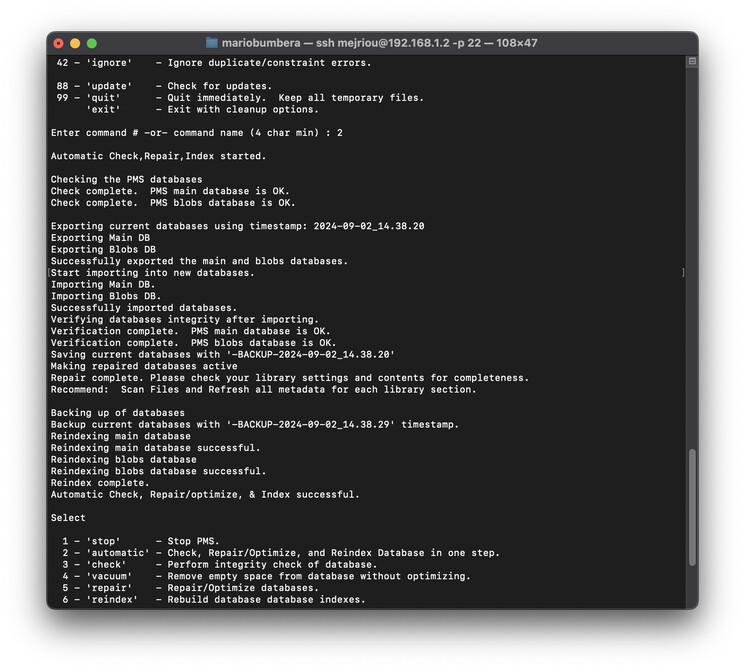
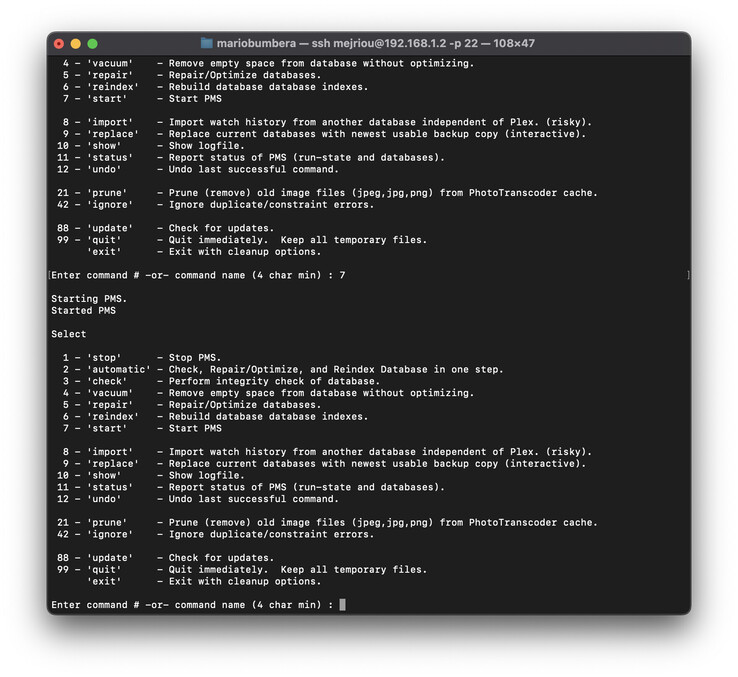
I think I have followed the DB repair correctly and still no changes.


Thanks for running the DB Repair. The good news is that the database structure is OK. The bad news is that Plex is still not running.

There are two ways to proceed. The first option is to continue trying to repair the current installation. The second option is to completely uninstall Plex and start over as a new install.

I do not know how much info you have in the Plex server - libraries, play history, custom collections & artwork, etc.

If there is nothing to save, the easiest solution is to uninstall and start over.

If there is info you want to save, then we’ll continue trying to fix things.

List of things to check / try are below.

Let me know how things go.


Location of Media Files

Do you have any media files in the /PlexMediaServer folder? If so, move them elsewhere. Placing media files there can cause problems with Plex.

Repair /PlexMediaServer Permissions

If the file/folder permissions are incorrect, it will cause problems for Plex, possibly keeping it from running.

Try repairing the permissions. See FAQ 32: Repairing the PlexMediaServer shared folder.

The FAQ shows creating a Synology scheduled task to run the commands. You can run them from the Linux CLI if desired. Use sudo to run them as root. You can leave off the & and they will run in the foreground (easier to tell when they finish).

Test using empty database files.

This is another check of the database files. Plex will create new, empty files when it starts. If it starts OK and runs, then there is still something wrong with the db files.

  1. Stop Plex.
  2. Login to DSM. Username must have admin privileges. Using File Station, navigate to the Plex database folder: /PlexMediaServer/AppData/Plex Media Server/Plug-in Support/Databases.
  3. Rename com.plexapp.plugins.library.db to com.plexapp.plugins.library.db.save, and com.plexapp.plugins.library.blobs.db to com.plexapp.plugins.library.blobs.db.save.
  4. Start Plex.

Plex should run and create new, empty database files.

You should be able to login via https://192.168.1.2:32400/web and reach server settings. There will not be any libraries, but Plex should run OK.

If it works, it means something is wrong with the database files.

You can then stop Plex, delete the new, empty db files, and remove the “.save” to restore the original db files.

Try backup version of the database files

Re-run the Plex DBRepair utility. Choose the replace option. It will check the backups and install the most recent.

This shouldn’t be necessary, but just trying to find a db that works.

Uninstall Plex and Start Over

Option of last resort. Media files are not touched, but Plex Media Server is completely removed.

  1. Uninstall Plex Media Server. When prompted, choose the “Erase” option (in red).
  2. Using File Station, delete any remaining files in the /PlexMediaServer folder.
  3. Check Authorized Devices and delete any Plex Media Server entries [Edit: link fixed].
  4. Re-install Plex Media Server. Use the current public or beta release.
Hi, I have no problem with complete reinstallation. I suppose that it will not delete my downloaded files stored at NAS, correct? It will just delete the configuration inside PMS or information about if and when I watched these files, correct?

What do you mean by point number 3? The link will for Authorized Devices is not opening.

Exactly, your movies are safe (if you have them on some /filmy location etc…)
You just install Plex from scratch and rebuild your library again (so it will download all metadata etc… just like new server), or you can try ZIP the entire plex folder, uninstall completly, install again and test it…

Ok, I have done the reinstallation and the PMS is now running (thats new) but look what opened when I entered the IP

You must enter: 192.168.1.2:32400/web :slight_smile: and Hello from Czech Republic :smiley:

Working so far. Need to make all the configuration from scratch, but I think I can handle. Do you have a link how to make the best set up on NAS?
Zdravim :slight_smile: