Server Version#:
Player Version#:
Hello
Trying to access remotely…
Data is on an iMac - network is from Virgin SuperHub 3 in modem mode connected to a Netgear Orbi.
UpnP is enabled. Sometimes I get a green tick for remote access but mostly its red
I’ve read up but am totally confused as to why it is not working and how to solve it.
Help much appreciated
You should port forward port 32400 in the routers settings instead of relying on upnp.
The most important thing is that you need a publicly accesible IPv4 address. IPv6 remote access works only with Apple based devices (so sad).
As previously mentioned, disable UPnP and NAT-PMP, add a Port forward rule to IPv4 forwarding table.
Protocol - TCP
WAN Port - 32400
LAN Port - 32400 ( can be any port between 20000 and 50000)
Destination IP - your server address.
Reserve you Server’s LAN IP, so it never changes. Called a Static LAN IP.
Then a really important bit, SAVE and Re START your modem.
After all this go to your Plex server remote Settings and apply enable the port forwarding. (Manually specify public port)
Thanks both - going in…

-
Service Name = Plex (can be anything)
External Port Range = 32400
Use the same port range for internal port: leave it checked (the internal port is always 32400, even if you use a different external port).
Internal IP Address = the IP address of the system where Plex Media Server is running. This is the Private IP address shown in Plex Media Server Settings → Remote Access (192.168.1.something). -
On your Plex Media Server, in Settings → Remote Access, check the box next to
Manually specify public port, leave the port number at 32400, click Apply. This tells Plex to use a manual port assignment instead of UPnP. -
In the Netgear Orbi settings, there should be an option to assign an IP address to a device. Configure it to assign the current IP address to your Plex Server. This ensures the IP address does not change if you reboot your server or the router (changing the IP address would break port forwarding).
Port Forwarding is a way to direct desired packets to your Plex Media Server (port forwarding is also used by many other services - if you had a web server, some games, etc). Not the best analogy, but you can somewhat think of it as dialing a phone number and asking for an extension. The phone number is your public IP address. 32400 is the extension for Plex. Any packets inbound to your public IP address sent to port 32400 will be forwarded to your Plex server.

Your correct IP will be available in System Pref’s/ Network on your Mac.
Mac address should populate automatically as you complete your IP, if not
Go System Prefs/Network/Advanced/Hardware
Correct. The IP address of your Plex server, 192.168…
MAC is the Ethernet address of your server. MAC = Media Access Control.
See the Netgear support page linked below. Since your server is already on the network, you can find its MAC address in the Attached Devices page.
- Type the MAC address of the computer or server.
If the computer is already on your network, you can copy its MAC address from the Attached Devices page and paste it in.
Thanks for the help everyone - I think I got there (slightly concderned it could drop at anytime…)
Last night I was streaming Plex using Apple CarPlay in the car…cheers!
It was looking so good…but no…it doesn’t work…but it did work for a while so implies something is still not fixed??
I’ve done everything suggested - any ideas what next
I see ‘Not available outside your network’ - but if I use my phone to test (using data not wifi) I can (sometimes) still access the library
Also why sometimes does the Plex IP address, shown in the Remote Access tab - scramble like this?

Do you have IPv6 enabled?
Have you used IPv6 Port Forwarding Table, not IPv4 Table?
That is not a scrambled address. It is an IPv6 address.
I’ve never seen one appear in the remote access settings.
As @SE56 asks, in Settings → Network, do you have IPv6 enabled?
You may be connecting via Plex Relay.
Plex Relay is a backup used when Remote Access is not working correctly. The stream is tunneled through a server at Plex. It is limited to 2 Mbps (1 Mbps w/o a Plex Pass). If desired, it can be disabled in Settings → Network.
Streams using Plex Relay show up as Indirect in Plex Dashboard → Now Playing.
https://support.plex.tv/articles/216766168-accessing-a-server-through-relay/
Thanks both - This is what my mac wifi-settings say - is this wrong?
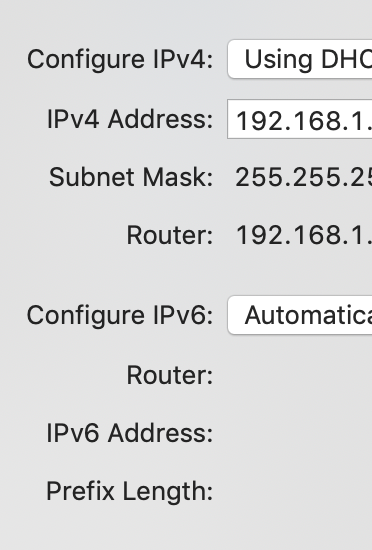
Thanks, but how would I know?

Thanks, but how would I know?
I’ve just thought of something obvious…would connecting my iMac - where my library is - by ethernet help?
I just have and…so far…it’s looks OK???
UPDATE - NO CHANGE - still the same ‘Not available outside your network’ message
Click Show Advanced.
The first setting should be Enable server support for IPv6.
If selected, uncheck the box, then Save Changes.
Yes. A wired connection will be more stable than a wireless connection.
Leave it connected via Ethernet cable if possible.
Doing this might change the IP address of your Mac (different network interface, so a different IP address).
- Disable WiFi on the iMac unless needed for some reason.
- Restart the iMac.
- Go to Settings → Network [show advanced]. Set
Preferred network interfaceto the wired Ethernet interface. - Go to Settings → Remote Access. Verify the private IP address - 192.168.etc.
- Adjust the port forwarding and address reservation rules in your router if needed.
FYI, you don’t need to mask the 192.168.x.x addresses. Those are private, not public, addresses. They are not accessible outside of your local network. Any data leaving your network will be remapped to the public IP address assigned by your ISP (the one that appears in the Remote Access settings page).
