Server Version#: 1.20.4.3517
Player Version#:8…2.21525(54df1e4b)
Dears,
It would be delightful to solve my long-lasting issue with remote (indirect) access which behaves very suspicious way.
I have many random devices from several produces and all of these devices I am able to control remotely (WAN) without any issue. However, when I want to watch PLEX remotely I have a connection/protocol issue. Strangely, I am able to connect remotely if I hit the RETRY button in my PLEX mobile app let say 20times. This 20times RETRY is a kind of stable behavior. Once I am able to establish the connection I can do anything with stable streaming “forever”. Once I kill the mobile app and open it again immediately the same 20times RETRY button procedure starts…
I set all needed port forwarding, UPnP on my router, and as the rest of the remote-controlled devices work always without a single issue I assume that there must be some protocol problem on the PLEX side.
Last week, I bought a different router to check that it is not just a one type router protocol - Plex issue, and sadly the behavior of PLEX is just the same - after hitting the RETRY button more than enough times it connects to my computer remotely and from that moment as long as I stay inside the app I can watch any movie without interruption.
To sum it up, to me it seems like a problem of protocol communication inside PLEX, please let me know your thoughts.
Does your carrier use CG-NAT? To find out, from the same network as your Plex server, go to https://whatismyipaddress.com/ (or any similar site) to see your public IPv4 address. If in the range 100.64.0.0 - 100.127.255.255, then Stop, Do Not Pass Go, Do Not Collect $200. Contact your ISP and see if they offer static, Public IPv4 addresses. If so, obtain one.
It is strongly recommended to connect your Plex Server to your network via a physical Ethernet cable. A WiFi connection, no matter the signal quality, is not as reliable as a physical connection.
Make sure your Plex server has a static IP address or a fixed, router assigned IP address (you do not want the IP address to change). See Troubleshooting Remote Access.
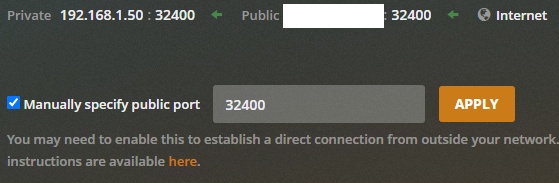
Configure your Plex Server to use manual port forwarding, not UPnP (check the box next to “Manually specify…” & click “Apply.”). Use the default port, 32400. You can change it later if desired.
What is the make/model of your router?
Please attach a screenshot of the port forwarding rule in your router.
Example from my Asus RT-AC68U:
.
Service Name: Descriptive (does not matter)
External Port: Use 32400 for now. Can change later if desired.
Internal Port: Use 32400 for now. Can change later if desired.
Internal IP Address: The IP address of your Plex Media Server.
Protocol: TCP (UDP not required).
Source IP: Blank. May be “Any” or “All” on some routers. You will not know the IP address of remote clients, so you do not want to limit the source address.
Enable Remote Access.
In Settings -> Server -> Remote Access, click “Enable Remote Access.”
If already enabled, disable, wait 10 seconds, and re-enable (to pick up any configuration changes you made).
Do this once, not 20 times.
Do you see the “Fully accessible outside your network” message?
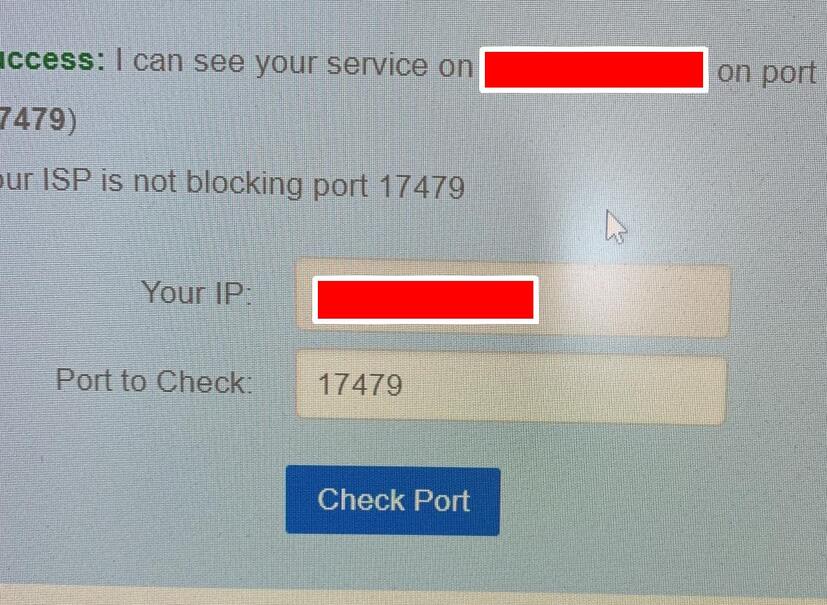
From a web browser on your Plex server (or any device on the same network), go to https://canyouseeme.org/. You should see your public IPv4 address. Change the “Port to Check” to your Plex remote access port (32400) and test. What is the result?
If not successful, then pull Plex Media Server log files and attach the ZIP file to the thread. See Troubleshooting Remote Access.
If successful, then try streaming from a remote client (phone on mobile network, etc). Monitor playback via Plex Dashboard -> Now Playing. The connection should show as Remote, not Indirect or Local. If Indirect, then the client is connecting via Plex Relay and Remote Access is not working correctly.
What do you mean you can control them remotely? → That I can connect via a given (producer) app and control them from the internet (not LAN). Simply, it works the same regardless if I am in or out LAN.
So is the problem connecting from the Plex mobile app? Which one? → Correct, the Android app, I checked the LOG and it seems like that the 20x RETRY button actually do a lot of things on the background → PLEX it’s trying several procedures to get connection with my PLEX-server and after many (19 ) failures it succeded with unique token and IP address which is on the internet (not LAN). I believe it is a workaround from the PLEX side…
I checked ports and found out that my ISP blocks every single port so have to dig there with ISP and try once again.
However, still pretty curious why all other devices, apps can work remotely (from the Internet) and I can control = connect to it and PLEX has this kind of issue- working workaround 20x button RETRY…
I went throught the list and passed everything except the last point - https://canyouseeme.org/ → my ISP blocks all ports.
I will contact them to fix it, thank you!
However, still pretty curious why all my other devices and apps can work remotely (from the Internet) and I can control = connect to it and only PLEX has this kind of issue-workaround = I have to hit 20x button RETRY in my mobile app to get stable connection.
That is not how Plex works. The Plex app is not controlling your server. It is connecting to your server to stream the content.
Yes it is. The app will normally try to connect to your server directly: phone <=> PMS server. When that doesn’t work, Plex.tv becomes a middle man to help with the connection. phone <=> plex.tv <=> PMS server. That is the “indirect” connection you see in the app. However, this shouldn’t take 20 retries. So something is wrong.
As I said before, you’ll need to provide the logs so I can see what’s going on.
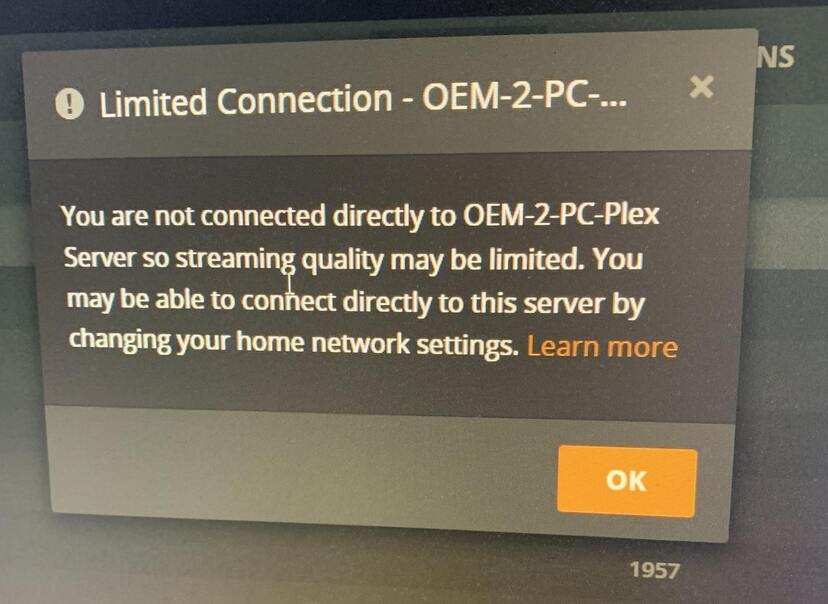
Hi there, can I please ask for some help in the “limited remote access” problem area which has only just been showing its head to me. Unless it wasn’t actually as noticeable a warning on older versions as it is with this latest version (v1.20.xx). In fact I reinstalled an older version of PMS to check, but the warning appears on this version too (1.19.xxx).
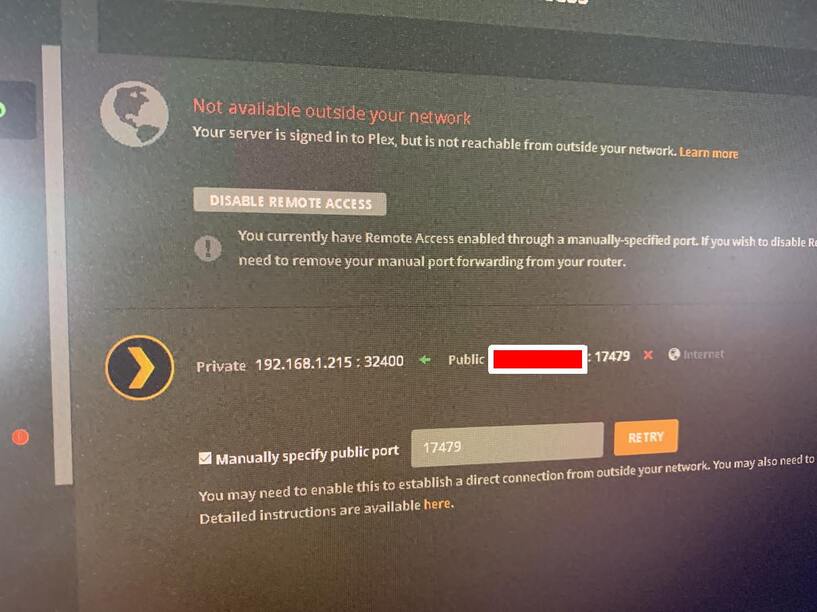
I have noticed that the ‘remote access outside your network’ has not been green for a long time. in fact when I click retry it goes green for a couple of seconds then back to red.. This is the same whether I use a manual port or plex’s own automatic settings.
Going by your above steps, I see that my router has four rules set… the top line setup by plex by the automatic way (port 32400) but going to port 24899.!! I don’t know why..!! and the third and forth setup by plex when using the manual way (port 17479) method…
There is also another rule for the wan port 32400 which has a destination for my NAS on lan port 25854,.? I don’t know why!!!
So my question is HELP !!! please
why am I getting a limited service on my remote access, resulting in much lower quality video.. like 360p instead of 720p???
Also what to do about the rules weirdness going on?
THANK YOU very muchly in advance… Cheers for any help you can offer..
CD in New Zealand
Thank you for the very prompt reply… I will get down to it tomorrow when the system should be free to play with (ie: kids are not watching a movie)…
I will do a factory reset on the router and make manual rules if no success with a fresh set of plex created rules…
Plex is running on a win10 PC. (don’t know how the NAS got in there…)
And here are the router details…
Product Vendor - Technicolor
Product Name - MediaAccess TG789MYRvac v2 HP
Software Version - 16.3
Firmware Version - 16.3.7190-2761003-20170907085601
Firmware OID - 59b0ed8197956f5626e64b9a
Bootloader Version - 2.0.89
Bootloader OID - unknown
Hardware Version - VBNT-L
Your screenshot shows UPnP configurations. That’s not the same as port forwarding. Check for another page that specifically says port forwarding. It might be under a heading related to for games/or http access.
Hey Volts, you are correct about the ports and the settings in my router.
After a router factory reset the automatic remote connection process by PLEX worked and it entered a TCP rule automatically in the router for port 24899 not 32400 but it works remotely again, no “limited service” reminders…
canyouseeme gives a positive responce to 24899 too…
However the message “not available outside your network” is still showing in the remote access page of PLEX even when I am streaming remotely.??
Is this message actually accurate/reliable…!!?
Should I (as you suggested) reset again and disable the automatic NAT-PMP and UPnP and manually use 32400 in the rule…? will it make any difference…!!
Hi Volts
I entered the manual port forward for 32400 and full resolution streaming is working well. So thanks for the recommendations.
The previous rule for 24899 was only giving me transcoded streaming. So I am not using that at all, and I wondered where the router got that number from. I noticed that the lower line for manual configuration with the PLEX logo and "Private… " contained that number. I must have entered that number at some time while “playing” with these settings.
Anyway despite the warning message “not available outside your network” still showing the manual routing is taking charge and streaming seems to be reliable now… thanks again.



 ) failures it succeded with unique token and IP address which is on the internet (not LAN). I believe it is a workaround from the PLEX side…