I apologize 1000% for dropping into this forum to ask for help. I have a HD Home Run-4k tuner on my Synology NAS. Everything was working on Plex with lifetime pass. My IP provider’s Router went bad and I had to substitute another one. It changed the gateway but I changed the IP Provider back to the address of my IP’s default gateway.
Plex then shows DVR is no longer valid. Without thinking of just changing new router\modem to use the prior IP, I deleted Plex DVR. Now, without any notification I am being prompted for an XMLTV file. This is coming from 100 degrees with no information but I cannot get past this screen.
Consider me stupid as Plex did not prepare me for this surprise so I am scrambling to get my DVR back up and running ASAP to record shows again. I never watch Live TV. Only recorded content.
Has Plex setup a YouTube video or someone knows of a YouTube that tells me to go here, download the file and place it in a folder on my NAS and then enter the NAS file path? However, Plex is pointing me to Schedules Direct. I have no clue of a list of 30-40 items with a sub list of XMLTV content. Which one do you pick? And does it simply give me the XMLTV file. Everything seems to say you have to do x, then y and then z which is all in technical jargon which I have no clue what it is talking about.
Why did Plex do this? I cannot seem to find anyway to get around the prompt for this XMLTV file? As you can tell I am dead in the water with no DVR running and I need some type of XMLTV file to put on my NAS.
Can someone point me to the install instructions of where to go and just click downloads to get a file? It seems this change my PLEX is so sudden no current YouTube videos have been updated to tell non-technical users like myself of what to do now that Plex has done this to their users?
I very much appreciate anyone who can help and direct with simple instructions so I can get the DVR setup in Plex. THANK YOU IN ADVANCE>
Server Version#: Version 1.32.7.7621
Player Version#: ? HDFX-4k
Tuner Make/Model:
Guide/Lineup name:
Using XMLTV?: No, it is asking for a file? Where is file and why?
Channel number/Name:
<If providing server logs please do NOT turn on verbose logging, only debug logging should be enabled>
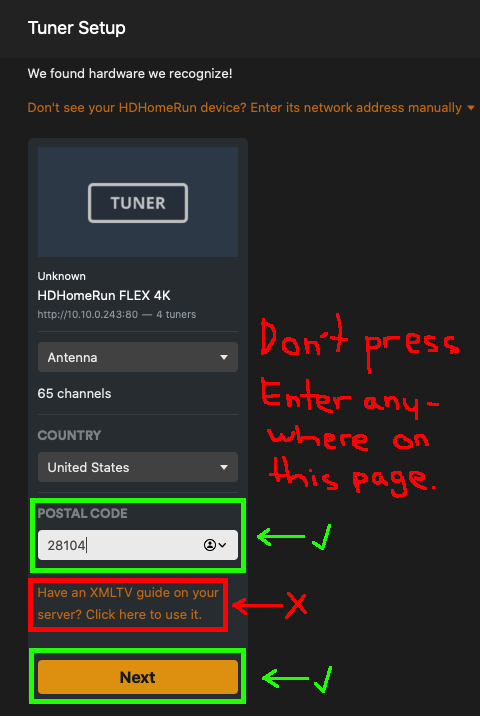
Can you provide a screenshot of what you’re seeing? The first thing you be asked when setting up a new DVR is the postal (ZIP) code. After entering that, click next (and complete the setup by mapping your channels). You only need to use an XMLTV file if you’re in an unsupported country (or you’re using some other non-supported service).
Here’s what you should be seeing:
In other words, don’t click the “Have an XMLTV guide…” link.
Thank you for the reply. That is how it has worked before but today when I entered a NC zip code of 28104 it will not proceed without entering the XMLTV path.
Now, this is where it is all new and a surprise to me.
No, there are some specific things which cause the XMLTV setup page to load.
Do not press enter after typing your ZIP code. Likewise, do not click the "Have an XMLTV guide…” link. Immediately after typing your ZIP code, click the next button (do not hit enter as that will force you to the XMLTV page).
No. You’ll always see the "Have an XMLTV guide…” link. The thing is, don’t click it or press enter on the initial DVR setup page. In that way, you’ll never be presented with the XMLTV configuration dialog.
I am not getting the Settings to show Live TV & DVR. When I click on settings it just shows the items in the left pane. I know I stopped the plex media server on the NAS, then rebooted the NAS and confirmed the Plex Media server is running.
How do I get back to the Settings showing all of the options on the left including Live TV & DVR?
I ended up rebooting my PC and this time when I clicked on Settings it showed the list. I did as you instructed to click on the next button and not hit enter. That was the magic trick. I feel so dumb of all of this pain but hopefully Plex will update their procedures to illustrate as you do, AND, if someone see the XMLTV go back and start over.
You are my hero. Thank you so much!!! I am so very appreciative of your help.
However, let me confirm something. When I clicked on Libraries it appears I need to repoint them back to the NAS. However, when I click “Add LIbrary” and then “TV Shows” it opens up a list of mapped drives on my personal PC. Previously, it would point to volume1 on the NAS and I would click to find “TV Shows” on the NAS itself. It appears to work when I clicked on the mapped drive on my PC but my PC does not run 24 hours a day like the NAS.
Should the “Add Library” pointed me to choose from the NAS? I have no idea why it is different this time and I don’t know how to fix it?
Thanks
Ok, something has got crossed in all of these changes. The guide is refreshing but I noted in the guide the name of my NAS server is not in the drop down above the guide. Desktop-PAAxxx is my personal desktop. Previous it would say the name of my NAS Server where the Plex Media Server resides. I will admit when I was trying to figure out things I read an article that talked about the Plex Server on Windows. I think because I installed that on my PC that is the server it found and that now explains why the library was showing my mapped drivers on my PC.
I will await your guidance but I suppose I need to uninstall the Plex Media Server installed on my PC. When that occurs, how do I get the Plex app to point to the Plex Media Server on my NAS.
However, previously I had some application installed on my PC where I could click on Settings and it would display the long list of settings on the left side. I use that PC app to search for shows to be recorded and set the recorded settings. I also used that app on my PC to watch shows occasionally.
I got to retire for the evening but I will look for your reply tomorrow evening to get your guidance on how to correct the mixup.
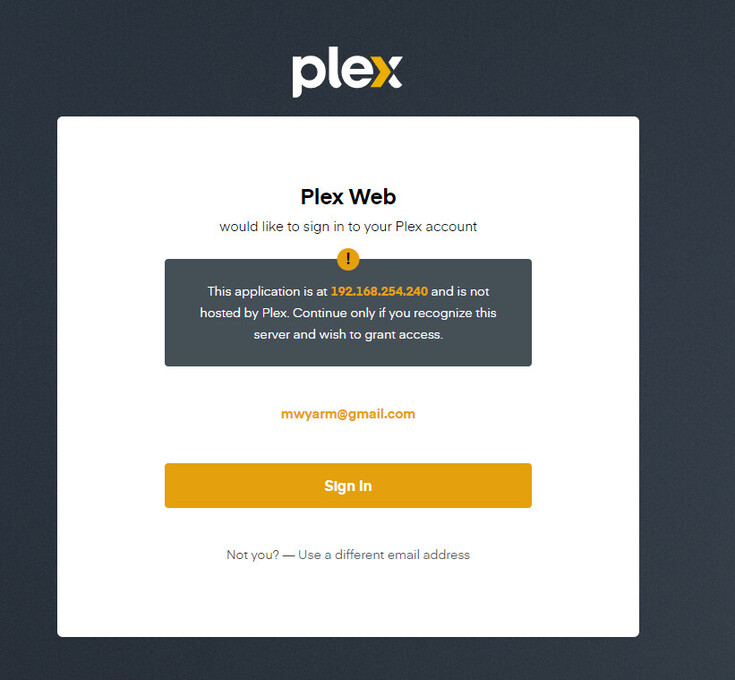
I also got this strange message when I went to my NAS and clicked on the Plex Media Server on the NAS. That is related to what I was saying above, it should be showing the Plex Media Server on the NAS using my NAS name (i.e. DXXXXXXX)
I read through the rest of you comments, I think what has happened is that you installed a second Plex Media Server instance on your Windows computer, in addition to the one you already had on your NAS. This is not a problem in-and-of itself.
However, it is curious why your NAS PMS was no longer accessible to you. What do you see when you navigate to the following in your browser: http://ip.address.of.NAS:32400/web (replace ip.address.of.NAS with its IP address).
Do you get a login screen? Or does it take you through the setup wizard? It may be that you need to reclaim you Plex Media Server installation on your NAS. This may be the case if you attempted to uninstall/reinstall PMS on the NAS.
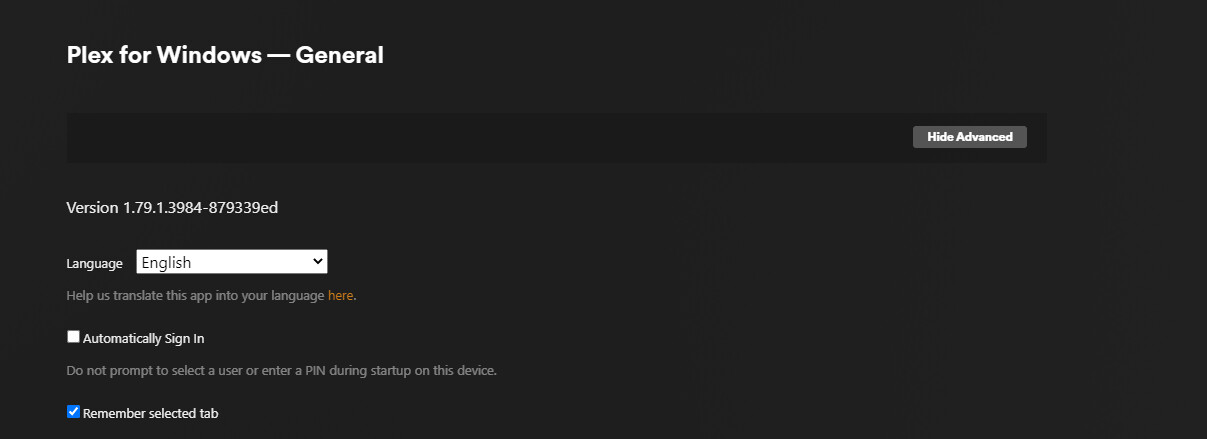
So, in clicking on General under settings there is an option to remove my desktop. I will do that later this morning. But I don’t see where I can reclaim my NAS Plex Media Server. Possibly, it will show up after I remove my desktop?
It’s safe to sign in on that screen, as long as you recognize the IP address. That message is just telling you that you’re logging into your local PMS and not via Plex’s hosted app.
Humm… it is referring to Windows and not how to diagnose on the NAS. I am hesitant to remove the Desktop Media Server until I get the NAS Plex Media Server in the WEB windows where I can see it under Settings?
It is telling me something is not aurthorized. I am looking at the NAS security settings for the plex media server, however, there are so many I am not sure which security setting to tinker with?
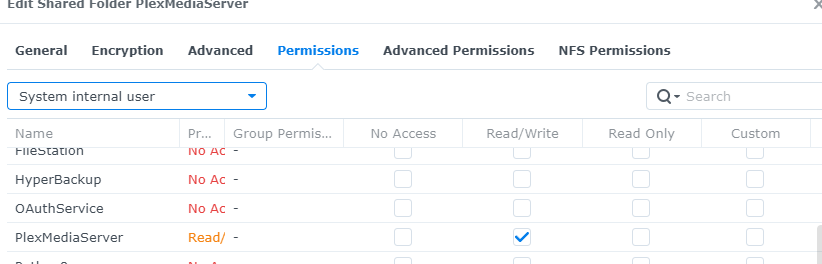
I went to the NAS and clicked on Shared Folder. I manage 2 folder sets - A) Plex Media - where are my media is stored. B) PlexMediaServer - The Plex Server.
For Local Users, my personal login is selected with read\write. I verified my email for both my Admin and my non-admin account have permissions although I am not sure if I clicked everywhere. I am conscious of giving too much access…
Should I look for an article that states what users need access?
I’m not terribly familiar with the NAS configuration aspect as it pertains to PMS, I’m afraid. @ChuckPa might be able to provide some guidance here. I’m pretty sure he’ll need to know what version of Synology DSM you’re using.