Hi everyone - hoping someone can please help. I have an issue which has had me stumped for weeks and I desperately need to lean on your networking expertise.
I recently upgraded from a stock NETGEAR WNR2000v5 supplied by my ISP to a shiny new TPLink Archer C7. The router’s great - all except I can no longer access my PMS in the other room via my Apple TV, either via WiFi or ethernet. Everything worked fine with the previous router, so I’m assuming it’s nothing to do with DNS rebinding or anything on the ISP side. Both routers have the stock firmware on them and I’ve not made any changes to the settings.
I’ve tried absolutely everything I’ve been able to find online to try and rectify this, but alas no joy. Please help!!
Is your old router still connected? (you mention ‘plural’ routers)
Did you start here? - https://support.plex.tv/articles/200931138-troubleshooting-remote-access/
It very well could be rebinding issue, most newer routers reject rebinding, or it could be your new router doesn’t have UPnP enabled by default, or you didn’t set up port forwarding on it where perhaps on your Netgear you/someone else had.
(I always prefer port forwarding vs relying on or enabling UPnP)
Any other number of things.
Long story short, I have two separate internet connections at the moment. The original one has the NETGEAR router on it and is still running my Plex from my server in one room to the Apple TV in the front room via built-in ethernet in my apartment. The new TPLink router is using the other internet connection, which we use for all the day-to-day stuff. I really want to lose the old connection and merge everything onto the new connection, but haven’t been able to cancel as I’ll lose my Plex!
Anyhow, I have been through the document you linked to at length, a number of times. I can confirm I did not have to change any of the stock settings on the Netgear - it just works.
I am going to go back to the original documentation and try the steps again. Any other thoughts? I’m totally stuck - looking at new routers at the moment… Argh.
It’s a wired connection - I have a router in a cupboard that also has a panel linking to all the ethernet ports in the apartment. The server is in a seperate room to to the router, connected by ethernet.
As above - the server is not connected to the router physically, but over an ethernet connection from the router cupboard.
No, it seems they do not have the same network and subnet: Archer C7
IP Address: 192.168.0.1
Subnet Mask: 255.255.255.0 NETGEAR WNR2000v5
IP Address: 192.168.1.1
Subnet Mask: 255.255.255.255
You are in Double-NAT.
You have different devices getting different ip addresses in different subnets. Plex devices work best locally when on same subnet, unless you know how to configure static routes (and many here don’t, or have time to try to fully walk you and your devices through it without considerable expenditure).
Get everything on one router - then it will be easier to troubeshoot, and may magically start working.
@bmdcox if you had one router behind the other router you would have double-nat as @JamminR is saying. Since you do not, it is a non issue. You can have 2 separate routers on the same switch with different subnets. This only becomes an issue if you have DHCP enabled on both routers. This is good that they are separate subnets. Make sure plex is on the subnet of the new router and pointing to the gateway IP.
Your plex server should be:
IP: 192.168.0.200
Subnet: 255.255.255.0
Gateway: 192.168.0.1
(I am also assuming that your 255.255.255.255 e.g. /32 is a typo and you meant 255.255.255.0 e.g. /24 on your netgear)
Once you have done this open up your command prompt (start -> type cmd -> click command prompt) and type ping 192.168.0.1 from your plex server. If you get replies, then ping googles dns server ping 8.8.8.8. If you get replies, then you are fixed! and your manual port mapping should start working. If you fail at any step above, let me know
Thank you so much for your detailed response - starting to think I won’t have to buy a new router after all!
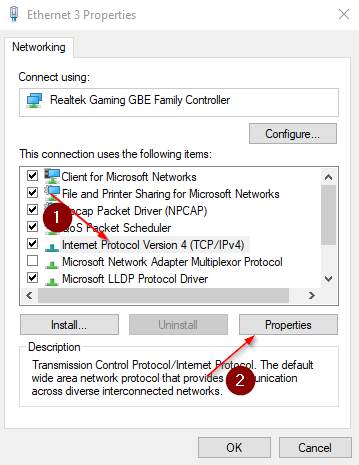
I will try out the points you mention tonight, but can I just confirm that I need to change the Subnet and Gateway via the Network Properties linked to my ethernet adapter?
Yes you need to make sure the IP settings on your server are correct. Assuming you are on windows 10:
right click networking on your toolbar on the bottom right
click “Open network & internet settings”
in the new window click “Change Adapter options”
in the new window right click your active network adapter and click properties
Set your settings like so:
Then ok, and ok again.
then do the ping (network stack) tests like i said above.
So it seems to be working now, reluctantly! It’s taking ages to find the server on the Apple TV, then eventually it mentions something about direct connection not available, then the media menu loads but doesn’t play content, then FINALLY it plays fine.
There is still an issue with the server saying it’s not accessible remotely. Could this patchy performance have something to do with that?
Did you re-ip your Apple TV? Remember, that you have 2 routers leasing ip space on the same switch. If the Apple TV is on the wrong router it will have to go out the old router, hit the first hop of your ISP (possibly more routing is hilarious that way) then hit the first hop of your new ISP and come back in.
My fist suggestion is to check which router the Apple TV is connected to just like your computer. If it is, in fact, connected to the old router I would go ahead and either turn off dhcp on the old router or rip it out now that you know it’s all going to work on the new router. Lemme know what happens
Thanks again for all the kind advice! I have just ripped out the other router and rebooted the Apple TV - everything seems to be working pretty well - perhaps a tad sluggish, but I might just be being pedantic now…
One last question: I have another Windows 10 laptop in another room also connected to the same ethernet network and running Plex Media Player - this is now not connecting to the server either. I imagine I need to make some changes to the ethernet adapter properties there as well, correct?
DHCP leases on consumer grade routers are normally 1-3 days. If you want to force it you can release and renew your ip on any devices you don’t have static IP addresses set on. IMO as someone who has 50+ devices at the house I prefer to statically set my IPs so dhcp is just for things that roam in and out of the house or are unable to be assigned (roam as in phone, can’t be assigned as in some home automation devices like Wemo). It definitely takes your new setup out of the equation as a problem if you statically assign.
You might have some wonky stuff for the next couple days but as dhcp leases expire it should all work itself out!
Best of luck to you.
If any specific response answered the original post, remember to mark it accordingly
So the laptop in my other room is still not finding the server. Should I have changed the adapter settings on that machine to align with the other changes we made? Apple TV still a tiny bit wonky, but seems to maintain a stable connection after about half-a-dozen ‘Server not found’ notices…
Thanks for all you help!! I have now been able to finally cancel the other internet connection, so I owe you big time!
If you set your (now one and only, as I suggested originally) router settings to control DHCP for all the devices behind it, and re-enable DHCP for all the Windows adapters machines, ensuring that the ‘server’ has a static IP assigned in the router settings, you should be good to go. The likely reason you needed to adjust adapter settings before was that you had multiple routers trying to assign multiple subnets (192.168.1.x vs 192.168.0.x)
Sorry, still trying to follow… :# I’ve left it a few days and still no luck with the other PC (and it kind of sounds like it should have just come to life as the DHCP licences expired?). Similarly there’s still this issue with the lag on the Apple TV - it works but it takes an age to find the server, and serves up some message about ‘Direct Connection Unavailable’ before finally connecting. I did notice in the server settings that my DHCP range ends at .199 and you directed me to assign a static IP of .200 - could that be causing the issue?
I figured it might be just as well to post images from the router console, so you can see if anything looks amiss. In the meantime, would you suggest I follow exactly the same steps for the other laptop in terms of assigning a static IP and reserving this address in the router (as we did with the server?).
Thanks again - fingers crossed I get everything working shortly!
If you set dns to nothing… nothing will resolve. 8.8.8.8 / 8.8.4.4 for primary / secondary dns.
Setting a static IP means DHCP is not used therefore the ip being outside the range of DHCP is not only non-sequitur but best practice.
On your laptop open command prompt as administrator (start > type cmd > right click command prompt and run as administrator). In command prompt type ipconfig /release, count to 5, type ipconfig /renew, wait about a minute, then type ipconfig /all and Paste output