I have PMS successfully installed on NAS #1, a Synology DS918+
I run PMS from NAS #1 in a Chrome browser tab on Win10 Desktop
I have sucessfully added TV Shows to PMS that reside on the same NAS
→ I cannot get PMS to recognize NAS #2 on the same network, a Synology DS916+ to add more media files
*NAS #2 is mapped as drive Y in Windows 10 desktop
*I added plex as a user to NAS #2, using the same password as my overall NAS login and with R/W access to the media folders.
The shared folders containing media have R/W permissions with plex listed as a “local user”.
plex user does not appear under “System internal user”
What am I missing? NAS #2 does not appear when trying to add the path in Managing Libraries. Everything has been rebooted. All devices are on the same wired network.
Your Windows computer is not part of the equation – ignore it.
On both NAS systems, make sure the NFS service is enabled.
On the NAS running PMS
Create a shared folder or create a mount point folder in an existing shared folder where you’d like the media to be mounted.
Open FileStation
Get into the shared folder where you’re going to moint
Tools → Mount Remote Folder → Supply the following info
a. IPaddress:/volumeX/path/to/media
b. Mount to location
c. Check the box to automatically mount at startup
It looks like this. Your values will be different:
First, I’m extremely thankful for the quick response!
I enabled NFS on both NASs and rebooted
I created a folder and subfolder on the PMS NAS
When I tried to mount the other NAS I get “Connection failed. Please make sure the remote server is accessible via NFS”
Oddly I just noticed the IP addresses as:
PMS NAS 192.168.4.50
Media NAS 192.168.6.82
Not sure where to go next…
I can now view the NAS#2 files from the PMS NAS File Station, and I can browse to that folder within Plex and add it as:
/volume1/NAS916\040Media/TV\040Shows
But when I save changes and go back to the HOME screen it says TV Shows is empty.
(I deleted the library link to the folders on the PMS NAS to simplify what I am seeing in the libraries)
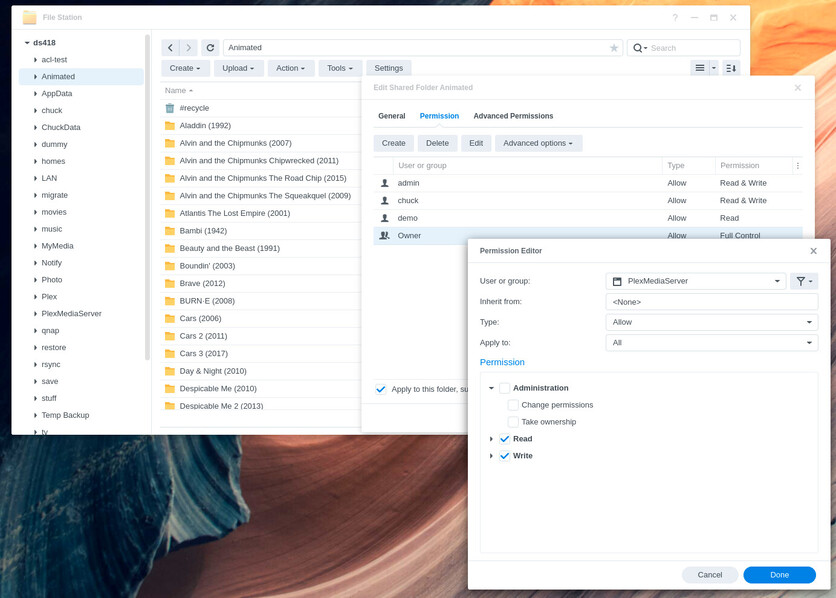
On NAS#1 (where PMS run), System Internal User “PlexMediaServer” must minimally have Read permission. (if you see the folders but not the contents, this is common indication of insufficient permission to read)
On NAS#1 (PMS) using File Station I can vew folders and files on the shared media folder on NAS#2, so they seem to be accessible. If I double-click on a file it prompts me to SAVE AS on my PC. But I realize I’m a different user than Plex.
On NAS#1 (PMS) for that shared NAS#1 media folder l(isted in Control Panel) there is no “plex” entry under “System internal user.” Plex is only listed under “Local users.” (DSM 6.2.4-25556 Update 5)
I have:
Uninstalled PMS
Upgraded both NAS to DSM7
Freshly installed PMS Version 1.25.9.5721 on NAS#1 (Synology DS918+)
Verified NFS service is enabled on both NAS
Created the remote folders on the PMS NAS with automatic mount on startup
Added router reservations to keep both NAS on 192.168.4.xx
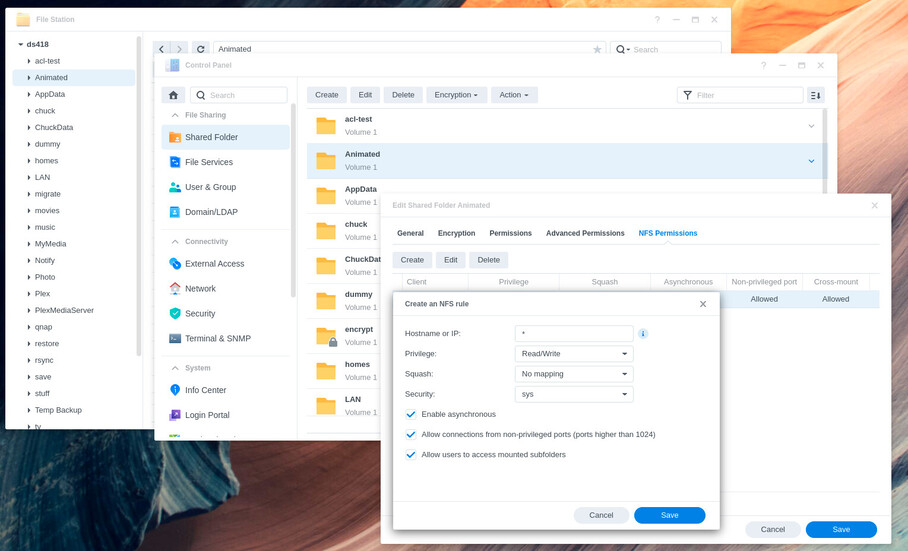
Created the NAS rule on NAS#2 (Synology DS916+)
Added permissions to the shared media folders on NAS#2 and subfolders
TV Show episodes on the PMS NAS#1 ARE able to be added to the PMS library.
On the PMS NAS#1 I can view those shared folders on NAS#2 File Station right down to the individual file episode level. But PMS doesn’t see the subfolders containing those episodes. Seems to be a permission problem but I can’t find the error.