Can't install PMS after Synology DSM 6 to DSM 7 update

I just started the process of updating my DS918+ Synology NAS from DSM 6 to DSM 7, but cannot install PMS.

Steps I took:

  1. Uninstalled PMS from Package Center (on DSM 6)
  2. Updated NAS from DSM 6 to DSM 7 (DSM 7.1.1-42962 Update 8)
  3. Downloaded PMS package (Intel/AMD 64-bit version)
  4. Tried to manually install PMS, but get hit with “The operation failed. Please sign in to DSM again and retry”
  5. Restarted NAS several times and got same result

Am I using the wrong PSM version/architecture? Have I done something else wrong?

Seems it was an issue with the Safari browser. I’ve just switched over to Chrome and straight away the installer starts up. Hopefully the rest is a straight forward process :crossed_fingers:

Installation completed. Only step I took was to give PlexMediaServer the read/write permission for the correct shared folder.

When starting Plex Web the first time, I think I re-added the server, but I didn’t add any libraries to it.
Once through the setup stage, I saw my old libraries, but they are unavailable.

In authorised devices, I see two instances of my server. One from DSM 6 and one from DSM 7.

#### Synology
1.27.0.5897-3940636f2
Plex Media Server
DS918+
Linux DSM 6.2.4.25556-0


#### Synology
1.41.8.9834-071366d65
Plex Media Server
DS918+
Linux DSM 7.1.1.42962-8

I tried the claim token path too, but still see server unavailable.

I could remove the old one and add the libraries to the new server I guess, but I thought this would all be migrated automatically somehow.

Is there a way to resolve this?

Seems I made a mistake and didn’t give the Plex shared folder the correct user permission.
I fixed the permissions, uninstalled PMS, deleted the PlexMediaServer shared folder and started the installation again.

It’s now been “installing” for a while and I now see a migration.log file in the Plex folder which wasn’t there before.

Installation succeeded but with an error. Old server and libraries seem to work now though so do I need to worry about the error?

Also, can the Plex shared folder and plex user now be deleted?

Plex Media Server migration to DSM 7 started:  Mon Jul  7 17:39:27 CEST 2025
=== Mon Jul  7 17:39:27 CEST 2025 === Start: Change ownership
chown: changing ownership of '/volume1/Plex/Library/Application Support/Plex Media Server/Codecs/EasyAudioEncoder-1785-linux-x86_64/EasyAudioEncoder/EasyAudioEncoder': Operation not permitted
chown: changing ownership of '/volume1/Plex/Library/Application Support/Plex Media Server/Cache/fontconfig/CACHEDIR.TAG': Operation not permitted
chown: changing ownership of '/volume1/Plex/Library/Application Support/Plex Media Server/Cache/fontconfig/764b928fc99aeb29558ee70263f6f1c0-le64.cache-7': Operation not permitted
chown: changing ownership of '/volume1/Plex/Library/Application Support/Plex Media Server/Cache/fontconfig': Operation not permitted
=== Mon Jul  7 17:41:59 CEST 2025 === Completed: Change ownership
=== Mon Jul  7 17:41:59 CEST 2025 === Start: Convert symbolic links
=== Mon Jul  7 17:51:02 CEST 2025 === Completed:  Convert symbolic links
=== Mon Jul  7 17:51:02 CEST 2025 === Start: Migrate Plex Media Server

You somewhere forgot to check Apply to this folder, sub-folders, and files when granting permission to PlexMediaServer.

If the Plex shared folder is empty (which your snippet doesn’t confirm) then you can delete it.

It should look like this:

chuck@ds418j:/volume2/Plex$ cat Migration.log 
Plex Media Server migration to DSM 7 started:  Fri Sep  2 21:31:18 EDT 2022
=== Fri Sep  2 21:31:18 EDT 2022 === Start: Change ownership
=== Fri Sep  2 21:44:07 EDT 2022 === Completed: Change ownership
=== Fri Sep  2 21:44:07 EDT 2022 === Start: Convert symbolic links
=== Fri Sep  2 21:47:10 EDT 2022 === Completed:  Convert symbolic links
=== Fri Sep  2 21:47:10 EDT 2022 === Start: Migrate Plex Media Server
=== Fri Sep  2 21:47:10 EDT 2022 === Completed:  Migrate Plex Media Server
=== Fri Sep  2 21:47:10 EDT 2022 === Start: Clean /volume1/Plex
=== Fri Sep  2 21:47:11 EDT 2022 === Completed: Clean /volume1/Plex
chuck@ds418j:/volume2/Plex$ 

Ahhh okay. The Plex shared folder is not empty, I presume because of the errors.

Do I correct the permissions, uninstall PMS, delete PlexMediaServer shared folder and then install PMS again in order to get the migration to work correctly?

@JeezMGeez

I can help you with that.

How skilled are you with the Linux command line?


What do you have in the Plex shared folder ?

How big is it? (properties → Files, Folders, and total space used)

I am somewhat used to using the command line for basic things. As long as you can clearly explain where and which commands to run, I should be fine.

10.95 GB
225185 files
247501 folders

Before I do this, I need one important piece of info.

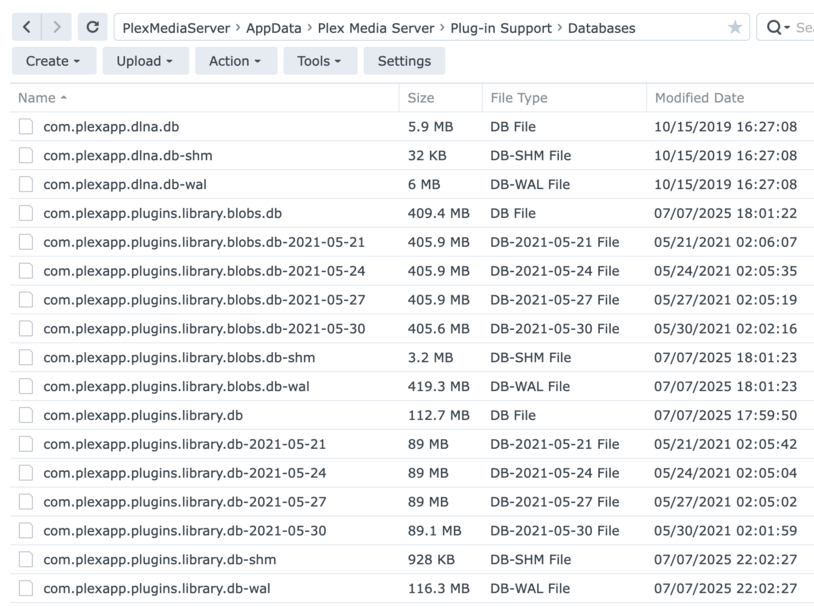
  1. Compare the size of the Databases
    – Plex/Library/Application Support/Plex Media Server/Plug-in Support/Databases
    with
    – PlexMediaServer/AppData/Plex Media Server/Plug-in Support/Databases

  2. Which has the bigger ‘com.plexapp.plugins.library.db’ and ‘com.plexapp.plugins.library.blobs.db’ ?

Plex Path

2.43 GB - 13 files - 0 folders

PlexMediaServer Path

2.98 GB - 17 files - 0 folders

I am concerned about one thing.

You do not show any recent DB Backups.

Your most recent shown here is 30-May-2021.
Did you change the backup location to a new folder ?

The NAS has been turned off for quite a long time. Over the last few years I have only turned it on a few times for a short period, probably not long enough for it to make a more recent backup.

Thanks, That addresses my concern.

I’ll start writing.

My next post will be the instructions. Please give me 5-10 minutes to write and proof.

Please read thoroughly.

Ask if you have any questions before starting.

  1. Stop Plex

  2. Control Panel - Terminal & SNMP - Enable SSH

  3. Using Putty (windows) or ssh (mac),

  4. SSH into the NAS
    – Use your username
    – Your password WILL NOT ECHO as you type it.

  5. At the command line, type: sudo bash
    – Enter your password again
    – Observe bash-4.4# is now your prompt

  6. cd /volume*/PlexMediaServer/AppData

  7. tar cf - './Plex Media Server' | (cd /volume*/Plex/Library/Application\ Support ; tar xf -)
    – This is one long command.
    – It will take time to run (11 GB of data to transfer)

  8. cd /volume*/Plex

  9. pwd

  10. chown -R PlexMediaServer:PlexMediaServer /volume*/Plex

— Now switch to FileStation

  1. Open FileStation

  2. DELETE Plex/tmp_transcoding

  3. DELETE Migration.log

  4. Left panel - Right-click Plex → Properties → Permissions tab.

  5. Apply Full Control to PlexMediaServer (system internal user)

  6. Apply to this folder, subfolders and files – (required).

---- When complete -----

  1. FileStation - PlexMediaServer

  2. RENAME AppDataAppData-Save

  3. Package Center – Uninstall + KEEP (first radio button)


Now reinstall the same SPK again.

It will start installing. It will sit at INSTALLING while it works,

Migration.log will again be created showing progress after a minute or so.

When it finishes:

If no errors –

  1. No error messages in final popup.
  2. Plex shared folder will be empty except for any files you placed there
  3. Start PMS
  4. Test it out. It should be exactly as it was under DSM 6
  5. When confirmed everything is OK, you may Delete AppData-SAVE

When all settled and happy.

  1. Close the SSH terminal session
  2. Turn off SSH in Control Panel - Terminal & SNMP

FYI, Windows has a built in ssh client available from the c:\ prompt. If desired, it can be used instead of Putty to connect to the NAS.

On the PC, bring up a command prompt (two options):

  • Windows Key + R to bring up the Run Window, then enter CMD.
  • Type CMD in the search box on the task bar.

This opens the command prompt window to C:\Users\your_username>

Enter ssh username@IPaddress
username: Synology username
IPaddress: Synology IP Address

On the first connection, you will see a “your system is unknown, do you want to proceed” type message. Enter yes to continue.

Enter the password for you Synology username.

Example:

c:\>ssh cratchit@192.168.1.49
The authenticity of host '192.168.1.49 (192.168.1.49)' can't be established.
ED25519 key fingerprint is SHA256:Ev9......
This key is not known by any other names.
Are you sure you want to continue connecting (yes/no/[fingerprint])? yes
Warning: Permanently added '192.168.1.49' (ED25519) to the list of known hosts.
cratchit@192.168.1.49's password:

Synology strongly advises.....

cratchit@DS414:~$

Managed to migrate successfully with no errors now! Thank you for all the help!

How long did it take?

I’d day around 1.5 - 2 hours maybe in total. I didn’t keep track and was doing other things whilst waiting.

The migration when reinstalling took around 30 minutes according to the migration.log file

Great! That’s about what I expected based on the file count and size.

Thanks for getting back to me.