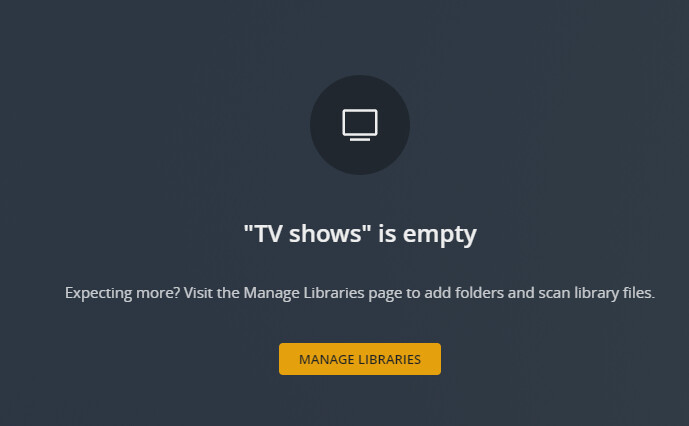
I’ve got a Windows 10 PC with an external drive containing my Media files. I had the Plex server set up on another Windows 10 PC with no problem, but I’ve just switched the external drive to a new PC (set up identically to the other one) and now when I try to edit the folder locations, I can’t get the external drive to show up.
I’ve tried just copying and pasting the drive address and that doesn’t work. I can access the external drive through file explorer with no problem.
I’m hoping that someone can explain what’s going wrong, preferably in words that a PC dummy like me can understand.
Connect the drive before you start Plex server.
Alternatively, just type in the drive letter manually.
Tried both of those so far and it hasn’t worked.
Are you running the server as a Windows service?
Which drive letter does your drive have?
Yeah it’s a windows service. The drive is letter E
The exact file path I’m trying to use is E:\Video\TV Series
Is the drive you have actually just an external drive, or is it rather a NAS which is connected per network? In other words, does your “drive” appear in your network neighborhood in Windows explorer? If it does, it isn’t a regular external drive.
Because the Windows service cannot use the drive letters which a user is assigning to network shares.
Instead, it has to use the UNC path of the NAS share.
(e.g. \\nasname\sharename\foldername)
The same applies if the drive came with some proprietary software to facilitate drive encryption or “accelerate” access speed.
It’s appearing in File Explorer under Devices and Drives. It’s a Seagate Expansion Drive, connected by USB.
Stop the windows service.
wait a few seconds
start the service again
OK pretend I’m really dumb (because I actually am). How do I do that?
- Right-click on the Start button to open the WinX Menu
- Select Run
- Type
services.msc in the Run box which opens
- Windows Services Manager will open.
But if you are running Plex server as a Windows service, you must already know this.
Or if you are using this solution PMS as a service you have a task tray icon from where you can control the service more conveniently.
Does “Plex” appear in this list?
No, “Plex Updater Service” is not the right one.
OK then maybe I’m not running it as a Window service? What other options are there? Again I’m “really” dumb.
All I did last time was install the app, and add libraries. Everything worked OK then.
Most likely, because doing so requires the installation of additional software.
Edit your tv shows library
go to the “Add Folders” tab
click on the button “Browse for Media Folder”
paste or type in the path to your media into the marked input field
click on “Add”
That’s exactly what I did. It’s not finding any media.
How do the file and folder names look like inside of the folder E:\Video\TV Series?
That’s what it looks like
It is not supposed to show anything in this dialog page.
Just click on “Add” below.
I clicked Add and then Save Changes. And now I have this screen