This guide’s router screenshot is from the Asus RT-AC86U but most Asus will be the same. This guide is a simple port forward and is not taking into account multiple Plex Media Servers on the network, a double nat, or other semi-complex networking set up. This routers UPnP is pretty good so may not have to do this but worth knowing how to do.
- In your web browser open the router page then on the left go to
WANunder Advanced Settings. - At the top choose the
Virtual Server/Port ForwardingTab and make sureEnable Port Forwardingis enabled - fill out the top row to make a new port forward rule
a. Service Name =Plex(can be anything)
b. Source IP = Leave blank
c. Port Range = any port number not in use up to 65535, or just use 32400. generally high numbers are not in use. (this is also called the external or public port)
d. Local IP = The local IP address of your computer, if you click dropdown you might see your computers name which you can select instead of typing in IP
e. Local Port =32400( you must use this number)
f. Protocol =TCP
g. Hit the+sign button at the end of the row. and it will move to the bottom. - Hit
Applyto save


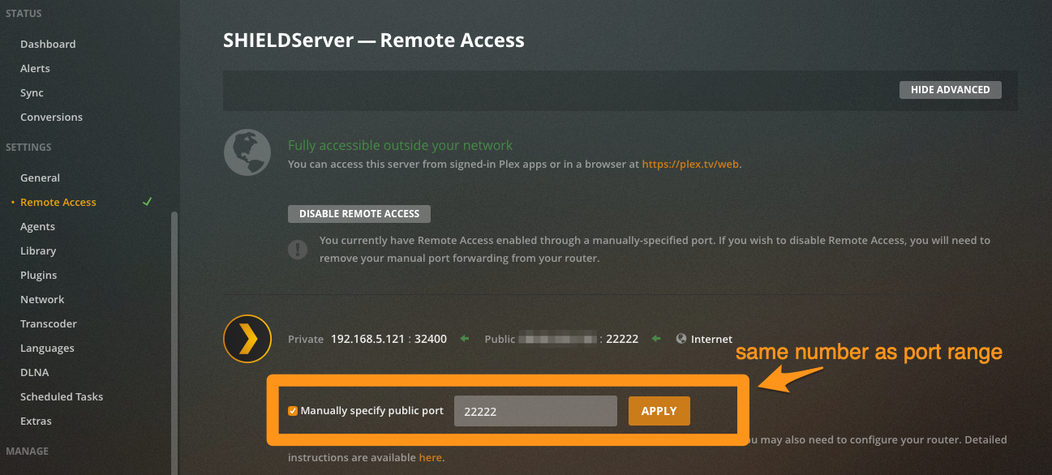
In the Plex Remote access settings
- Hit
Enable Remote Access - In the
Manually Specify Portfield enter the same number you used in step 3c above for thePort Rangein your router. In the image example I used22222 - Hit
apply.(might have too hit Enable Remote Access again) Done