I noticed that when viewing a movie on a computer, above the play button, the IMDB and user ratings are displayed.
However, on mobile, the IMDB, critics, and Rotten Tomato audience ratings are displayed.
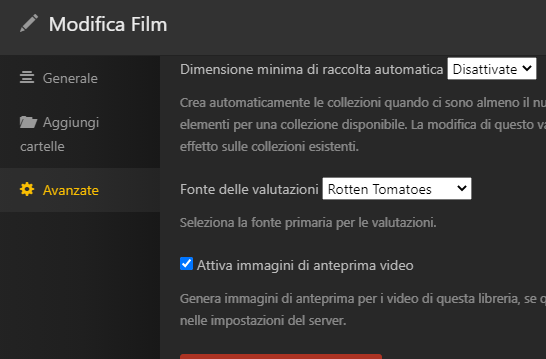
I saw that in the server library settings you can choose between IMDB and Rotten Tomato, but if I try to change to Rotten Tomato, the IMDB rating remains.
I noticed that a friend, whose library has Rotten Tomato set in the advanced settings, displays the Rotten Tomato critics and audience ratings.
How can I also edit and view the Rotten Tomato data on a computer?
Thanks
The mobile client most likely is using the new plex experience UX changes. These changes (thankfully) have not made their way to https://app.plex.tv yet which is why you only see one rating.
I just tried to go in the advanced section of the library, then change from imdb to rotten and the update all library meta data but still continue see imdb rating on pc.
I’ve tried various tests, but only imdb keeps appearing. I’ve also tried to find out if kometa might be the problem, but they tell me it has nothing to do with it.
However, by googling, I read that it’s a fairly common problem, and it even seems like the only way to fix it is to delete the library and recreate it, but that seems crazy to me.
If you try to switch from imdb to RT, do the RT symbols appear immediately?
I use tmdb ratings. So as a test I changed it to imdb, refreshed a movie and the rating changed to the imdb rating. I then changed to to RT, refreshed the same movie and it changed to RT. Then switched it back to tmdb, refreshed again and it changed to tmdb.
I use chrome as my browser and https://app.plex.tv. Not sure why its not working for you. Have you checked your db for any database corruption ?
If you need to run DBRepair for Plex Media Server:
Enable SSH on the NAS: Synology Control Panel → Terminal & SNMP
The NAS userid must belong to administrators group: Synology Control Panel → User & Group
Download & run DBRepair
SSH to the NAS, download and run DBrepair:
# ssh to the NAS, username = your DSM login; IP = the IP address of the NAS
# On Windows run from the c:\ prompt, either CMD or PowerShell or use Putty SSH client, putty.org
# On Mac/Linux, run from a terminal sessions.
c:\ssh username@IP

# Optional.  DBRepair can run from any location.
# cd to Plex Data Directory (DSM 7)
cd /var/packages/PlexMediaServer/shares/PlexMediaServer

# Download latest version.
wget -O DBRepair.sh https://github.com/ChuckPa/PlexDBRepair/releases/latest/download/DBRepair.sh

# Make it executable
chmod a+x DBRepair.sh

# Run it as root.  You will be asked for the NAS admin password
sudo ./DBRepair.sh
Once DBRepair is running
stop - Plex must be stopped for DBRepair to work auto - this combines check, repair, & reindex into one step
If auto successfully repairs the database, then start and exit.
If auto cannot repair the database, choose replace. This will lead you through using a backup of the database (the db files with dates appended). It will check to see if they are OK. If any are OK, it will replace the damaged db with the backup. Then you can start and exit.
Example: SSH to Synology NAS, login, download and launch DBRepair
c:\>ssh synouser@192.168.1.49

The authenticity of host '192.168.1.49 (192.168.1.49)' can't be established.
ECDSA key fingerprint is <deleted>.
Are you sure you want to continue connecting (yes/no/[fingerprint])? yes
Warning: Permanently added '192.168.1.49' (ECDSA) to the list of known hosts.
synouser@192.168.1.49's password:

Synology strongly advises you not to run commands as the root user, who has
the highest privileges on the system. Doing so may cause major damages
to the system. Please note that if you choose to proceed, all consequences are
at your own risk.

synouser@DS414:~$ cd /var/packages/PlexMediaServer/shares/PlexMediaServer

synouser@DS414:/var/packages/PlexMediaServer/shares/PlexMediaServer$ wget -O DBRepair.sh https://github.com/ChuckPa/PlexDBRepair/releases/latest/download/DBRepair.sh

--2024-09-28 10:19:07--  https://github.com/ChuckPa/PlexDBRepair/releases/latest/download/DBRepair.sh
< Download lines deleted>
2024-09-28 10:19:09 (6.36 MB/s) - 'DBRepair.sh' saved [67768/67768]

synouser@DS414:/var/packages/PlexMediaServer/shares/PlexMediaServer$ chmod a+x DBRepair.sh

synouser@DS414:/var/packages/PlexMediaServer/shares/PlexMediaServer$ sudo ./DBRepair.sh
Password:


      Plex Media Server Database Repair Utility (Synology (DSM 7))
                       Version v1.07.00


Select

  1 - 'stop'      - Stop PMS.
  2 - 'automatic' - Check, Repair/Optimize, and Reindex Database in one step.
  3 - 'check'     - Perform integrity check of database.
  4 - 'vacuum'    - Remove empty space from database without optimizing.
  5 - 'repair'    - Repair/Optimize databases.
  6 - 'reindex'   - Rebuild database database indexes.
  7 - 'start'     - Start PMS

  8 - 'import'    - Import watch history from another database independent of Plex. (risky).
  9 - 'replace'   - Replace current databases with newest usable backup copy (interactive).
 10 - 'show'      - Show logfile.
 11 - 'status'    - Report status of PMS (run-state and databases).
 12 - 'undo'      - Undo last successful command.

 21 - 'prune'     - Prune (remove) old image files (jpeg,jpg,png) from PhotoTranscoder cache.
 42 - 'ignore'    - Ignore duplicate/constraint errors.

 88 - 'update'    - Check for updates.
 99 - 'quit'      - Quit immediately.  Keep all temporary files.
      'exit'      - Exit with cleanup options.

Enter command # -or- command name (4 char min) :
Okay, I’ve solved the mystery.
I apologize, but Kometa support initially told me it wasn’t a Kometa issue, but now we’ve looked into it further and realized it was Kometa blocking the change.
I’m writing how I solved it because maybe someone else using Kometa will have the same situation as me.
If you use the “mass_critic_rating_update” operation with Kometa, or any mass rating update in general, the rating values, once retrieved from their respective sources, are passed to Plex and then blocked.
This blockage prevents the rating source change I was trying to make.
To do so, you need to set all “mass_xxx_rating_update” settings to “unlock” and run Kometa.
Then, simply change the rating source from the library’s advanced settings and update the library’s metadata to easily change the rating sources within the movie tab.
Once this is done, you can reset the mass rating updates to the desired variables and launch a new run (not necessarily immediately).
I’m also leaving the Kometa wiki page with the variables I mentioned: https://kometa.wiki/en/latest/config/operations/?h=mass+rating+update#operation-attributes