Installing Plex Media Server
WARNING: PMS is no longer updated in Package Center.
You can use Package Center if you’re really stuck to get started with but urge you to update from https://plex.tv/downloads as soon as is convenient.
Plex can be installed from Synology’s Package Store or by “Manual Install” method where you download from Plex first.
Downloading from Synology is easier but it will always be a few revisions behind what’s available directly from Plex. This is because Synology updates at a slower pace.
Downloading and installing from Synology
1. Searching for it in Package Center

2. Downloading from Synology

Downloading from Plex and performing “Manual Install” method
-
Go to Plex’s download page http://Plex.tv/downloads and select the version for your Synology (Control Panel - Info Center)
-
Upload from your computer to your Synology.

Click “Manual Install”
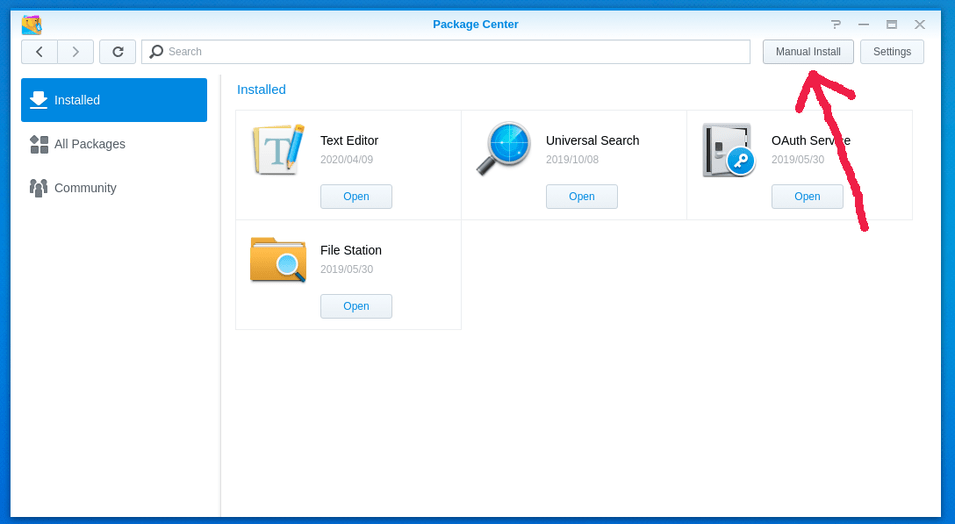
Find the file on your computer and click “OK”

Downloading/Uploading is complete
When Package Center is done receiving the file, it will automatically start preparing for installation.
The first thing it will ask is where to install Plex. Most of us have only one storage volume on the NAS at this point so “Volume1” is the right choice. If you made 2 or more volumes, you can select which one Plex is installed on in the drop-down volume selector.
Installing the software (Select installation volume)
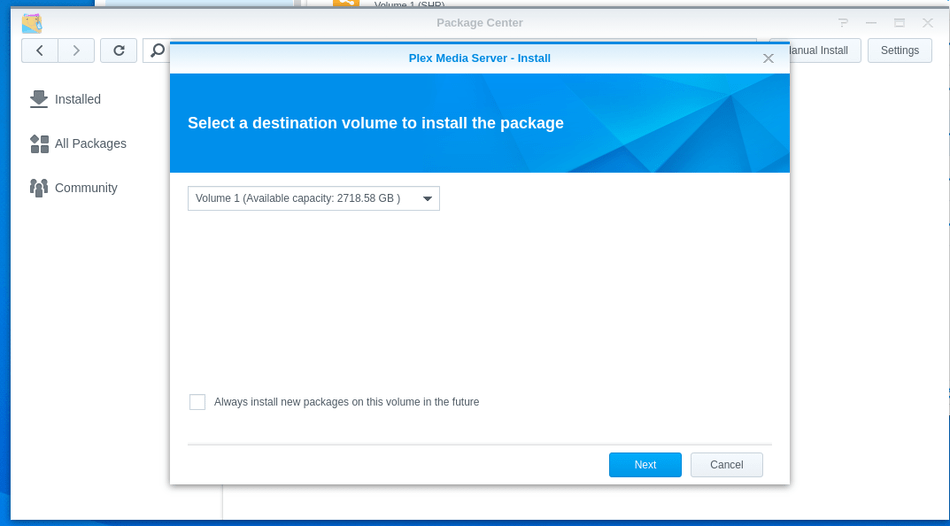
Ready to install the software
At this point, It’s recommended to not let Plex start automatically after package installation. This is because you still have a little bit of work to do.

Installation is almost complete but don’t let it start yet. We have some work to do.
