Server Version#: 1.25.6.5577
Player Version#:
I have the following problem, since a short while my Synology library no longer updates. I can see the old files but the new ones are no longer added.
I’ve tried several times to reinstall Plex from scratch but to no avail. Even manual updating is not possible. I have installed older versions of Plex and now also the latest version for DSM 7 but with no effect. The permissions are all correct and it also worked for a long time, but suddenly it no longer works. Anyone have an idea?
(I am Dutch so sorry for the poor English)
See Why is some of my content not found?
1. File naming and organization.
Make sure you are following Plex’s naming and organization requirements.
Naming & Organizing Your Movie Files
Naming & Organizing Your TV Show Files
2. Reset File Permissions
Reset them anyway, just to make sure. DSM sometimes loses track of things. This will make sure permissions are set correctly.
- In File Station, right click on the shared folder containing the files.
- Make sure user PlexMediaServer has at least Read Only privileges.
- Check the box for
Apply to this folder, subfolder, and files← Important - Save

3. Check for database corruption
- Pull the server log files and unzip. Settings → Troubleshooting → Download Logs.
- In
Plex Media Server.log(and .1.log, to .5.log), look for entries indicating database corruption. They’re easy to spot, as they say “database corruption”:Oct 20, 2019 10:25:27.423 [0x7fdc47447700] ERROR - SQLITE3:(nil), 11, database corruption at line 64798 of [bf8c1b2b7a] - If the database is corrupted, you can try using a backup or attempt a repair.
See these support articles:
Where is the Plex Media Server data directory located?
Restore a Database Backed Up via ‘Scheduled Tasks’
Repair a Corrupted Database
4. If none of the above work, post your server log files
-
Ensure your server is set for debug, not verbose, logs.
Settings → ServerName → General
See Reporting Issues with Plex Media Server for details
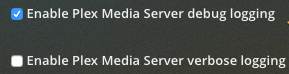
-
Restart Plex Media Server
-
Wait ~5 minutes for Plex to fully start, and log startup sequence.
-
Pull server logs and post to thread.
2. Reset File Permissions
Reset them anyway, just to make sure. DSM sometimes loses track of things. This will make sure permissions are set correctly.
- In File Station, right click on the shared folder containing the files.
- Make sure user PlexMediaServer has at least Read Only privileges.
- Check the box for
Apply to this folder, subfolder, and files← Important - Save
This worked!!! The little checkmark! It was so simple but I never would have figured this out myself.
Thank you so much!!!
Oh no that only works once. Unfortunately, automatic still doesn’t work.
Check for database corruption. If none, then see #4 re: posting log files.
I didn’t find any corruption in the database log files. But in the log files is also personal info like my email adres, is there an easy way to block that info in the log files before I share it?
Unfortunately not.
You can direct/private message me the logs if you like.
Click on my username then the Message button.
Plex Documentation → Your Media
→ Naming & Organizing Your Movie Files
→ Naming & Organizing Your TV Show Files
Resetting permissions cleaned up the “permission denied” errors.
You now need to clean up your media naming and organization. The TV show structure is especially poor.
Read the Plex documentation and rename your shows and movies to match Plex naming requirements.
After renaming/reorganizing, perform a Plex Dance for each show. The Plex Dance clears incorrect information from the Plex database. It increases the probability of correct matching after renaming media.
Some examples from your log files are below. The TV Shows were all flagged with “failed to download metadata.”
There are automated tools to help with the process, such as Filebot, tinyMediaManager, or Microsoft PowerToys PowerRename tool (for simple pattern matches).
It takes additional work, but correctly naming and organizing media up front pays dividends later.
Example: Black Hawk Down:
Current: .../Films/Black Hawk Down (2001) 1080p HEVC x265 (Retail NL Subs).mkv
Correct: .../Films/Black Hawk Down (2001)/Black Hawk Down (2001) [1080p HEVC x265 Retail NL Subs].mkv
Placing a movie in its own directory speeds up scanning when adding additional movies.
Put resolution, etc information inside square brackets. Plex will ignore it and not try to match it to online data sources.
Example: Grey’s Anatomy
/volume1/Media/Series/Grey's Anatomy Seizoen 17/Greys.Anatomy.S17E01.All.Tomorrows.Parties.1080p.AMZN.WEB-DL.DDP5.1.H.264-TOMMY NL subs retail/YMMOT-462.H.1.5PDD.LD-BEW.NZMA.p0801.seitraP.sworromoT.llA.10E71S.ymotanA.syerG.mkv
/volume1/Media/Series/  <-- Folder added to library
.../Grey's Anatomy (2005) <-- show_name (year)
....../Season 17 <-- "Season" in English, two digits for number
........./Grey's Anatomy (2005) s17e01 All Tomorrow's Parties.mkv <-- sXXeYY mandatory
Example: Hawkeye
Incorrect: /volume1/Media/Series/Hawkeye seizoen 1/Hawkeye S01E01.mkv
Correct: /volume1/Media/Series/Hawkeye (2021)/Season 01/Hawkeye (2021) s01e01.mkv
Example: Rules of Engagement
All of season 3 & 4 are like this. Not sure how Plex is supposed to match 0a6fe985c09b436a897fe382885cea7a.mkv.
/volume1/Media/Series/Rules of Engagement/Seizoen 3/Rules.of.Engagement.S03E01.1080p.WEB.X264-EDHD/0a6fe985c09b436a897fe382885cea7a.mkv
OK I get what you mean. But that’s not my problem. Nothing at all is automatically added to my library at this point, despite of the file naming. The examples you mention have been added to the library in no time, despite the file name. So if I now execute option 2 as indicated above and scan manually, everything is updated again, but not automatically.
If Plex has trouble recognizing files, Plex might think they are duplicates and combine them. That is why naming is key, especially with TV shows.
You can also look for unmatched items. For example, in Plex Web, go to your TV Show library. Click on All and choose Unmatched from the drop down menu.
If Plex is not scanning the libraries at all when media is added, check Settings → Library.
Check the settings for the following:
- Scan my library automatically
- Run a partial scan when changes are detected
- Scan my library periodically
With the first two, Plex should scan whenever media is added to a library. With the third, you can tell Plex to scan all libraries at a given interval (15 minutes, hourly, daily, etc).
You should not have to reset permissions every time you add media.
I run Plex on a DS918+. I’ll rip a movie disc from my PC to the server via SMB. My username, not PlexMediaServer, owns the directories/shared folders, and PlexMediaServer has read/write access.
I do not have to reset file permissions every time I add new media. Subfolders should inherit access rights from their parents.
If you’re still running into a permission problem, then that is most likely a Synology DSM setting somewhere.
I think so. But the strange thing is that it used to work properly and it suddenly stopped working like it was suposed to. Its driving me crazy but no one seems to have the answer.
For now I can manualy update my labrary so that is oke.
Thanks again for the effort.
