Server Version#: 1.21.2.3943 / 1.21.2.3943-a91458577
Player Version#: 4.51.1
Ok - so I’ve got a reasonably big glitch I think, and I don’t know how to resolve it? I would appreciate any help.
The glitch/es appear to be with the player. The problems are:
1: I am unable to fix matches via any desktop player/app
2: When you try to “FIX MATCH” - the dialogue box appears and fails to find anything. When you click on “SEARCH OPTIONS”; Agent permanently stays as “LOADING” as does the Language drop-down box
3: I have been unable to add an additional Library to my existing list of Libraries underneath my NAS server in the desktop apps. I presently have 5 libraries (Films / TV / Music / Comedy / Exercise), and tried to add a 6th. When you click “ADD LIBRARY”, the dalogue box appears, but no matter which library type you select; and no matter what new name you put in the “NAME” field, the “Language” drop-down box doesn’t work, and the yellow “NEXT” button is greyed out, stopping you from going to the next page. I wasn’t sure if this was actually a glitch, or a limitation of the free version of the software?
Everything else that I use seems to work ok - the server and player apps still mainly work and play my media, but I can’t work out why this glitch is occurring, and/or how to fix it?
Go gently with me - I’m a relative newbie finding my way.
I’ve got a bit of a problem then. I’ve tried to get this from two different desktop player apps, on two different computers, but it is not working.
I’m clicking the spanner/screwdriver icon in the top right corner to get to the Settings screen. Towards the bottom left, I’m selecting “Troubleshooting” underneath the MANAGE section.
On both computers, the little yellow timer spins in the middle, and after about a minute, it displays the message:
Server settings are unavailable (with a large asterisk in a triangle).
I’ve also manually looked through all of the sub-folders based on this pretty vague location:
%LOCALAPPDATA%\Plex Media Server\Logs
I’ve searched through the Default/Administrator/(My Own)/every user sub-folder, and there are no PLEX folders at all. I just don’t understand? Can you give me a precise file/folder location for Windows 10 please? I can’t find any folder called “Logs”.
I’m afraid I still don’t understand. I am new user to PLEX and serving data. I don’t understand what you are talking about…
I have pasted “%LOCALAPPDATA%\Plex Media Server\Logs” - into the Start menu, after clicking the WINDOWS icon. It did nothing. I still don’t understand whether this is supposed to be taking to a location on my computer, or on the NAS? Your messages are unclear, and the guidance in the linked topic is also really vague, I’m afraid.
You now seem to be pointing me to a folder relating to my NAS? Again, I have looked, and it’s not there either.
There are two Western Digital folders in the location you suggest, but nothing relating to PLEX whatsoever. I’m unsurprised by this, as I’d already searched the entire hard drive for the search term “PLEX”, and I’ve already listed all four results. That’s all there was.
I need step-by-step guidance, but I think it’s already clear that there are no PLEX logs whatsoever on my computer.
PLEX server software is running on a WD PR4100 running OS5. It was installed from within the apps that are stored on the NAS by default. It was not set-up in any “non-standard” way at all.
into Windows Explorer, in the same way that the screenshot shows above, it goes to the Local / App Data on the C:\ Drive of the computer that I am using, and lists out all of the subfolders… exactly where I don’t want to be, and nowhere near the NAS drive, where you are saying that the logs are stored?
When you created this post you tagged it server-windows so we gave you instructions as if it was installed on Windows.
If it is installed on your NAS then read the documentation I posted above about the path to the Plex Media Server data folder on various types of operating systems like your NAS brand. The Plex Media Server folder will have the Logs folder in it
Thanks BigWheel - apologies for my tagging error. I didn’t understand.
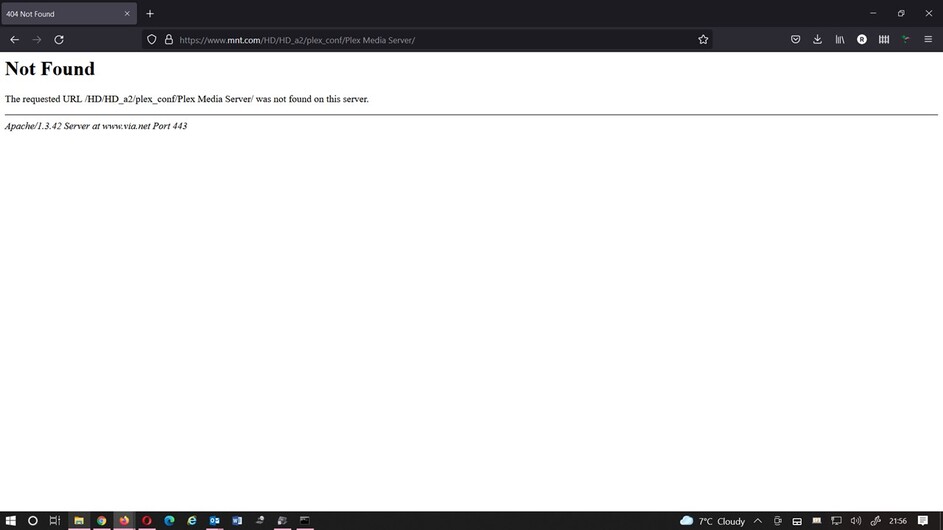
Ok, so I’ve just used the WD address from the link that you’ve provided. Sadly, it doesn’t work either I pasted the WD command into Windows Explorer - which then opens up a browser tab, but this what happens:
How do you access your folders with your media files that you have on your NAS? The Plex Media Server data folder is another folder on your NAS. You may need to open up the Western Digital web interface and configure the permissions to access it from your computer directly
If you look at the Windows Explorer image - three images up, you can see that I’ve simply mapped the PR4100 so that it can be accessed via Windows Explorer as just another drive connected to my computers.
You can see the network drive listed, which is located at 192.168.1.200 on my network. All of the media files are stored in sub-folders of the main “PUBLIC” folder, which you can see in Windows Explorer, which is where PLEX finds them. Note: I have two NAS drives on the network:
PR4100 (192.168.1.200) - which is where PLEX and all of the media files reside
PR2100 (192.168.1.20) - which is for other data / back-up etc
The mapping text to map the drive in the first instance is:
\192.168.1.200\Public
I’ve already tried mapping a separate access to what I imagine is the root directory of the NAS at: \192.168.1.200 - but Windows Explorer wasn’t having any of it and this failed.
I don’t know of any other way of accessing the drive and/or other folder structure of the NAS, other than accessing it via Windows Explorer?

 See how the address is rejected by Windows Explorer in the screenshot below: