Moving Plex from One Server to Another

Server Version#: DS218+
Player Version#:
<If providing server logs please do NOT turn on verbose logging, only debug logging should be enabled>

I am seriously considering moving my Plex server from my Synology DS218+ to a Mac Mini that I will buy in the near future. I will still use the NAS to house the media files, but the server app will reside on the Mini and the Mini will do the heavy lifting. Is there any way to transfer all my settings from the Synology NAS to my Mini so I don’t have to re-index everything, and so I don’t lose my Plex Pass features. This is the last roadblock I need to resolve before I plunk down the money on the new Mac Mini. I appreciate any help.

Move an Install to Another System

Skip the “Copy Additional Server Settings From the Source System” section.

  • It is difficult to move the information from preferences.xml to the plist file on a Mac.
  • The new Plex server will have a new ID, so you can run it concurrently with the Synology based server.
  • You will have to share the new libraries with your users. You will not have to re-invite them.

A Plex Pass is an account, not server, setting. Any server claimed by your account will have Plex Pass features enabled.

Enable Sync Watch State & Ratings on your account. Have anyone with which you share libraries enable it on theirs. It will keep the information synchronized between the servers.

I understand what you are saying, I think, but it doesn’t seem to answer my question. I did an experiment this afternoon. Using the same account info on my MacBook Pro and my Synology NAS, the Synology Plex server was active, even when I was looking at things from the Mac Plex server. When I stopped the Synology Plex server, then the Mac Plex server couldn’t find a connection so I couldn’t see anything. If I understand what you are telling me, I will have to completely delete Plex on both machines, and then start building from ground zero on the new Mac. I hope there is an easier way. The whole point of the move is to store data on the NAS (including movies, show, etc from Plex), and get the Plex app off the NAS and onto the Mac with a much more robust processor.

Plex Media Servers are independent of each other.

Stopping PMS on the Synology has no effect on whether or not PMS on the Mac can access media files on the Synology.

Absolutely not. That is the exact opposite of what is mentioned in the support article.

Yes. The procedure outlined in the linked support article.

First, run a test to make sure PMS on the Mac (PMS-Mac) is functioning correctly (It can access the media files on the Synology, create a library, etc.).

On the Mac, mount the shared folders from the Synology that contain the media files.

Then, in PMS-Mac, create a library (tv show, movie, whatever, doesn’t matter) and add the correct folder from the Synology.

Make sure PMS-Mac correctly sees the files, builds the libraries, etc.

Once you’re sure PMS-Mac is working OK, then you can start the migration process.

It’s late here so I will have to try again tomorrow. Obviously I need help and I appreciate any help you can give. You say stopping PMS on Synology should have no effect on the PMS on the Mac, and yet that is exactly what happened. The Mac server said, I can’t find Synology (of course it used the name of the server, but I don’t want to write that here). Plex was running on the Mac, but only with the streaming channels that Plex is pushing. I could not access any of my own media, and I couldn’t find any way to point the Mac PMS to the data files on the Synology. You said mount the drives, and I could certainly create a SMB connection to the data, it I still have to get the Mac to look there, and I can’t find any way to do that. One I solve that problem, I’ll have to figure out how to get the live TV to go to the Mac and not to the Synology. Currently, it appears that the Mac PMS is simply functioning like a player, except that it does have all the settings that a server should. So, I will appreciate any clarity you can provide.

You can reach server settings for Mac PMS? That’s good.
Is the server claimed? In the General section it should say “Server claimed by your_email_address” just like for the Syno PMS.


Next Steps (only if Mac PMS is claimed):

Let’s simplify things. Make sure Mac PMS is working correctly.

Login to Mac PMS.

Create an Other Videos library and add a folder on the Mac that has at least one video.

Mac PMS should display the video in the library. It won’t try to match it to any online metadata, so artwork, etc won’t be there.

Now stream it to your phone, tv, browser on a different system, etc. You may need to logout/login to the Plex app on the phone, etc. for it to pick up the new server.

That will prove Mac PMS is working and can stream to other devices.

Once that works you can proceed to working with the SMB shares from the Synology.

Regarding those SMB shares…

The Synology SMB shares must be mounted on the Mac before Mac PMS can create libraries with them.

The Synology login you use to mount the shares must have at least read-only access to the media.

You may also need to give Mac PMS permission to access the files in
System Preferences > Security & Privacy > Privacy > Full Disk Access & Input Monitoring & Files & Folders.

References:

Now see if you can create a library in Mac PMS using the SMB shares from the Synology.

This will test that the access permissions are OK.

Don’t worry if the exact poster, etc. is different than Syno PMS. You can also disable thumbnail generation, credit detection, etc. on Mac PMS.

We’re just testing that Mac PMS can correctly access the media files on the Synology NAS.

So far, you are being very helpful, but it seems when I clear up one problem, two others jump up. When I click on the app on my Mac to start Plex, it signs me into Plex web, and I don’t see any way to avoid that. Maybe that’s the way it supposed to work with MacOS? At any rate, when I sign in, I do see the Mac PMS listed and I can click on that. It then shows that the server is claimed by my email address. I was able to create a new library via SMB, and, amazingly, Plex quickly found posters and at least some metadata for those 13 movie files. As you suggested, that’s just a test but at least I know it worked. However, I could never find the Mac server on my iPad app. It only showed the Synology version. So, something is not quite right, and my guess is the Mac PMS isn’t working right, but I don’t know what to do about that. The Mac won’t even let me delete the app because it says it is running. I can go back in and sign out of everything again, and I will. But I’m still looking for suggestions.

The Plex for iPad app has a funky way of accessing your other servers.
No need to uninstall PMS from the Mac.

On the iPad when you start the Plex app, you see the usual home page.
Along the very bottom of the app will be two tabs named Home and Libraries
Click on the latter, and you be taken to your main server’s libraries.
At the very top left of that Libraries page you’ll see a drop down that you use to change server. That’s where it’s hidden.

My Libraries page shows

Movies
TheRaID

pull down that list and change it to your Mac PMS.
that work?

@nibbles Thanks for help with Plex on the iPad (I’ve an Android phone & tablet).

@RelationshipDoc

Plex Media Server on the Mac is working. Don’t delete it, sign out, etc.

It is claimed, can create libraries from media on the Synology, find metadata, etc. This is all good.

Not seeing Mac PMS on the iPad has to do with the Plex iPad app, not Mac PMS.

Point a browser at the hosted version of Plex Web, https://app.plex.tv/desktop/, and login.

Look in Authorized Devices, https://app.plex.tv/desktop/#!/settings/devices/pms. You should see both Mac PMS and Syno PMS listed. Delete any old, outdated server entries. Do not delete your current servers. Doing so will unclaim them.


When you are ready, you can copy the Plex Data Folder from the Synology to the Mac. This is the procedure outlined in the Move an Install to Another System document.

Read through all this and write back with any questions.

FYI, none of this will change Syno PMS. It will continue to operate as it always has. Also, if it doesn’t work on Mac PMS, you can always back it out and try again.

Prerequisite: The shared folder(s) on the Synology holding the media files must be mounted on the Mac.

Step 1: In Syno PMS, go to Settings → Library. Disable Empty trash automatically after every scan and save changes.

Step 2: Do the same for Mac PMS. This is important. Don’t skip it.

Step 3: Syno PMS

  1. Login to the NAS and stop Syno PMS.
  2. Using File Station, navigate to /PlexMediaServer/AppData.
  3. Right click on Plex Media Server and choose Compress to Plex Media Server.zip.
    Depending on the amount of data, it may take quite some time to finish.
  4. When finished, download the zip file to your Mac.
  5. You’re done working with Syno PMS. You can run Syno PMS if you wish.

Step 4: Mac PMS - Plex Data Folder

  1. This will replace the contents of the Plex Data Folder on the Mac with the contents of the Plex Data Folder from the Synology.
  2. Stop Mac PMS. Click on the Plex icon in the Menu bar and choose Exit.
  3. Using the Finder’s “Go” menu, select Go To Folder… then enter the following in the dialog box that pops up: ~/Library/Application Support/Plex Media Server/
  4. Delete the contents of the Plex Media Server folder.
  5. Uncompress the zip file from the Synology and move the contents to the Plex Media Server folder you just emptied.

Step 5: Adjust Libraries on Mac PMS

  1. Start Mac PMS, Login, and go to Settings → Libraries (not Library). You should see a list of libraries with the same name as those on Syno PMS (because you copied over the database files).

  2. Edit a library (mouse over name & choose Edit Libary).
    DO NOT delete the Synology folder (/volumeX/…).
    Add the Mac path for the library (that follows the mount to the Synology).

  3. Scan the Library. Wait for Plex Media Server to finish scanning, etc.

  4. Plex should pick up the new path. It will show everything in the library as a duplicate - with one “real” entry (the new one) and one old/unavailable entry (the /volumeX path from the Syno). You may see red trash cans or the media listed as unavailable.

  5. Now edit the library again and remove the old Synology path.

  6. Scan the library if Plex does not do so automatically. Then empty the trash for the library.

  7. You should now be able to stream media from the library with Mac PMS accessing the files on the Synology.

  8. Now repeat for the rest of the libraries.
    FYI, if desired, you can edit all the libraries, then scan all of them, etc. (run things in parallel). You do not have to do this library by library.

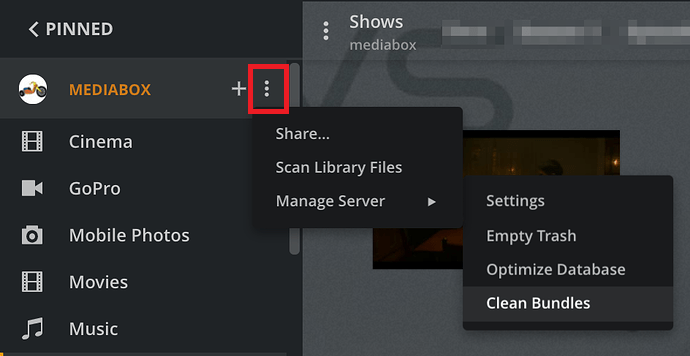
Step 6: Final Maintenance (as mentioned in the “Move an Install…” document)

  1. Scan all Libraries
  2. Empty Trash
  3. Clean Bundles
  4. Optimize Database

I really appreciate those who are trying to help, but the situation keeps getting worse and worse. The PMS on my Synology is working fine. No problem there. But now I can’t find the PMS on my Mac at all. When I click on the Plex app, it takes me to Plex Web, and the server section of Plex web shows me only the Synology server. I have not been able to get the Plex app to open as an app on my Mac since I started trying to do something. All I can get is the Plex web app. And yes, I have made sure I had downloaded the Mac OS app from the Plex Downloads page. I recently upgraded to MacOS 26, and I know that changed a few things. Is the Plex app perhaps not compatible with the latest Mac OS? As we used to say when I was flying, I’m getting low on airspeed, low on altitude, and low on ideas. I appreciate any suggestions. I”m willing to try anything.

Do you see the Plex icon in the menu bar?

If not, the Plex Media Server is not running.

If yes, then you should be able to choose “Open Plex” to access Mac PMS. You can also try pointing a browser at http://127.0.0.1:32400/web.

Could be on macOS System Settings → Privacy & Security → Local Network and allow Plex and PMS to find and communicate with devices on your local network.

Plex DocumentationInstallation (see Mac section).

On which Plex app are you clicking?

The Plex Media Server app should be in the Applications folder. It should run when you login to the Mac and appear in the Mac Menu Bar.

To access Plex Media Server, do not click on the Plex Media Server app. Instead, select “Open Plex…” from the Plex menu icon bar (or go to http://127.0.0.1:32400/web).

Also, to exit Plex, do not choose “Quit” from the menu bar. That stops Plex Media Server on the Mac. Instead, just close the browser window and leave Plex Media Server running.

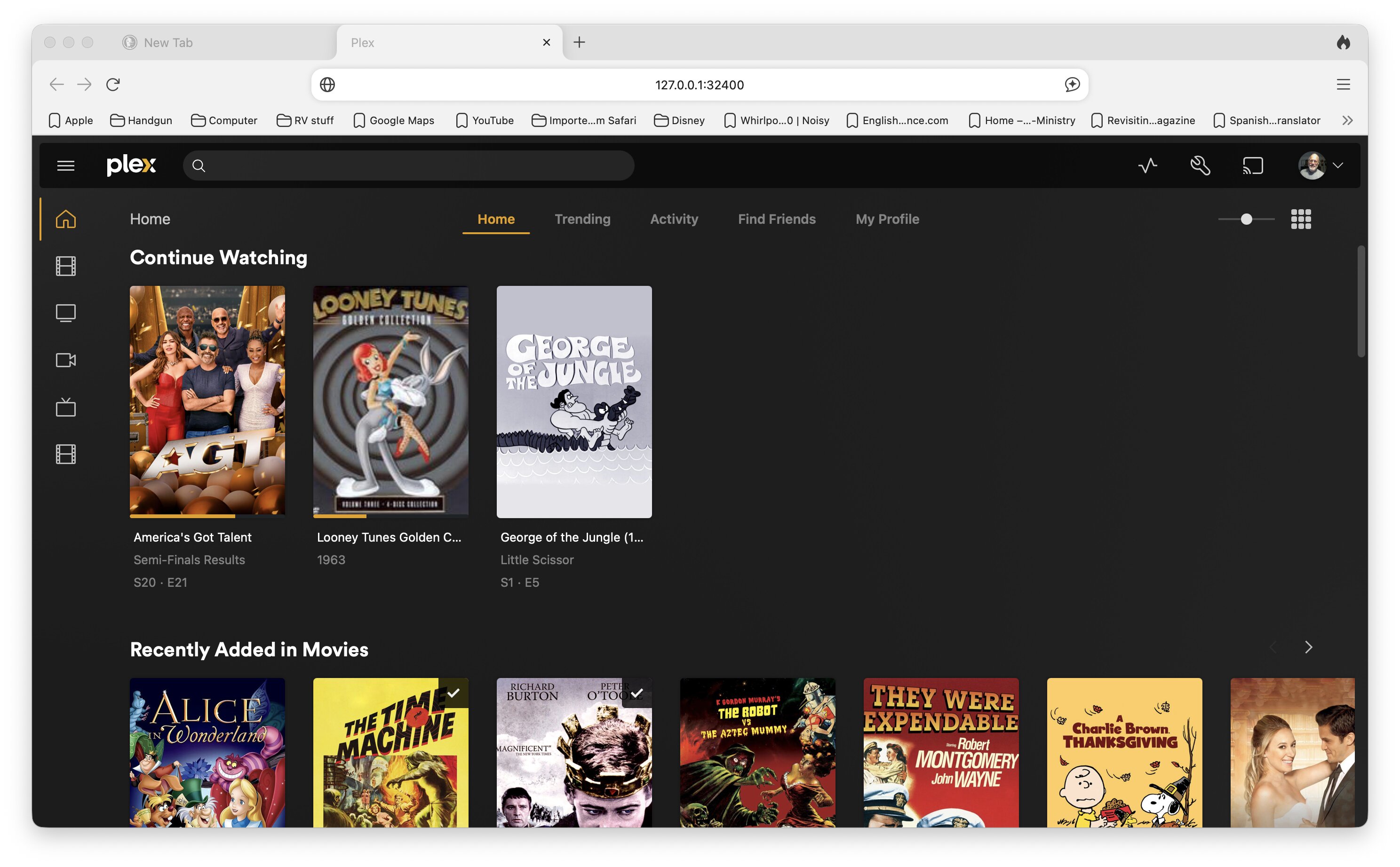
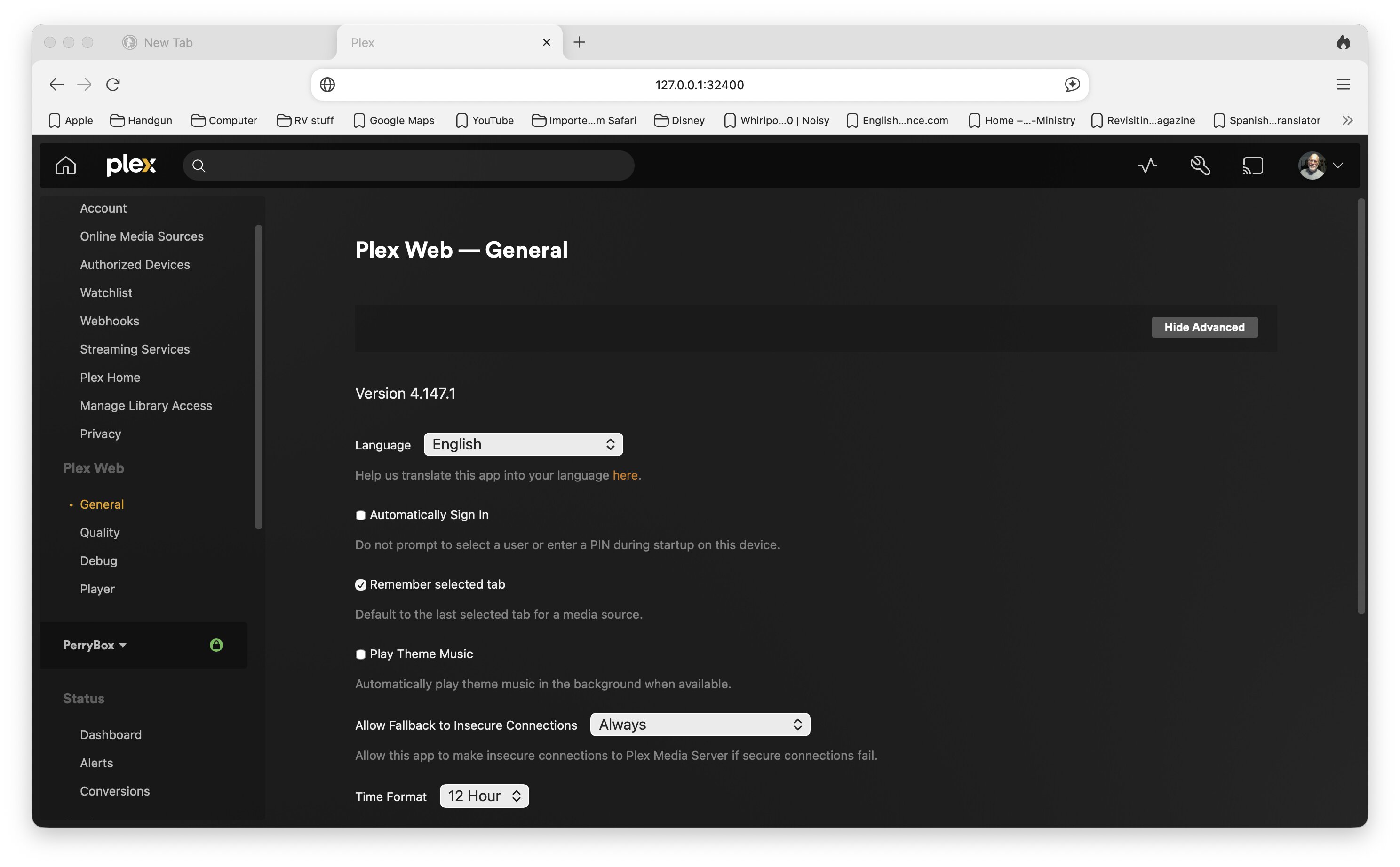
I do have the Plex icon in the menu bar on my Mac. The Plex app is also in my Applications folder, Whether I click on the icon or the app, I go immediately to Plex Web, NOT to an app running on my Mac. Now, I do see several Plex items running in my Activity Monitor, so I know that Plex is somewhere on my machine, but when I open it, I can ONLY get Plex web. The first shot is what I see when Plex Web opens. It’s what’s on my Synology server. The second show is what I see when I open settings. The Mac server is nowhere listed, only the Synology server.

For the Apple Mac, Plex offers three applications,

  1. Plex Media Server
  2. Plex for Mac
  3. Plex HTPC for Mac.

Did you actually download Plex for Mac and install it?
Its name in Applications would only be Plex.
It is definitely it’s own app and should open it’s own GUI, not a browser.

PMS has no GUI, and clicking on it in /Applications only starts it in the background, while clicking on it in the Tool Bar opens a menu where the choice to Open Plex… just opens a browser, not the stand alone application.

dualing replies :slight_smile:

Don’t click on the app. Choose Open Plex from the menu bar icon.

It is supposed to open Plex Web.

Plex Media Server on the Mac is like Plex Media Server on the Synology. It runs in the background.

You use Plex Web to access Mac PMS just like you use Plex Web to access Syno PMS.

Do this:

  1. Make sure Open at Login is enabled.

  2. Reboot the Mac and Login.

  3. Make sure the Plex icon is in the menu bar (indicating that PMS is running).

  4. Point a web browser at http://127.0.0.1:32400/identity.

  5. You should see a line of XML info containing claimed=0 (unclaimed) or claimed=1 (claimed).

  6. Which do you see?

I’m curious. The first screenshot shows Plex web with the side bar collapsed. If you click the hamburger menu at the top left, it should expand the side bar. It should then show a “More>” item at the bottom of the list. If you click that, do you see items from your Mac Plex Media Server?

I see claimed = “1”

No. I see a list of my friend!s servers, and I see some access to Plex content that I don’t use,

. I see nothing about my Mac. All of this is off my Synology server.

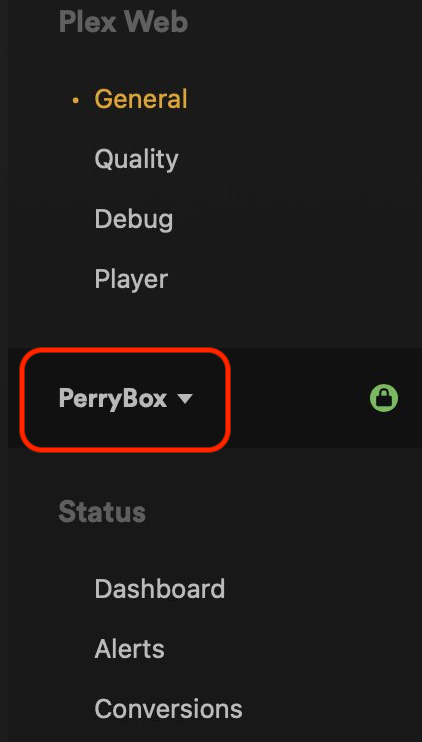
In the second screenshot of your Settings, have you tried to change server with the pulldown?

If the Mac PMS is not listed in the drop down choices, go to Settings → Authorized Devices → Server and double check that both your Syno and Mac PMS are listed and linked to the same Plex account. They should be since they are claimed (`claimed=“1” told us that). Also check your macOS Privacy & Settings → Local Network to be sure you’ve given perms for discovery.

I’ll back off the thread for now to give FordGuy room to troubleshoot a clear set of steps.