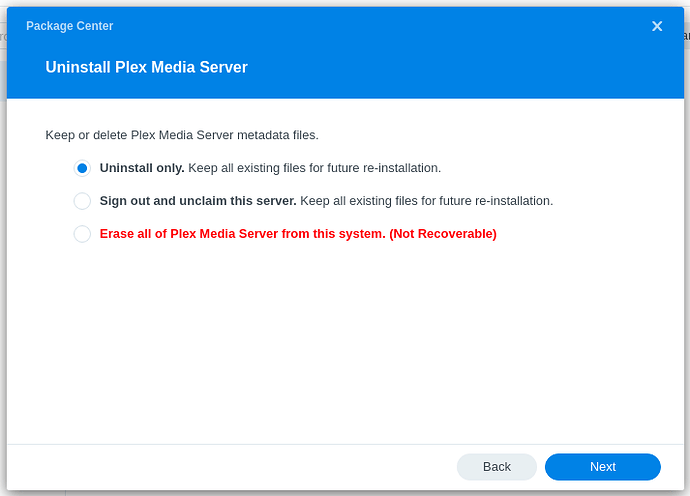
The Red line at the bottom “Erase all of Plex Media Server from this system.”
You only want to ERASE the partial DSM 7 installation.
ALL DSM 6 files in the Plex share are safe
The Red line at the bottom “Erase all of Plex Media Server from this system.”
You only want to ERASE the partial DSM 7 installation.
ALL DSM 6 files in the Plex share are safe
It says package center in your screenshot.
But I dont have any plex package installed at this moment as I uninstalled it as per instruction, upgraded to DSM7, failed the first Plex install, changed permissions and am now at what you describe as 7a.
Ben,
Somehow (which is easily done), you’ve gotten off step – not to fear.
Skip this uninstall - erase.
Check that System Internal User “PlexMediaServer” is granted Full Control of “All sub-folders and files” in the “Plex” share as the instructions show. This is the important step now.
Then proceed with the installation.
If it does not stop and show instructions, it will sit at “Installing” until Migration is complete.
Thanks ChuckPa! It did work out after I now also managed to assign rights to all shares that Plex needs to access (movies, music, etc folders).
Two things that would help others in the tutorial from my point of view:
Thanks a lot for your help meanwhile and please keep up the great and swift support. I wish other vendors would provide even the slightest bit of what you do!
Thanks for the feedback.
#1 – Gotcha
#2 – Stated in the popup at the end of server installation (that page with blue text you probably clicked right through in the excitement  )
)
Once migration is complete and everything is working okay, is it time to delete the Plex shared folder as well as the user Plex?
Yes; As I stated in the documentation,
Do not attempt to delete “System Internal User” PlexMediaServer. Evil things happen if you do.
Thanks, @ChuckPa. All set. Quite a painless migration!
@ChuckPa Talk about a pain to migrate … Followed your steps and still waiting to finish to migrate … it has been since 6 days now 
But still running LOL as stated on the migration log file
=== Mon Jul 12 13:42:54 EDT 2021 === Start: Change ownership
=== Sat Jul 17 03:58:10 EDT 2021 === Completed: Change ownership
=== Sat Jul 17 03:58:10 EDT 2021 === Start: Convert symbolic links
=== Sat Jul 17 04:25:35 EDT 2021 === Completed: Convert symbolic links
=== Sat Jul 17 04:25:36 EDT 2021 === Start: Migrate Plex Media Server
Can’t wait to retrieve my library back and runing … Thank you Synology !!
5 days to change ownership?
Observations:
At current processing rate - This process may require another 5 days given the inconsistent content of the Plex share
The model is a DS918+ and yeah a large library … 4.9TB of Plex Share (music albums, movies and tv series shared) not stored in the internals folder of the Plex Share.
I don’t mind waiting if the migration succeed 
You don’t know how much I appreciate your help!! I am trying to read everything carefully, but it is hard to do when you you are busy with 10 hour days at work and have an family to take care of along with two young kids  .
.
Anyway I ran through the guide again, but the one thing I can’t do is find the Custom checkbox under System Internal User (see screenshot #1). I have tried changing the permissions about 5-6 times and rebooting after each change (changed to Read Write in step 3 of the migration instructions under ’ Scenario 2: Plex Media Server installed on the same volume as the Plex share’ , but no option for Customs shows up when I attempted step 4- See screenshot #2), but I can never seem to get that option. Any suggestion on how to override the permissions or what I might try next?
Screenshot #1:
Screenshot #2:
Currently I am under an admin profile, but when I first tried to do the migration I was under another admin profile, but then uninstalled Plex Media Server and went back and re-enabled the admin profile and went back in there and tried to update the permissions there without success.
Thank you for all your time spent helping me and others like me.
Eli
I am not sure what I did in the past, but it appears I really must have screwed up the permissions. Strangely the Custom box appears on some random shares in specific areas.
I tried again and no success. Dragged the window out to the full page and I cannot see the custom option. Currently I am logged in as admin (rebooted again) and still don’t see the custom option. Any chance I can use terminal to re-write the permissions or some other method to change the permissions?
Thank you,
Eli
@ChuckPa The reason for my migrations not running, must be that your code only checks for a share “Plex” with capital P, but my share contains lowercase “plex”. I think you should add something similar to this to support both scenarios…
if [ "$(echo /volume*/Plex/Library)" != "/volume*/Plex/Library" || $(echo /volume*/plex/Library)" != "/volume*/plex/Library" ]; then
@ChuckPa renaming my share from “plex” to “Plex” made the migrations kick in, thanks for sharing the code snippet, didn’t see that limitation before. Now it migrated just fine.

It worked  !! What a lifesaver… Thank you.
Only problem is I deleted the managed users when I tried to merge two Plex homes I have and need to figure out if there is a way to restore the users and watch history.
Anyway. Sincerely thank you again.
How to add Plex’s package signing public key to Synology NAS Package Center DSM 7 ?
Can’t see it
To add to Trumpy,
Synology changed the signing rules. Only Synology approved (repackaged) packages will be signed. Those packages will use the Synology signature.
I am finalizing the design of some changes for the DSM 7 implementation.
Before it is finalized, I request input as this is the final design pass.
Any “requests” ?
Please be certain to read carefully and comment as appropriate.
Thanks,
C.
@ChuckPa Sorry to bother - but I’m at a loss.
DSM DSM 7.0-41890 (upgraded)
DSM DS916+
Intel CPU
Plex Media Server 1.23.4.4805-7000
Issue: no photo appear (note: music, videos/movies, home movies all present)
All files accessible and present in Synology Photo Station, explorer, etc.
Had previously updated from DSM6 to 7 via beta, prior to knowing any issue w/ Plex would occur.
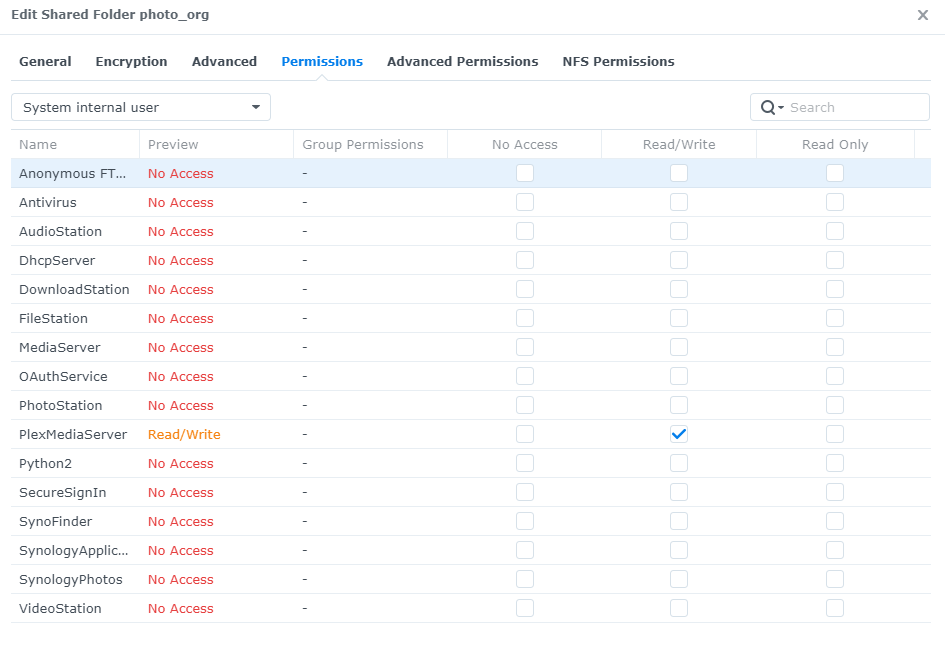
Plex folder in “shared folder” has system internal user set accordingly
Even Photo’s (note I changed name to photo_org, as a test - made no difference)
Note: local user, Plex still has R/W access - but I understand that doesn’t matter any more.
Lost in terms of how to get my photos to reappear in Plex.
-indy