I think I found the problem. I needed to set the permissions on the old Plex folder. I didn’t think about that one and only set permissions on the media folder. Stand by for confirmation but I think everything is back online now.
Please create a Schedule Task, User-Script,
- Runs as
root - Emails you the results (all results)
- will run this one time (then you disable it)
- Task Settings (script) are;
#!/bin/bash

echo Searching for DSM 6 locations

for i in /volume*/[Pp][Ll][Ee][Xx]*/Library/Application\ Support/Plex\ Media\ Server  X
do
  [ "$i" != "X" ] && echo Found DSM 6: \"$i\"
done

echo " "
echo Searching for hidden DSM 7 locations
for i in /volume*/@apphome/PlexMediaServer/Plex\ Media\ Server  X
do
  [ -e "$i" ] && [ "$i" != "X" ] && echo Found hidden DSM 7: \"$i\"
done

echo " "
echo Searching for normal DSM 7 locations
for i in /volume*/PlexMediaServer/AppData/Plex\ Media\ Server X
do
  [ "$i" != "X" ] && echo Found DSM 7: \"$i\"
done

echo " "
echo Checking where Plex is installed
if [ -e "/var/packages/PlexMediaServer/target" ]; then
  echo Plex installed on $(readlink /var/packages/PlexMediaServer/target)
else
  echo Plex not installed
fi
You may copy & paste this directly into the script contents window
For Migration to occur, You MUST set the ACLs (Full Control permissions for the “Plex” share (the old one)
– AND –
There can be no existing “PlexMediaServer/AppData” contents.
Everything appears to be here but some things still don’t seem right. Should I remove plex again and then make sure the “PlexMediaServer/AppData” is empty. I didn’t see that until after I had already gotten it to migrate so it might have caused an error since I’m assuming there would have been something there. Although, shouldn’t Uninstalling with the Erase option take care of that?
Also, I’m not able to see anything from the mobile app. Is that related to the quick connect problem? Bear in mind that I’m not having any trouble connecting to dsm using the quickconnect.
Hi there!
My current setup is:
- Synology DS216+II
- DSM 7.0.1-42218
- Plex Media Server 1.24.5.5173-7000 (with Claimed token - from my Plex account)
- 32400 port added to router configuration and passes Connection test successfully (screenshot)
- PlexMediaServer user added to folders permissions with “Read/Write”(screenshot)
But when I run Plex from package - it goes to my_server_name:32400/web/index.html#!/setup/8a5d299749ef94fcd5852a9b8eaf4474f0f2b28e and displays only
Not authorized
You do not have access to this server
- also tried with Plex Media Server Beta - from Synology repository;
- also tried with “Normal installation” (not Claim Token);
What can you advise me?
Thank you.!


-
Don’t use Package Center – It’s no longer compatible. It’s a very old BETA app that doesn’t work with DSM 7.0 Final Release. Having tried it, it’s going to make a bit of a mess we’ll need to clean up at some point.
-
Do you have “Quick Connect” active (signed in) ? If so, don’t use it until after the server is migrated from DSM 6 → DSM 7.
-
When you upgraded to DSM 7, did you
- Uninstall the DSM 6 app first ?
- Install the Package Center app first or the plex.tv/downloads app first ?
- Click “Repair” at any point?
- Do you have “Library/Application Support/Plex Media Server” in the “Plex” shared folder ?
- Thanks for advice! Currently, as I mentioned above, I’ve latest version from plex.tv/downloads;
- No, I do not use “Quick Connect”;
- No, I did not uninstall DSM6 app - but as far as I remember during installation everything was removed;
- Firstly I’ve installed Package Center - Beta version;
- Did not see any “Repair” buttons;
- Screenshot attached with folder structure;

This is a first-time installation of Plex and it happens to be on DSM 7 ?
COOL 
We can fix the auth pretty easily. You must be on the same subnet with it.
- Uninstall the app – use the default “KEEP” option.
- Install the Plex.tv/downloads app
- When the installer starts, It will present you with options
- Select “Install with Plex Claim Token”
- Click the “Get Plex Claim Token” hyperlink in that window
- Your browser will open and the claim token will be presented
- COPY it to your browser
- Return to the installer window
- PASTE the
claim-xxxxxxtoken into the window - Click NEXT until it starts installing.
The installation will take 15-20 seconds longer than normal while the installer communicates with Plex.tv to get your credentials for the server.
When it’s got them, it will update Preferences.xml for you (which claims the server)
It will finish and tell you the server has been claimed – displaying your Plex username.
If claiming fails, the first thing to check is DNS resolution & networking.
The installer must be able to lookup and connect to plex.tv.
If the installer can’t connect then we have also have a good idea why “Not Authorized” appeared (it couldn’t authenticate there either).
Check DNS (sometimes switching to google 8.8.8.8 / 8.8.4.4 manually solves it for folks)
1 Like
I’ve already reached this point(at the beginning of discussion) - with previous tries: after installation it displayed my user account title.
But running it from the app list on my Synology guides me to “not authorised” page.
Maybe I should use specific (not <host_name>:32400/web) url?
UPDATE(!): Finally resolved it!
It was needed to access to Plex Server from LOCAL network (I was using global name(NOT Quick Access) for my Synology) FIRST, and only from there allow to access Plex Server from GLOBAL.
Works perfectly, thank you for assistance @ChuckPa !
Correct, When you use a FQDN or the QuickConnect link, PMS will treat it as foreign that first time (PMS and plex.tv need that one confirmation by using the LAN IP addresss)
Once you’ve gotten over the initial handshake, you can use QuickConnect or external FQDN without restriction.
I’m working with Synology to try and resolve why QuickConnect is working as it does for LAN-only connections,.
1 Like
TO ALL:
I’ve been trying to figure out what DSM 7 is doing.
It appears –
- If we sign into DSM using the QuickConnect URL then ALL URLs are altered. This will prevent you from claiming PMS because domain names aren’t allowed in what looks like a ‘remote’ relationship from the NAS.
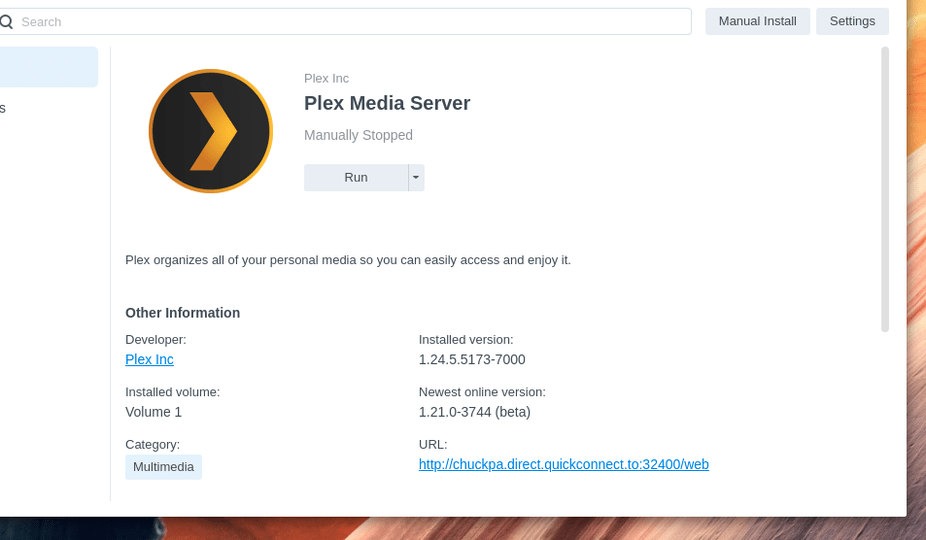
- If we are signed in normally, even though quick connect is active, the URL presented is correct.

Please be aware of this.
So I followed all of the instructions, but for some reason it keeps creating a new Plex server. When installing Plex it says “Installation Successful!”, as far as I understand once I click “OK” the migration is supposed to start and once that is finished I can click one done. Instead when I click “OK” the whole thing just disappears, I don’t even get the chance to click the done button.
I have tried uninstalling Plex and re-installing, same thing. Since in Plex which does work just cannot access any of the libraries, I checked settings, it appears there are now two servers with the same name. So I also tried uninstalling with “Sign out and unclaim this server” and then claiming a token upon installing it again. (also tried sign out and not claim token, same thing)
Also just to be clear, PlexMediaServer has Full Control of both the Plex folder and the folder where I actually keep all my movies/series and yes also all the subfolders. Also just to be clear, I used the latest x64 Intel download link on Plex for DSM 7 (not package center one).
I also have a backup of the Plex folder from before the migration to DSM 7.
Any advice on how I can get my libraries working again would be greatly appreciated!
Quick question – When you upgraded to DSM 7
- Was the DSM 6 app still installed ?
- If so, after DSM 7 upgrade, did you click “Repair” when it offered ?
Indeed I forgot to uninstall Plex before DSM 7 upgrade and no I did not click repair, I uninstalled. Followed the rest of the instructions correctly (as far as I can tell).
No problem
- The “Sign out” option doesn’t undo the DSM 7 duplicate. We need the “ERASE” option below it on the menu.
Therefore, please do the following:
-
Verify you have all your metadata in the “Plex” shared folder. STOP if it’s empty.
-
Uninstall + ERASE option to remove the DSM 7 rogue server .
-
Now when you install the Plex app (PMS 1.24.2.4973 or higher – NOT the Synology Package Center BETA), it will start migrating.
If it fails to detect the “Plex” share, we’ll manually fix the permissions & naming but it’s very aggressive in looking for a match to migrate.
Solved the problem by emptying the Plex folder then restoring Plex backup and deleting the PlexMediaServer shared folder. Next install it worked.
The “ERASE” option takes care of the “PlexMediaServer” shared folder 
You did what it does.
Glad you got there.
You should probably check “Authorized Devices” to make sure the rogue servers are gone.
Good point, there was one rogue server remaining. Thanks for the help!
I have Synology DS416Play NAS. I have run PMS on DSM 6 for a couple years. Last week I began the DSM 7 and latest PMS installation. I did NOT read the Forums until after my first failed attempt. So i did NOT uninstall the DSM 6 App first, although I did get an option to repair PMS and ran it. At that point I could no longer access my PMS.
After reading through a lot of the above posts, I definitely set all the permissions as described and experienced what looked like a migration. My two first questions are:
-
you show a PMS ver 1.24… yet I downloaded and installed from the Plex site a version 1.25.0.5246-7000. I don’t see a 1.24x version. Am I correct with what I have?
-
My issue is that after a successful installation according to the install I try to Open the server which launches the http://:32400/web and get the same problem every time:
“This site can’t be reached”
refused to connect
ERR_CONNECTION_REFUSED
Can you point me to the correct post above if applicable or other suggestions? Or want some log files?
Thanks
