Server Version#:
Player Version#:
Hi I have recently set up a new Synology DS920+ NAS and have downloaded the Plex application from the beta apps section, and everytime I try to launch the application from the NAS i keep being presented with the “No Soup for you” error message, as opposed to it finding my media server. I have tried uninstalling and reinstalling the version from Plex only to be presented with the message that its unable to connect to the server. I then unistall and go back to the beta version which launches Plex but just doesn’t see my NAS.
Please can someone help ?
Regards
Peter
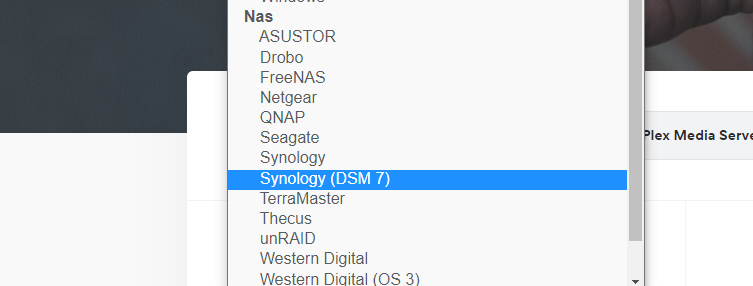
are you downloading the dsm 7 version from plex (there are two)? i assume you are on dsm 7 since its a new machine which would install dsm 7 by default.
besides choosing the right one, I occasionally ran into problems if I didn’t right click the zip file and choose Save as rather than just click it.
In the case of No Soup, that’s generally an issue with initial authentication and claiming.
Luckily the Plex website Articles are like the user manual, where we find that the solution is something like this:
- Signing out
- removing 4 entries relating to authentication is a text file
- restarting and visiting an very specific non-SSL URL, e.g.
http://bleep.blerp
- Signing into your Plex .tv account
- Signing in and claiming the server.
Let us know how it goes. Also in the forums is the Synology FAQ Read Me First thing, which should definitely be read at least once before filling the NAS.
The NAS is running DSM 7.x, correct?
Do not use the beta release available in Package Center. It is outdated and no longer fully compatible with DSM 7.x.
Download the Intel 64-bit, DSM 7 version from plex.tv and perform a manual installation via the Manual Install button in Package Center.
After the installation is complete, you will need to claim the Plex server.
Use a private/incognito browser window. Point it at the IP address of your NAS: http://synology_ip_address:32400/web (use the real IP address of the NAS).
Do not click the “open” button in Package Manager, use app.plex.tv, Synology QuickConnect, a FQDN, etc. Those methods will fail when attempting to claim the server (due to some DMS 7 limitations).
Once the server is claimed, you can then use app.plex.tv, QuickConnect, etc to manage the Plex server.
Yes I can confirm that the NAS is u=running DSM 7.x
I have tried downloading the DSM 7.x version from the Plex site, but once I tried running it, it came up with an error message saying that it was unable to connect, cant quite remember the exact error message, but it didn’t even open up the Plex window
When you say point it at the IP address of your NAS: should it be like below with or without a space between the b and the 9 ? http://synology_ip_address:32400/web 192.##.#.###
If the IP address of the NAS is 192.168.1.2, then you would use http://192.168.1.2:32400/web.
Sorry for asking a stupid question, but how do I even find the preferences.xml file as I cannot see anything under the File station when I have the beta version installed, whereas when I download the DSM 7 64bit version I do see the Plex Media files listed?
I will try an unistall the beta version, and then reload the DSM 7 version and then editing the Preferneces.xml file as follows ?
- In your text editor, remove the following attribute/key pairs from the
Preferences.xml file:
PlexOnlineHome="1"PlexOnlineMail="jane@example.com"PlexOnlineToken="RanDoMHexIDecIALtoKeNheRE"PlexOnlineUsername="ExampleUser"
No.
You do not need to uninstall the beta version.
Install the downloaded version on top of the beta version. The downloaded version will place things in the correct location. Also, you cannot go back to the beta version. It will not work correctly.
After you have installed the current (downloaded) version, then try to claim the server using a private browser window pointed at the IP address of the NAS (like mentioned earlier).
You do not need to edit the Preferences.xml file at this time.
thanks for clarifying, its much appreciated. 
Understood, so just to be clear on steps, but I would appreciate if you could confirm the 3 point ?
- Install DSM 7 on top of the Beta version,
- Access from a private window via the IP address, if the IP address of the NAS is 192.168.1.2, then you would use http://192.168.1.2:32400/web.
- Claim the server, as per the IP address route before or after running DSM 7 ??
Good to hear things are working.
FYI, the Synology FAQ has a lot of good info regarding run Plex on Synology NAS. Worth a scan when you have time.