In new versions of various Web browsers, e.g. Chrome and other browsers based on Chromium such as Edge, there is a new setting that controls web sites’ access to devices in the local network. Firefox is also getting this setting, but I don’t think it has rolled out to all users yet. It is expected that this will get added in all browser brands sooner or later.
The function of the Plex Web app is relying on this permission. It this is blocked, then a Plex user cannot directly communicate with a Plex Server in the same local network. Which makes it harder to claim newly installed servers, and can either totally disable regular streaming use or will trigger bandwidth restrictions.
More info about that in the Chrome Blog here New permission prompt for Local Network Access | Blog | Chrome for Developers
Info on FireFox with info on how to change setting Control personal device and local network permissions in Firefox | Firefox Help

This affects the web app and its ability to access a Plex server on the local network. If you deny the prompt, the web app will not be allowed to make a local connection to the Plex Media Server, meaning that it would instead have to try and make a remote or indirect connection to the server. For folks that do not subscribe, this will cause the web app to ask you to purchase/subscribe to a Remote Watch Pass or Plex Pass so it can try to connect remotely.
(Note: behavior may be different, depending how your specific router treats Local NAT traffic)
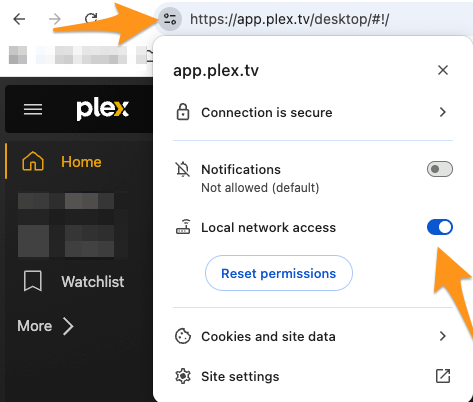
For Chrome, if you had blocked the sites access.
- While on app.plex.tv on the left side of the URL bar, hit the site settings button.
- Toggle the Local Network Access setting to the right so it is on.
The chrome browser setting where you can change for all sites behavior can be found at chrome://settings/content/localNetworkAccess
Note: if you are using MacOS or other Apple devices, then you may have to allow local access for particular apps in the devices’ own system settings.
